> For the complete documentation index, see [llms.txt](https://help.tillit.cloud/tillit/llms.txt). Markdown versions of documentation pages are available by appending `.md` to page URLs; this page is available as [Markdown](https://help.tillit.cloud/tillit/knowledge-base/setting-up-tillit/edge/datasource-templating.md).
# Datasource Templating
Often times, data tags and triggers are structured very similarly across different assets. This leads to the repetitive task of creating many data tags for each asset which are only different based on it's source address and name.
In these scenarios, it is easier to define a template which can then be assigned to an Asset & Datasource to generate the required tags. These tags can contain pattern templates such as **{{assetName}}** and **{{siteName}}** to replace with the assets name and name of the site. These variables also extend to any asset & site attribute that is defined.
| Entity | Purpose |
| ------------------------------ | --------------------------------------------------------------- |
| Datasource Template | Container for tag/trigger patterns, scoped to a datasource type |
| Datasource Template Tag | Tag pattern with name/address placeholders |
| Datasource Template Trigger | Trigger pattern linked to a tag pattern |
| Datasource Template Assignment | Binds template → asset/asset class, stores variable values |
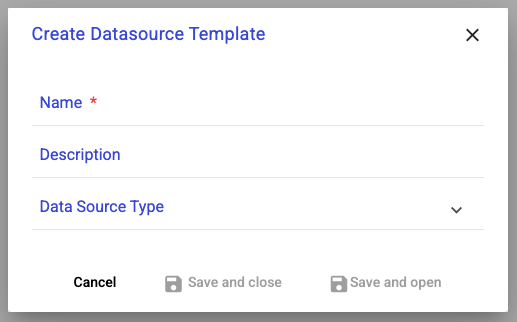
### Datasource Template
* **Name** - A name to identify the Datasource Template
* **Description** - A description to assist in explaining the use case for the Datasource Template
* **Data Source Type** - Optionally set the type of datasource this template is for. This adds an extra validation so that this template can only be used on a matching datasource. If left blank, then the template can be used on any datasource type.
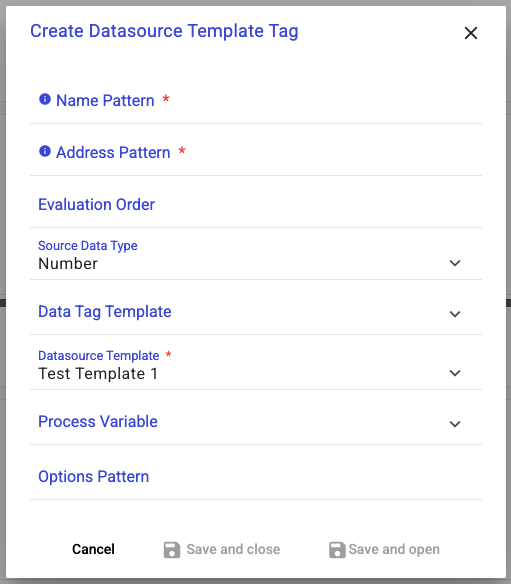
### Datasource Template Tag
* **Name Pattern** - The name of the tag to create. Make use of string templates
* '{{assetName}} Production Count'
* **Address Pattern** - The address path to read/evaluate from the datasource
* ns=2;s=\[tillit]/'{{siteName}}'/{{parentName}}/'{{assetName}}'/counter
* EVALUATE(value\['{{assetName}} Production Count'] ≠ lastValue\['{{assetName}} Production Count'])
* **Evaluation Order** - For datasources such as RTLE, the order of tag evaluations is important. Evaluation order defines the order which the tags will be evaluated so that tags with dependencies execute at the right time.
* **Source Data Type** - Define the type of data this tag will hold. Number, Text or Boolean.
* **Data Tag Template** - Pre-determined data mapping to business rules. See more [here](/tillit/knowledge-base/setting-up-tillit/edge/data-tags/data-tag-templates.md)
* **Process Variable** - Assigning a process variable will mark it as timeseries data and log data every minute.
* **Options Pattern** - special configuration tools that allow you can set to define advanced behavior. For data tag options, see [here](/tillit/knowledge-base/setting-up-tillit/edge/data-tags/edge-data-tag-options.md). Accepts a pattern template
* {"downtimeThreshold": "{{shortStopThreshold}}"}
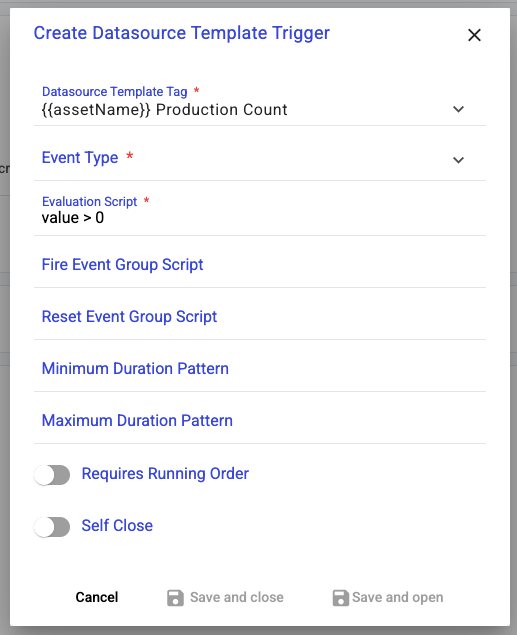
### Datasource Template Trigger
* **Event Type** - The event type that will be raised when the evaluation script becomes true
* **Evaluation Script** - An evaluation that when it goes from false to true, will trigger the event type to be raised. Accepts any pattern to replace
* tag\[''{{assetName}}' State'] == 1
* **Fire Event Group Script** -
* **Reset Event Group Script** -
* **Minimum Duration Pattern** - How long the trigger must be true for before it can be triggered. Accepts a pattern that must be a number
* '{{shortStopThreshold \* 2}}'
* **Maximum Duration Pattern** - How long the trigger can be true for before it no longer applies. Accepts a pattern that must be a number
* '{{shortStopThreshold}}'
* **Requires Running Order** - Trigger only evaluates when there is an order running on the asset.
* **Self Close** - When true and the evaluation becomes false, the event inside tillit will be marked as COMPLETED with the closedAt time. When false, the event remains ACTIVE regardless of the evaluation script.
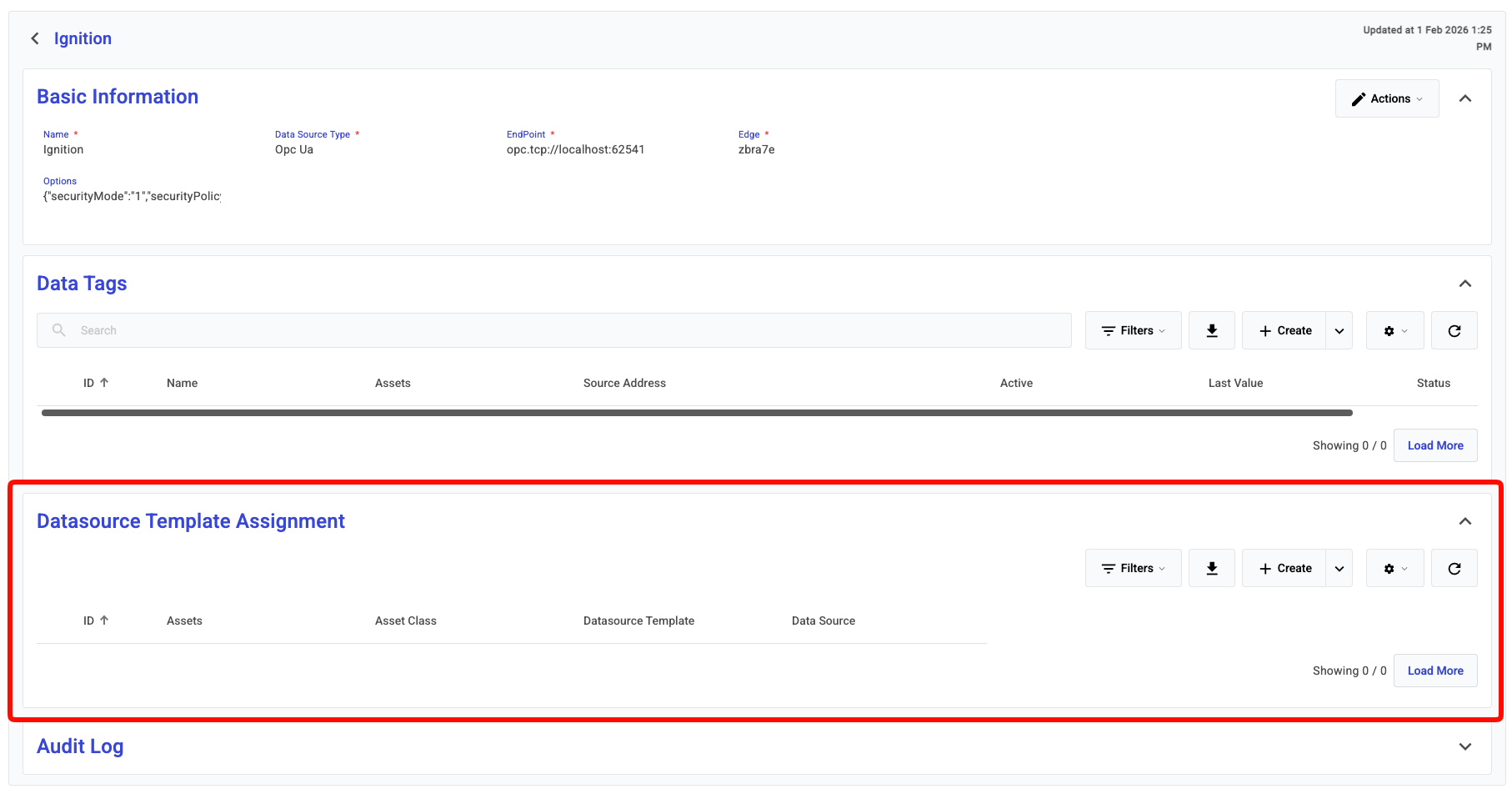
### Datasource Template Assignment
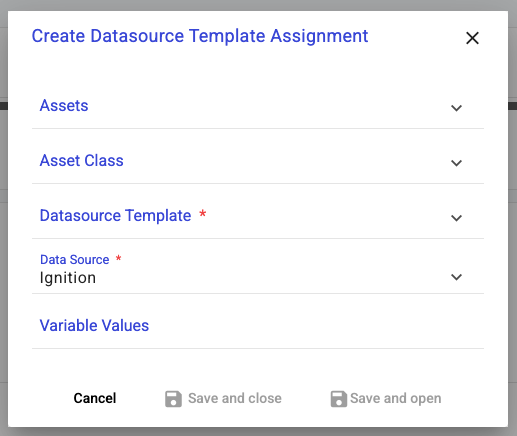
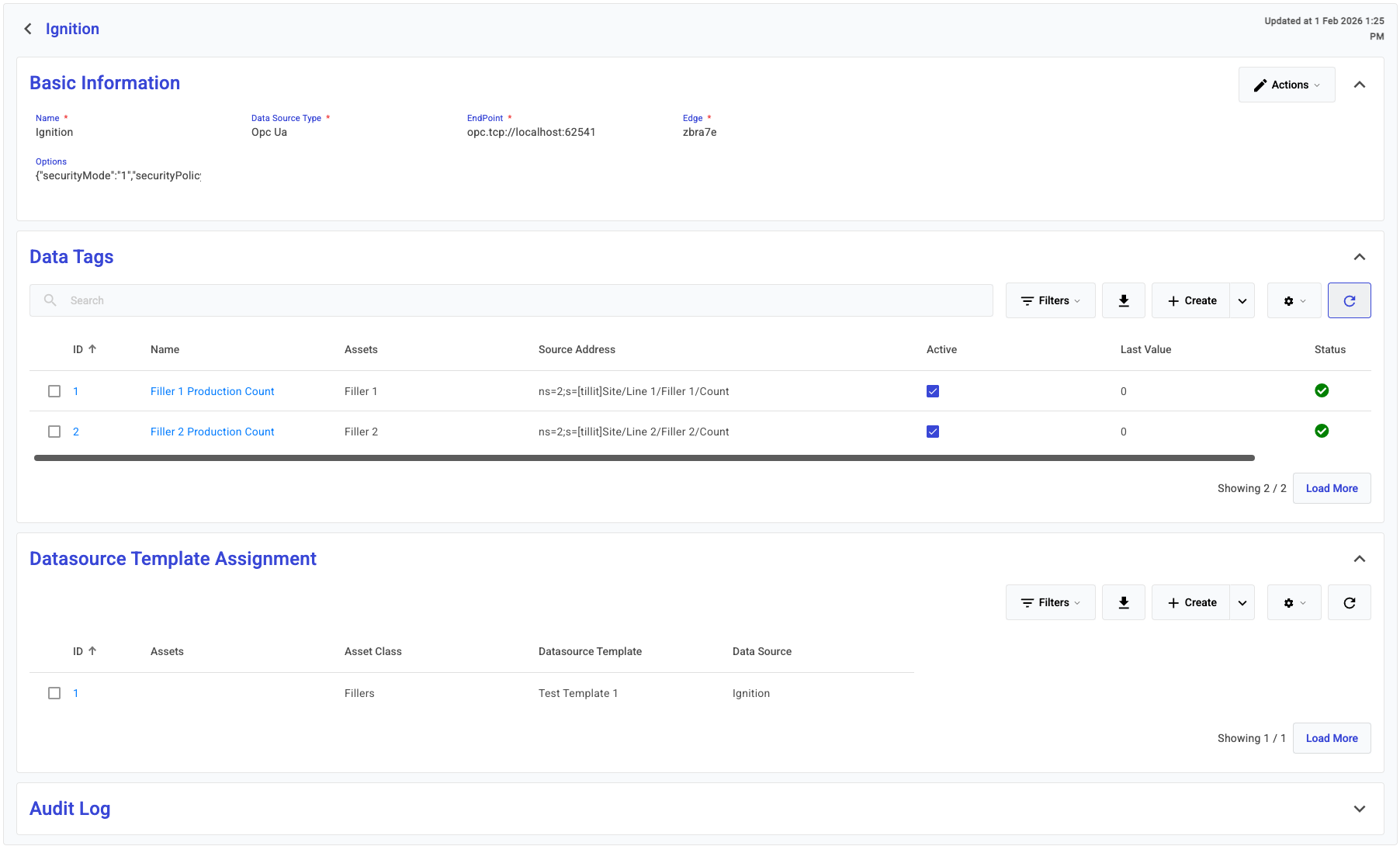
With the templates all set up, we can now assign the template to an Asset & Datasource. Navigate to the desired Edge & Datasource
* **Assets** - Select the asset this assignment should apply for.
* **Asset Class** - Select the Asset Class this assignment should apply for. This is helpful in assigning to multiple assets for a single assignment.
* **Datasource Template** - Select the template which will be used to generate the tags from.
* **Data Source** - Select the Data Source to apply the generated tags onto.
* **Variable Values** - Provide any custom variables which will be used in the pattern templating. These can override any of the asset and site attributes.
When the assignment is created, the data tags will also be generated (you may need to refresh the data tag list to see this)
### Previewing a Datasource Template Assignment
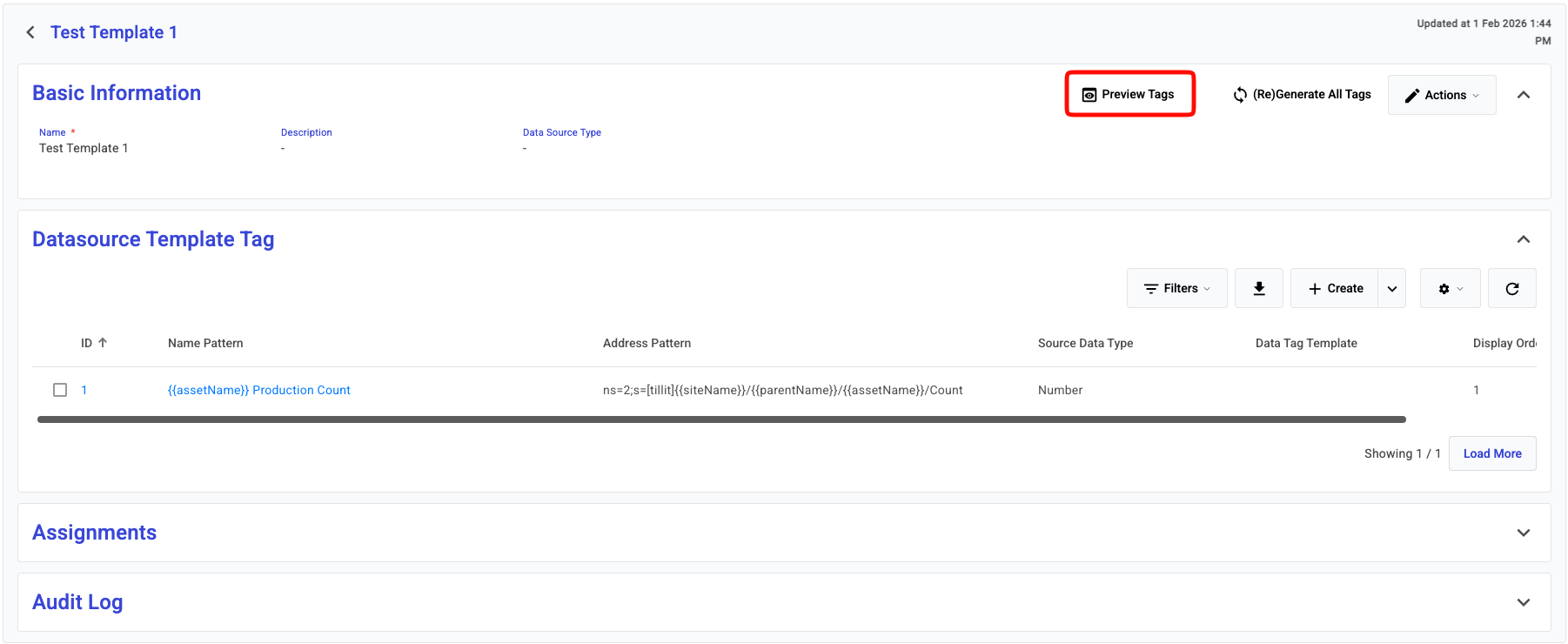
It is possible to preview what an assignment might look like before it is created. This way edge tags are not being created unnesecarily. See on the Datasource Template page the preview button
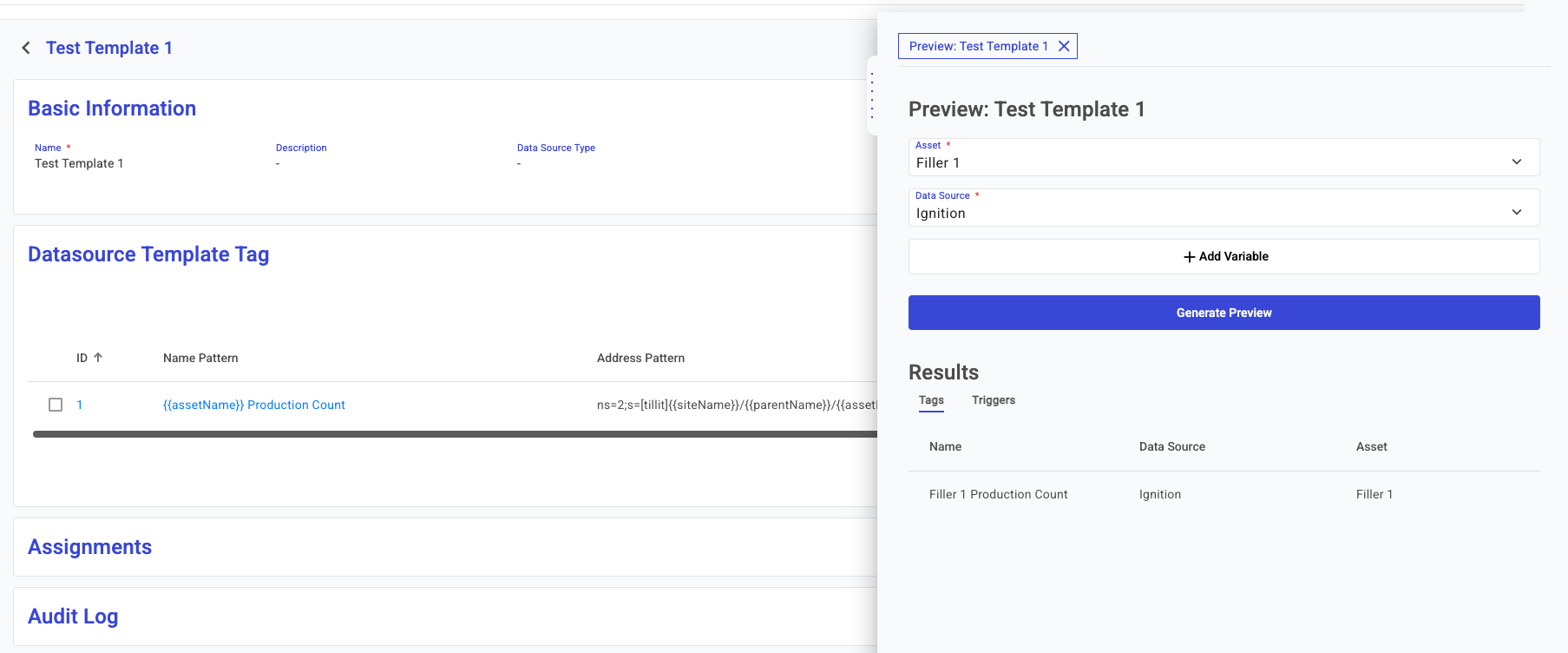
The preview page allows for an asset and datasource to preview the template on. After generating you can see the results in a tabular view. Previews do not make any modifications to the current data tags.
### Re-generating the Tags
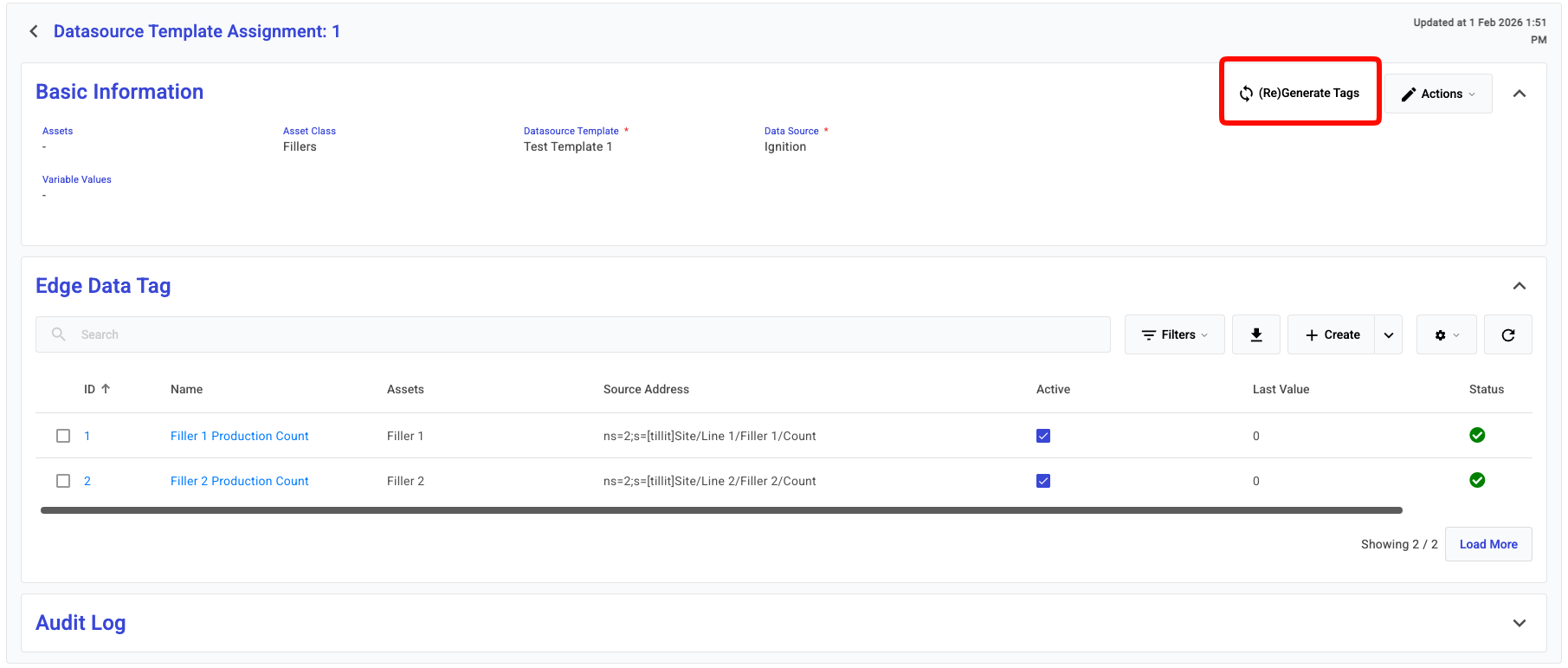
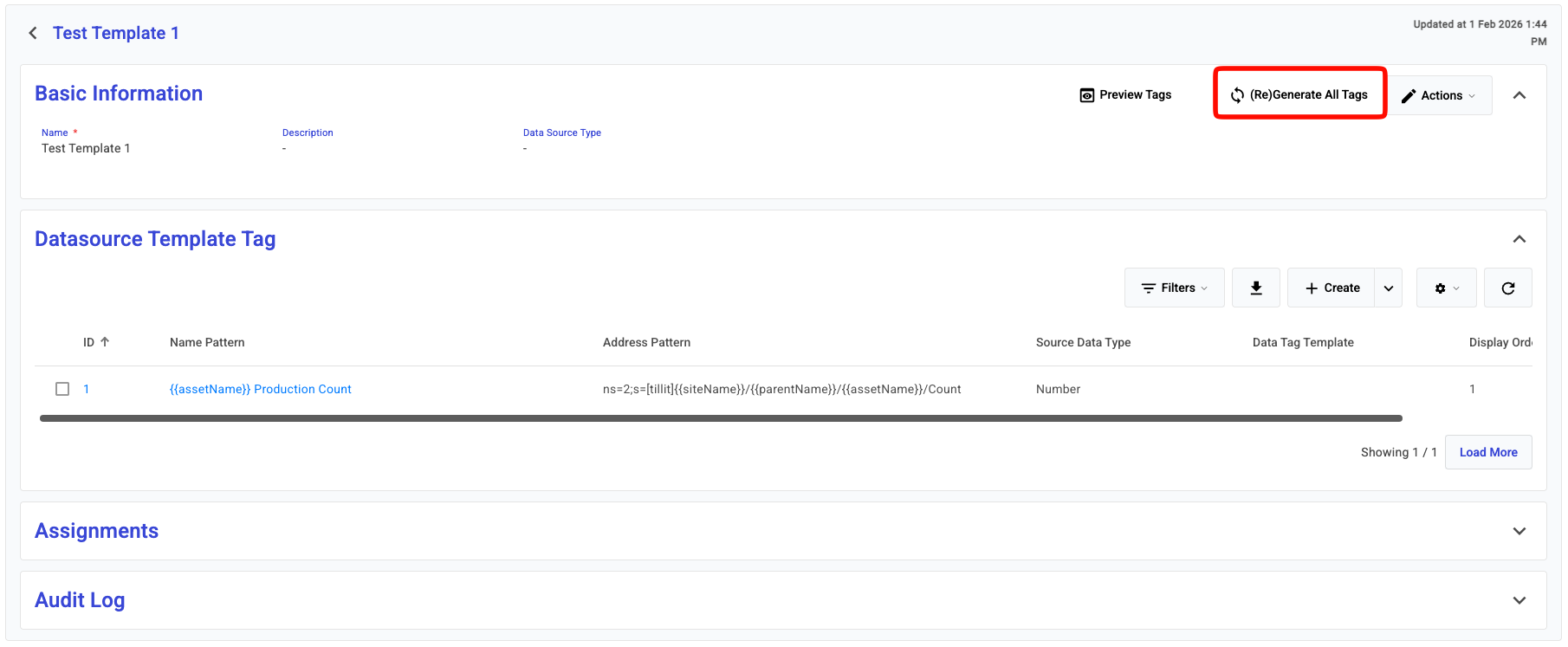
After the assignment is made, the template might get updated with a new source address path, or trigger evaluation. To apply these changes, you will need to re-generate the tags. There are two way to do this. Either you can do this per-assignment or you can re-generate for all assignment of a datasource template.
**On the Assignment**
**On the Datasource Template**
### Pattern Template Context
Fields which accept a pattern template all share the same logic and rules for templating. Each asset gets a **context** from which the variables are derrived. A variable is always enclosed with double curly brackets **{{examplePattern}}** which makes up a pattern. A pattern can also include basic math operations such as **{{shortStopThreshold - 1}}**. The available variables are shown below
```
assetName
assetDisplayName
assetExternalId - Only the first externalId in the list is used
parentName
parentDisplayName
parentExternalId - Only the first externalId in the list is used
siteName
tenantName
shortStopThreshold - Defined on the Asset Profile
```
In addition to this, all Asset Attributes and Site Attributes and any Custom Variable on the assignment can be used in the template.