> For the complete documentation index, see [llms.txt](https://help.tillit.cloud/tillit/llms.txt). Markdown versions of documentation pages are available by appending `.md` to page URLs; this page is available as [Markdown](https://help.tillit.cloud/tillit/knowledge-base/shifts.md).
# Shifts
Shift Planning in TilliT allows you to visualize and plan your production shifts in advance
### Navigation
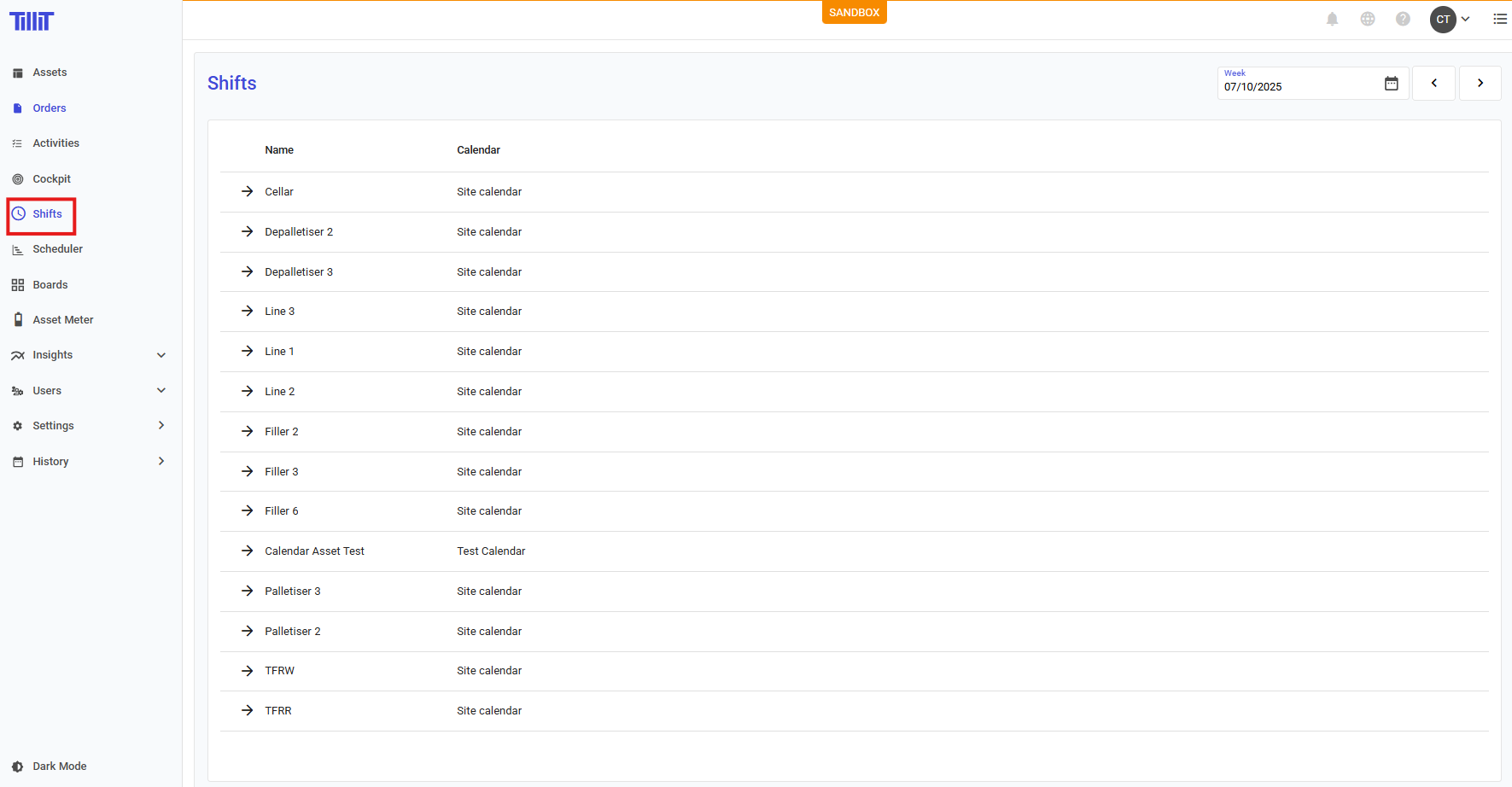
* Click **Shifts** in the left sidebar
* You'll see a list of your assets
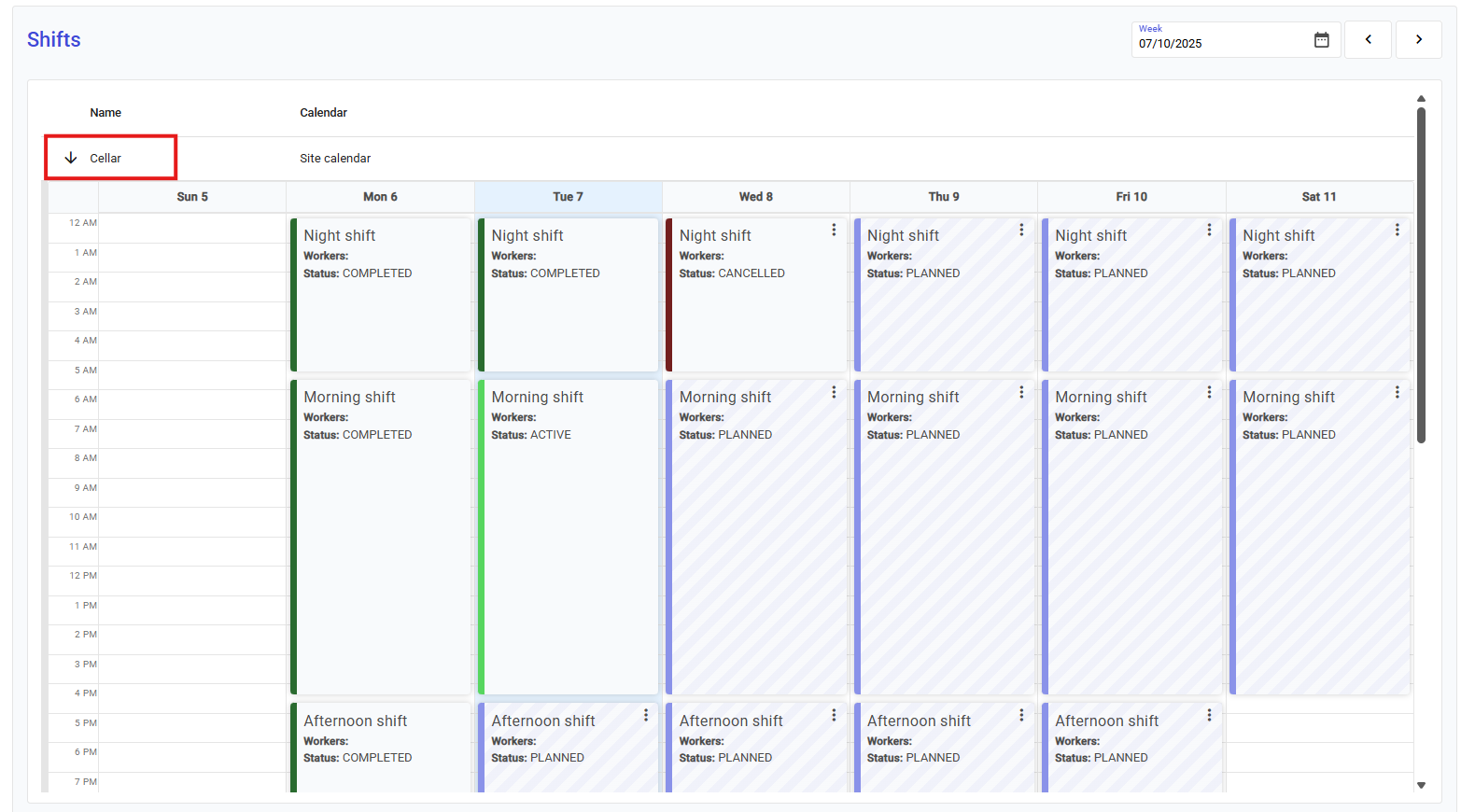
* Click on an asset name to open its shift calendar
The calendar displays shifts based on:
* **Shift Templates** you've configured for the asset
* **Calendar** assigned to that asset
### Understanding Shift Statuses
Shifts in TilliT automatically progress through different statuses:
#### **PLANNED** (Default Status)
* Shifts that are scheduled for the future
* Auto-generated from your shift templates
* Can be modified before they start
* Have planned start/end times but no actual execution times
#### **CONFIRMED**
* PLANNED shifts that you've reviewed and confirmed
* Allow you to override auto-filled information
* Still haven't started, but are locked in as approved
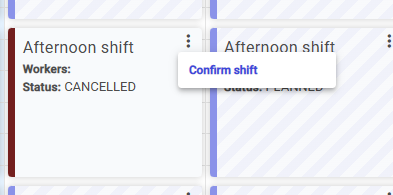
* You can reverse a cancelled shift by confirming it again
* It is kept for scheduling records
#### **ACTIVE**
* Shifts currently in progress
* Have actual start times recorded
* Track production events and progress
* Cannot be manually set, shifts become ACTIVE automatically when their start time arrives or if you start them from the asset.
#### **COMPLETED**
* Shifts whose end time has passed
* **Cannot be changed** once completed
* Have recorded actual start and end times
* Associated with production metrics and events
#### **CANCELLED**
* Shifts that were planned but won't happen
* Removed from active production tracking
* Can be reversed by confirming the shift again
### Working with PLANNED Shifts
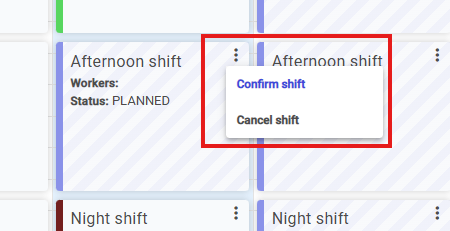
When viewing a PLANNED shift, you have two options:
#### Confirm a Shift
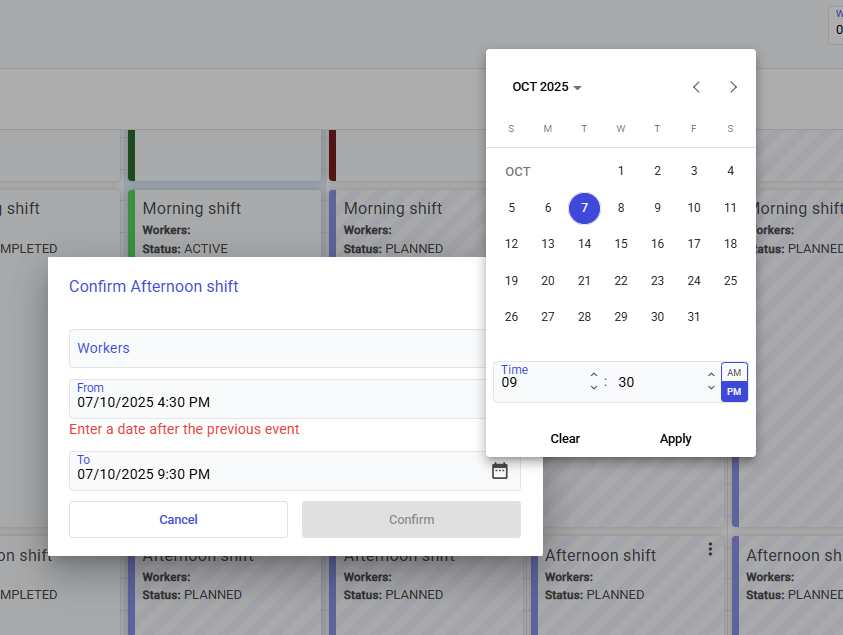
Confirming a shift allows you to:
* Review and approve the shift before it starts
* **Override auto-filled information** including:
* Number of workers assigned
* Start time (From)
* End time (To)
* Lock in the shift as approved for production
**When to confirm:**
* You've verified the shift details are correct
* You need to adjust worker allocation
* You want to modify the timing from the template default
#### Cancel a Shift
Cancelling removes a shift from your production schedule:
* Use this when a shift won't be needed (e.g., scheduled maintenance, low demand)
* The shift remains in the system but won't affect production planning
* **This action can be reversed** by confirming the shift again
### Locking a Shift
Once you lock a completed shift, all events, activities and orders’ details cannot be changed or reissued. You can only lock completed shifts.
### Important Behaviours
#### Shift Continuity
* If you start a shift with the same name within 24 hours of a previous shift ending, the system will **extend the existing shift** rather than create a new one
* This prevents duplicate shifts and maintains continuous production tracking
#### Shift Validation
* Only one shift per asset per day with the same name can be ACTIVE
* Shifts cannot overlap on the same asset
#### What CONFIRMED and CANCELLED Shifts Don't Do
* They **don't count as running shifts** for production tracking
* They **don't associate with production events**
* They **don't prevent new shifts from starting**
* They **don't trigger target calculations** or order progress updates
#### What Happens When Time Arrives
* PLANNED or CONFIRMED shifts automatically become ACTIVE when their start time is reached
* Once ACTIVE, shifts begin tracking actual production data
* When the end time passes, shifts automatically become COMPLETED