> For the complete documentation index, see [llms.txt](https://help.tillit.cloud/tillit/llms.txt). Markdown versions of documentation pages are available by appending `.md` to page URLs; this page is available as [Markdown](https://help.tillit.cloud/tillit/knowledge-base/everyday-usage/downtime-table.md).
# Downtime Table
## Navigation
### Through an Order
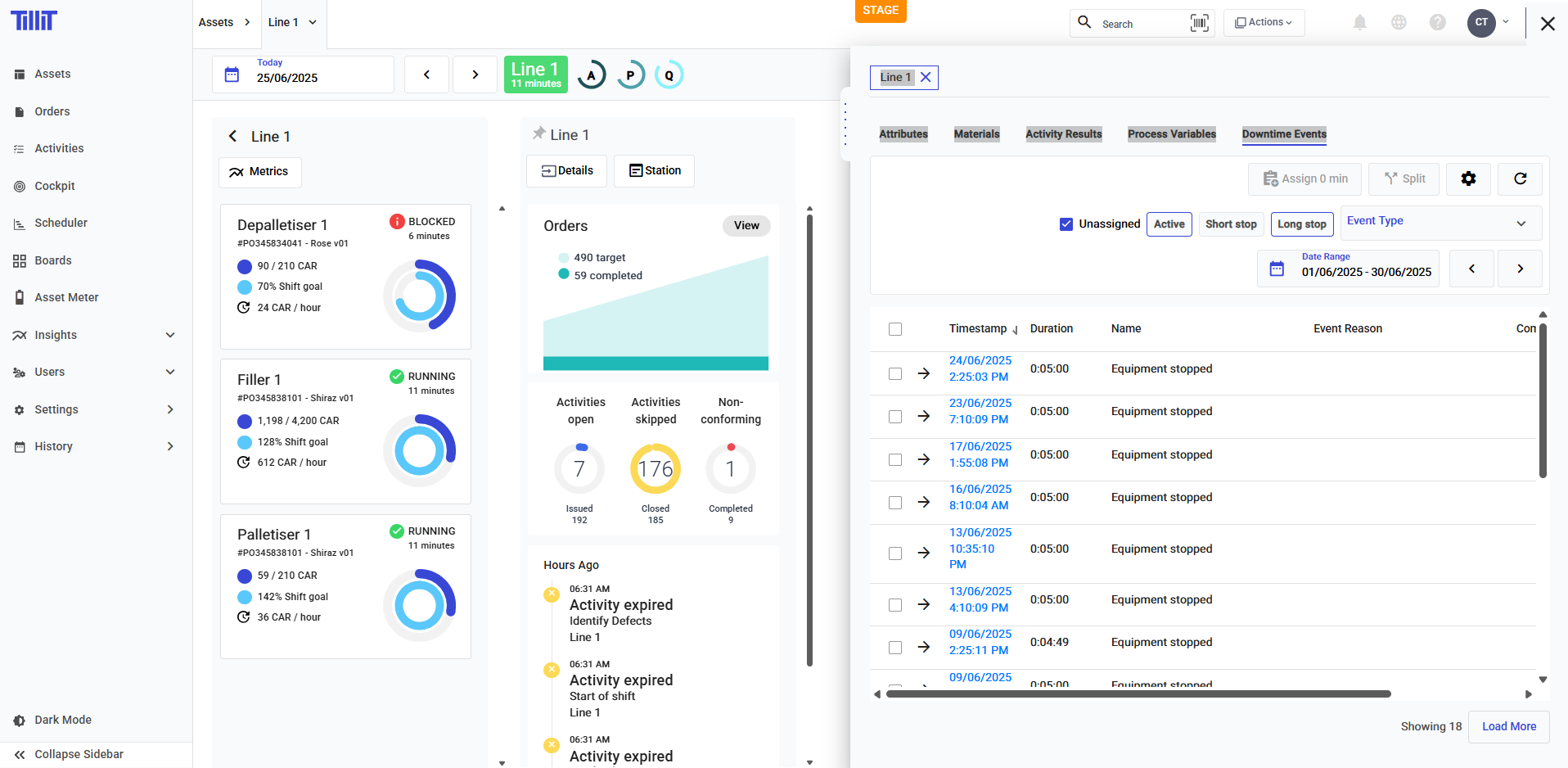
Click on Details under the order's name, then the Details panel will open. Click on "Downtime Events", which will open the downtime table filtered by that order.
### Through an Asset
Click on Details under the asset's name, then the Details panel will open. Click on "Downtime Events", which will open the downtime table filtered by that asset.
## Filtering
### By stop duration
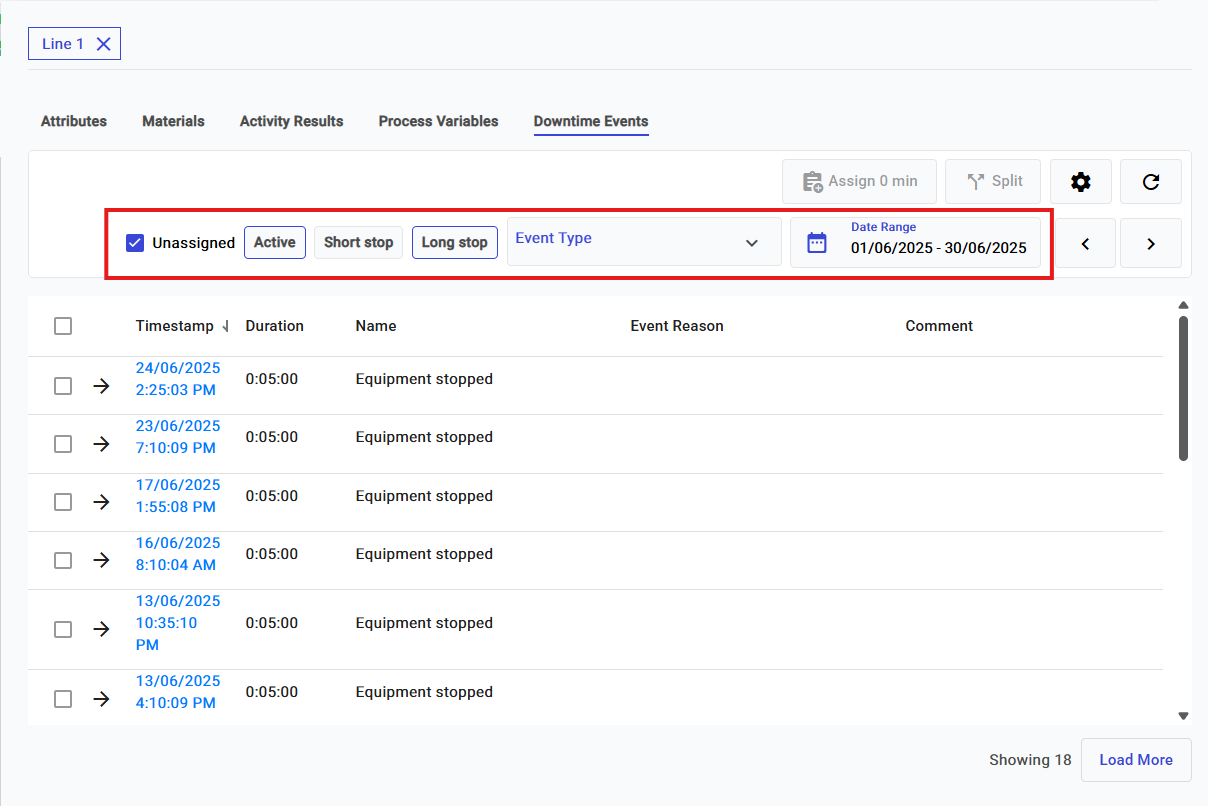
If the stop duration filter isn't chosen, the events of that duration will not show
* **Active:** a stop that is currently active. There should be one at any point in time if viewed through an Asset.
* **Short stop:** Events that are under the "Short Stop Threshold" applied to the asset it occurs to. You can configure the short stop threshold by creating an [Asset Profile](/tillit/knowledge-base/setting-up-tillit/asset-hierarchy/asset-profile.md) and attaching it to the asset.
* **Long stop:** Events that occur for longer than the short stop threshold.
### Event type
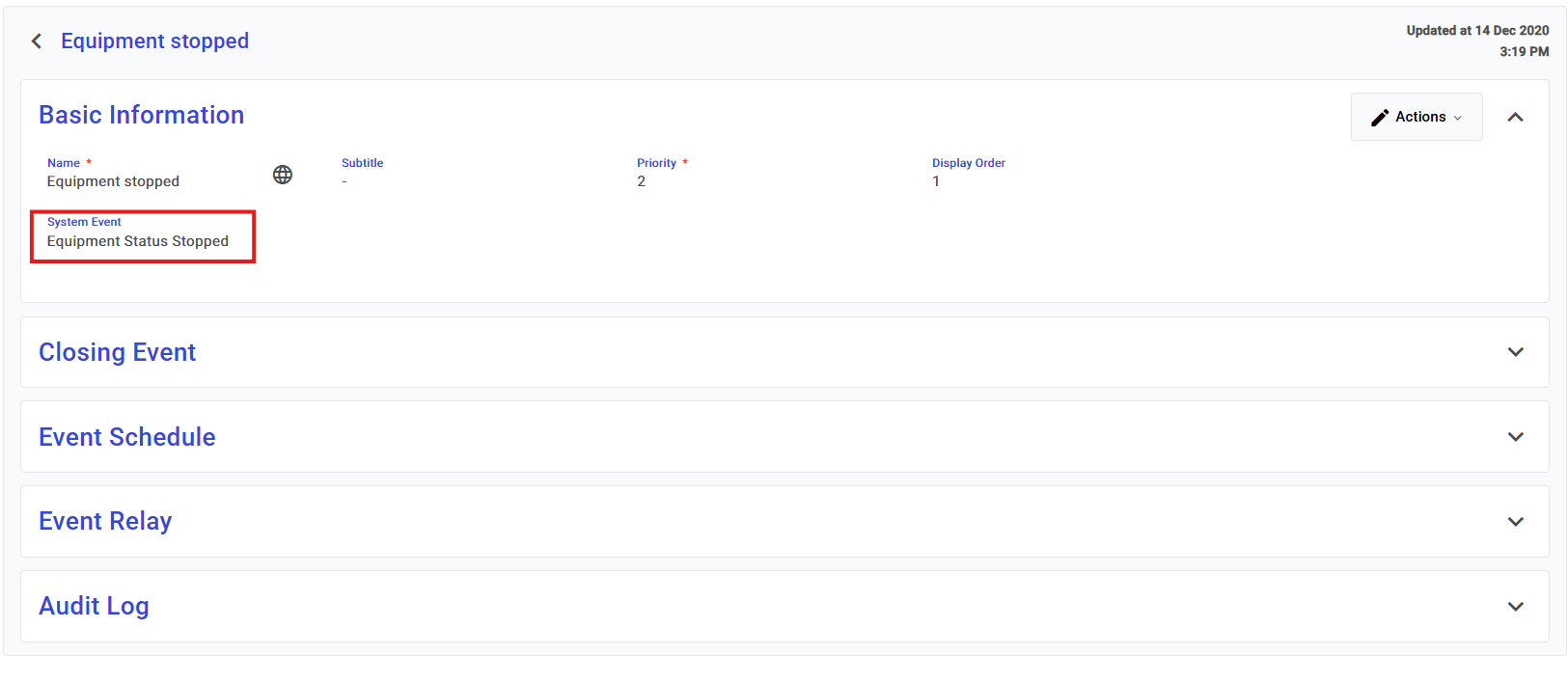
Event types that were raised. It is important to note that only events with event types that have the System Event "Equipment Status Stopped" will show up on the table.
## Managing Downtime
### Assigning reasons
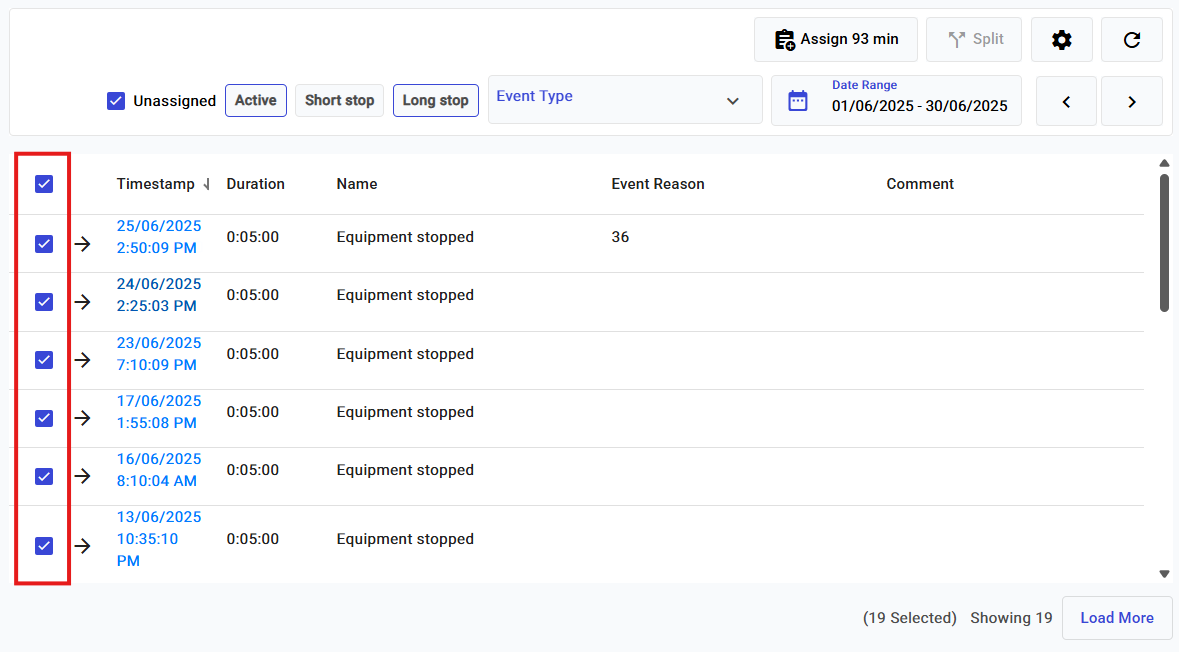
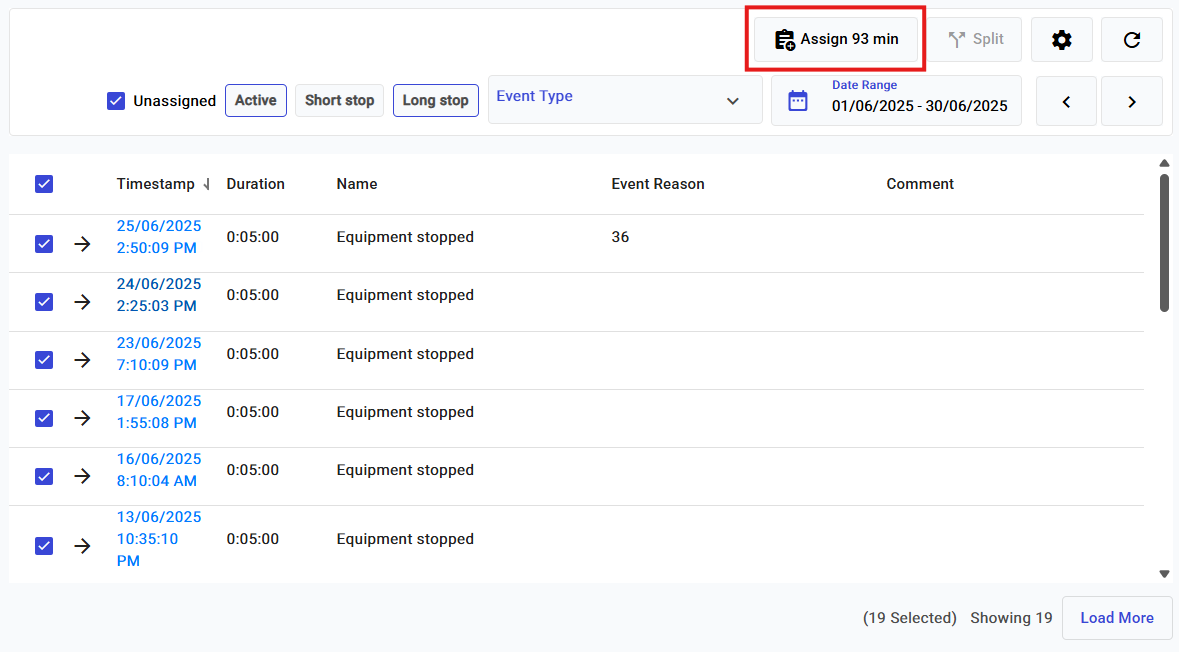
You can assign to one or multiple reasons, simply by selecting the rows.
You can also select all by clicking on the checkbox on the header row.
Then, clicking on Assign, which also displays the total duration of downtime you had selected.
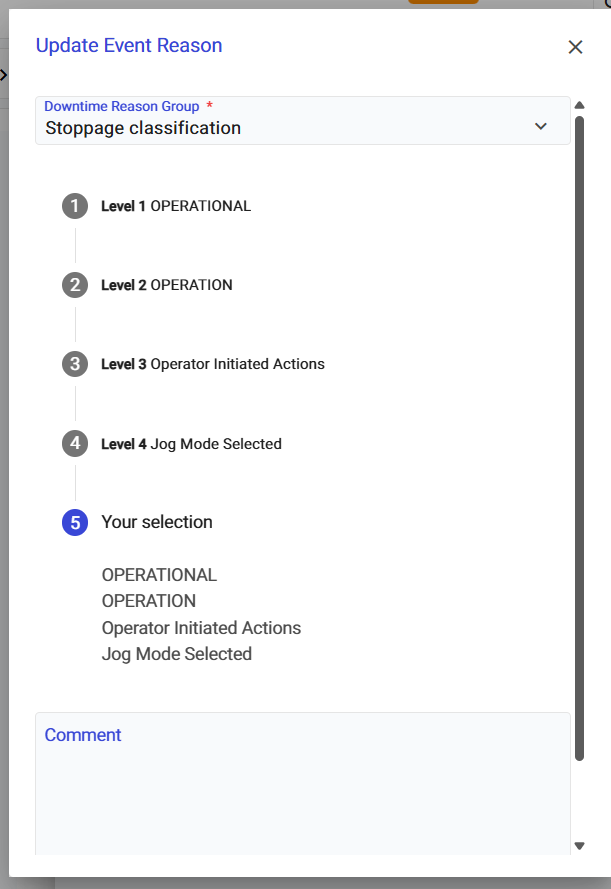
Then either choose your Downtime Reason Group, which is a type of [Option list](/tillit/knowledge-base/setting-up-tillit/activity-templates/activity/elements/data-types/option-list.md). Or if you had configured a Machine Group for your Asset, then this list will automatically be used for assignment.
After choosing your reason, the events will now be marked as "Assigned".
### Adding a comment to a downtime event
When assigning a reason, you can also add a **comment** to the event to provide additional context — for example, describing the cause of the stoppage.
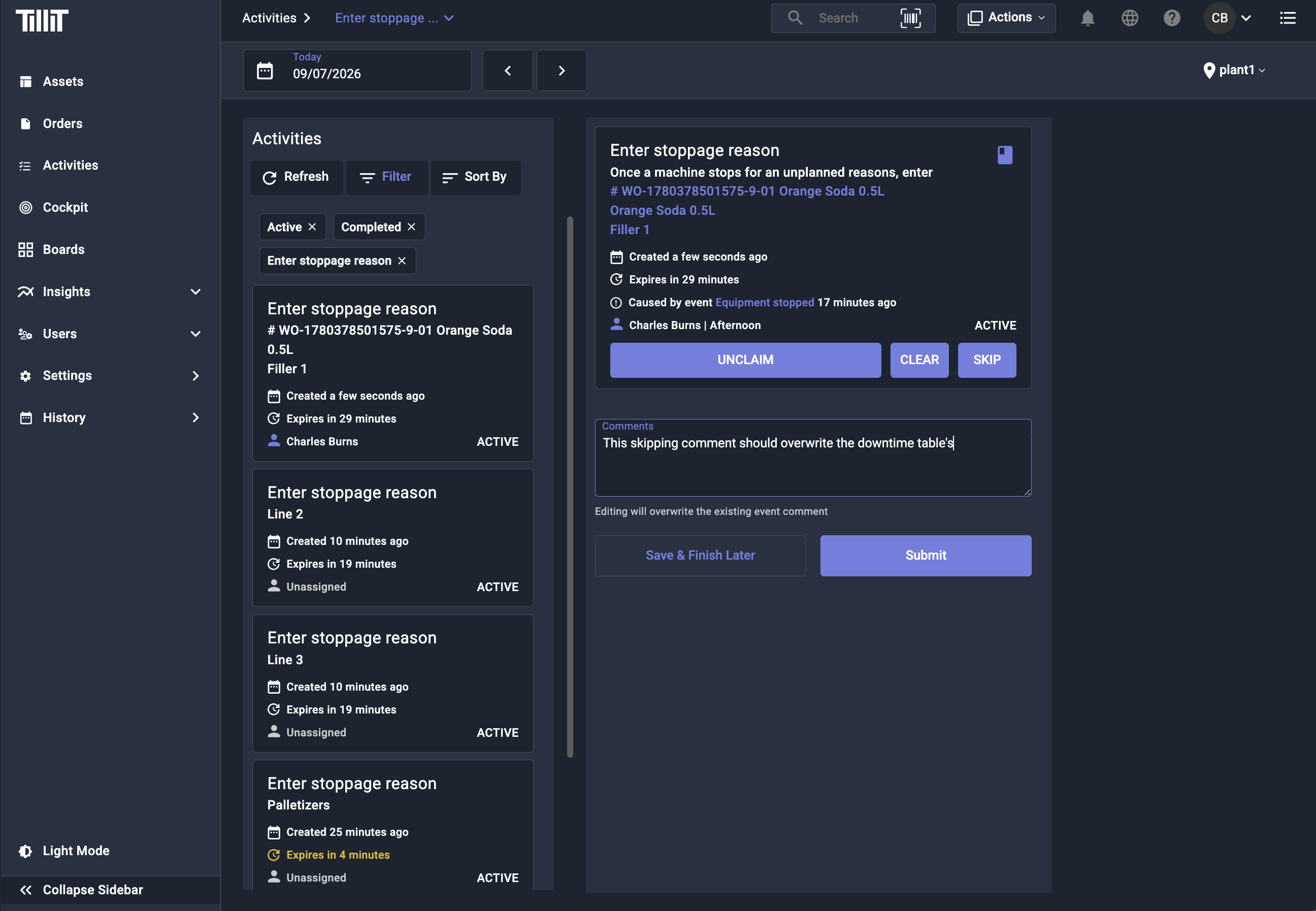
This comment is shared with the operator through the activity form. When an operator opens an activity that was generated by the same downtime event, both the **reason** (Downtime Type option) and the **comment** are prefilled from the event.
{% hint style="info" %}
If the operator edits the prefilled comment and submits the activity, their comment overwrites the event comment. If they leave the comment field unchanged, the existing event comment is preserved.
{% endhint %}
When an operator **skips** an activity with a comment, that skip comment is also written back to the downtime event, so it appears in the Downtime Table.
### Recent reasons
When assigning a reason, the assign modal shows up to 3 recently used reason and comment combinations as clickable pills at the top. Clicking a pill pre-fills the reason tree, machine selection (where applicable), and comment, so a repeated classification can be applied without navigating the reason tree again.
For reasons that require a machine, a separate row of recent machine pills is shown above the machine selector, letting the machine be re-applied independently.
{% hint style="info" %}
Recent reasons and machines are remembered per asset and per user, and persist across sessions.
{% endhint %}
### Recording a downtime manually
A downtime can also be created and classified in one step through the Downtime Record activity, without waiting for a sensor-triggered event. Submitting the activity with a reason, start time, and end time creates a single classified downtime event, updates the asset status timeline with the corresponding downtime segment, and reduces OEE Availability for that duration.
{% hint style="info" %}
A submission that duplicates or overlaps an existing downtime window, or that falls outside the asset's configured shift, is rejected.
{% endhint %}
### Split events
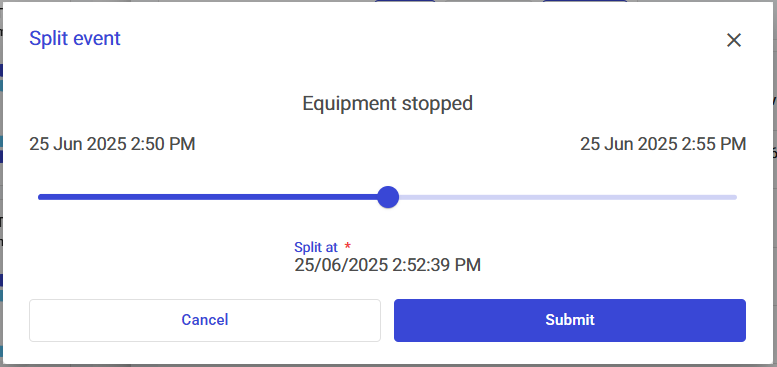
Select the event you want to split. Then click "Split".
It will automatically be set at the halfway point, then you can either choose the slider or the date picker to choose the split point.
After submitting, your one event should be split into two events.
## Other features
### Show/hide columns
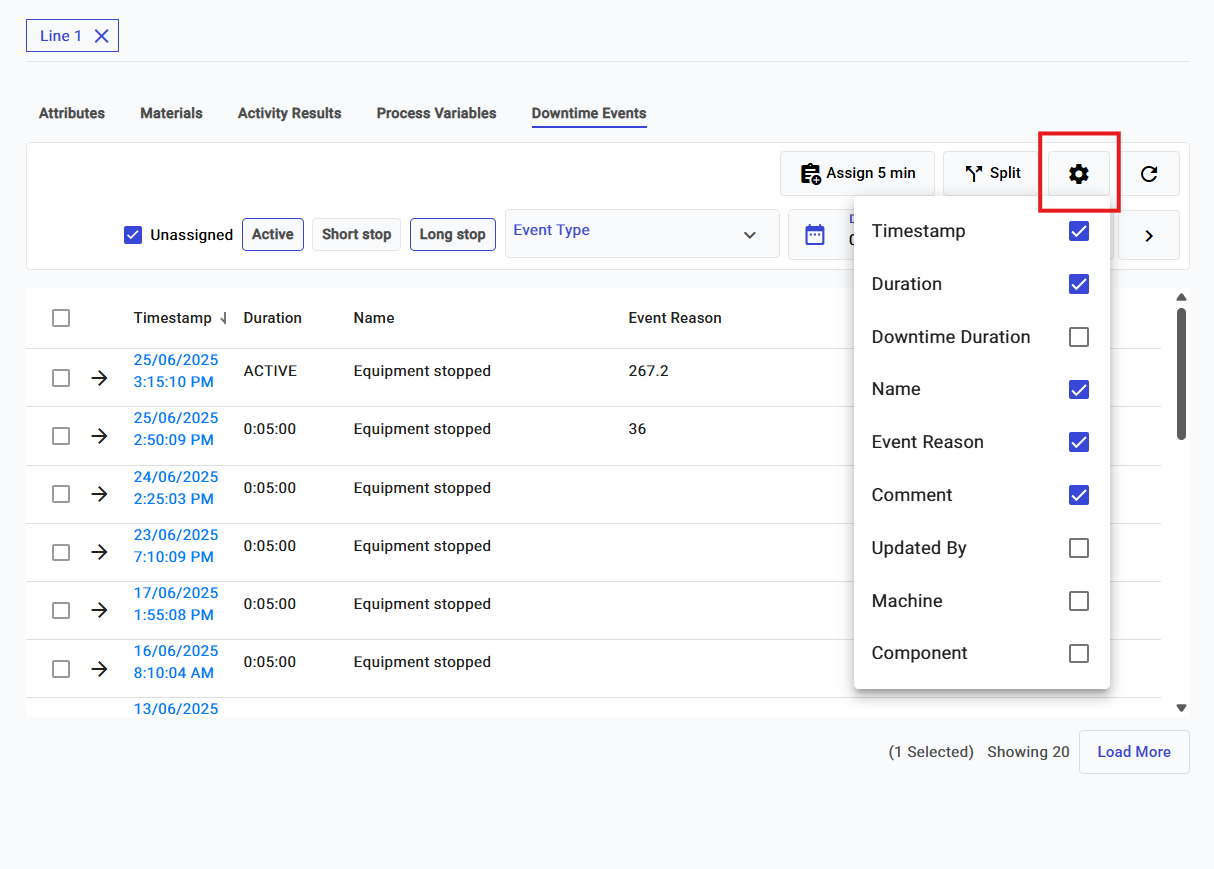
Choose which columns you want to show or hide on the table.