> For the complete documentation index, see [llms.txt](https://help.tillit.cloud/tillit/llms.txt). Markdown versions of documentation pages are available by appending `.md` to page URLs; this page is available as [Markdown](https://help.tillit.cloud/tillit/knowledge-base/setting-up-tillit/integrations/api-access-keys.md).
# API Access Keys
Create and manage OAuth 2.0 API keys that allow external systems to authenticate against the TilliT API.
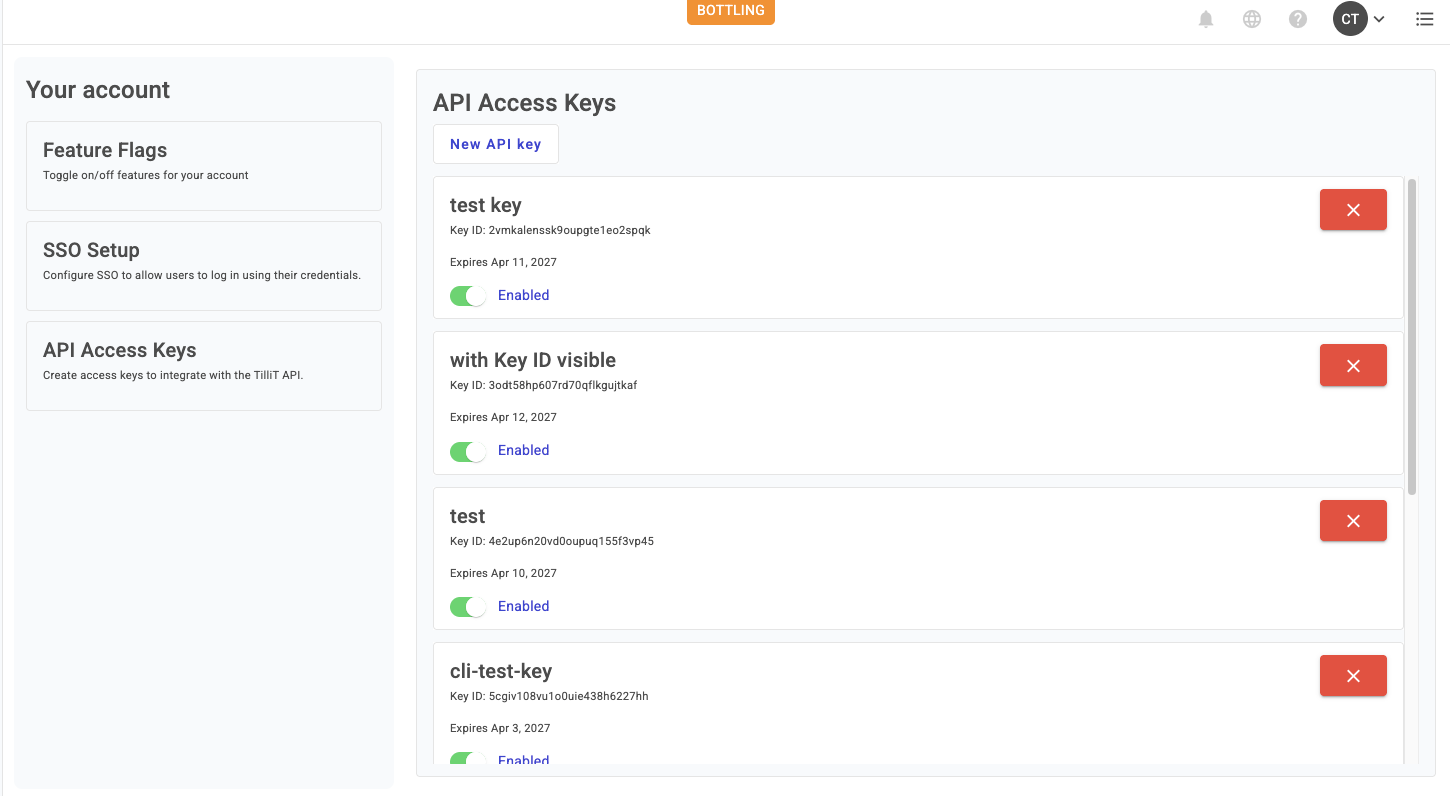
API Access Keys allow tenant admins to generate credentials for external systems to authenticate against the TilliT API without requiring a user account. Keys are managed from Account Settings.
## Overview
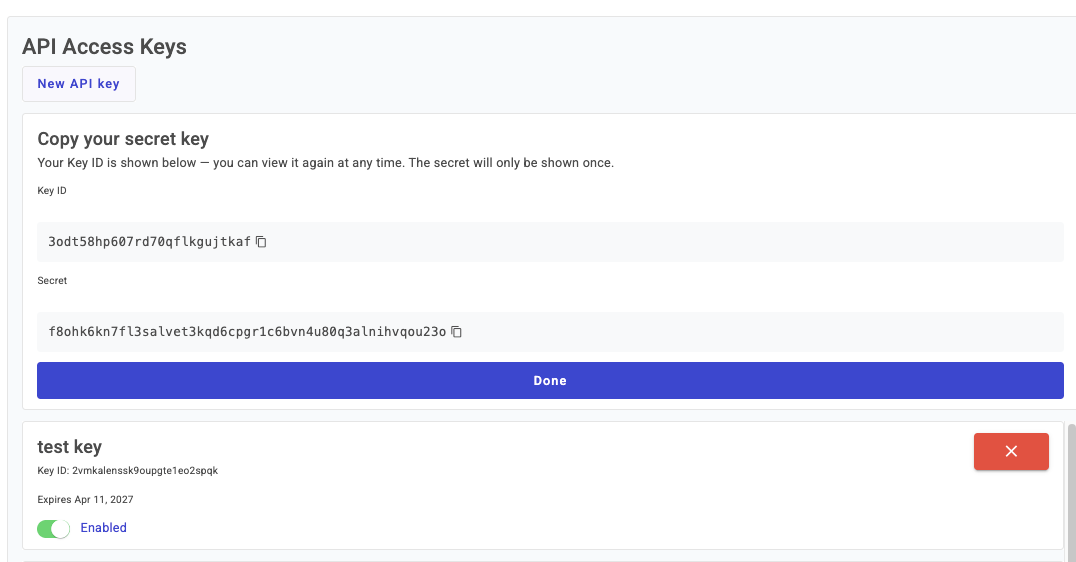
Each API access key has a name, one or more scopes, an expiration date, and an enabled/disabled status. The **client secret** is shown once immediately after creation — it cannot be retrieved again, so it must be copied and stored securely at that time.
Navigate to ***Account Settings > API Access Keys*** by clicking the account icon in the top-right corner.
## Create a Key
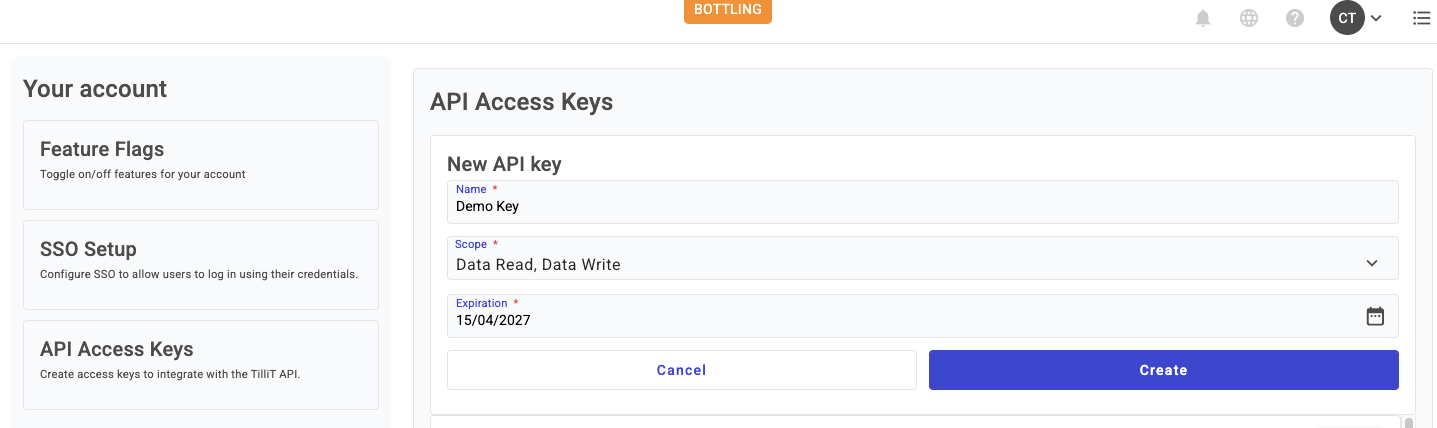
1. Click ***New API key***.
2. Fill in the required fields (see [Fields](#fields) below).
3. Click ***Create***.
4. Copy the **Key ID** and **Secret** from the confirmation card, then click ***Done***.
{% hint style="warning" %}
The client secret is only shown once. Store it securely before clicking ***Done*** — it cannot be retrieved after this step.
{% endhint %}
The new key appears in the list with its name, Key ID, expiration date, and enabled status.
### Fields
| Field | Description |
| ---------------- | ---------------------------------------------------------------- |
| **Name**\* | A descriptive label for the key. |
| **Scope**\* | The permissions granted to the key (e.g. Data Read, Data Write). |
| **Expiration**\* | The date after which the key will no longer be valid. |
\* Required field
## Enable or Disable a Key
Toggle the switch on any key in the list to enable or disable it. The change takes effect immediately.
## Using a key to retrieve a token
An API Key is used to exchange a long-lived secret for a short-lived access token which will then be used for ongoing machine-to-machine communication. Once this short-lived token expires, you will need to re-authenticate to generate a new token.
1. Request an Access Token from our authentication provider, AWS Cognito. The following is an example request payload you need to send. Ensure ``, ``, ``, `` and `` are replaced with your specific details.
```
curl -s -X POST \
"https://tillit--.auth..amazoncognito.com/oauth2/token" \
-u ":" \
-d grant_type=client_credentials \
--data-urlencode "scope=api/*.read api/*.write"
env - development,stage,production
AUS region - ap-southeast-2
EU Region - eu-central-1
US Region - us-east-2
Example Response
{"access_token":"","expires_in":86400,"token_type":"Bearer"}
```
2. Now the access token can be used to authenticate against standard TilliT endpoints
```
curl -s https://tillit-stage.cloud/api/core/assets \
-H "Authorization: Bearer " \
-H "Tillit-Tenant: "
```
3. As the result of Step 1 implied, this short-lived token will eventually expire. It's up to you to check before each request if the token is expired or near expiry. If it is, simply repeat step 1 to retrieve a new token.
## Delete a Key
Click the ***✕*** button on a key and confirm the dialog. The key is permanently removed and can no longer be used to authenticate.