> For the complete documentation index, see [llms.txt](https://help.tillit.cloud/tillit/llms.txt). Markdown versions of documentation pages are available by appending `.md` to page URLs; this page is available as [Markdown](https://help.tillit.cloud/tillit/knowledge-base/setting-up-tillit/edge/tillit-sensors/connect-tillit-edge-to-a-wireless-gateway.md).

# Connect TilliT Edge to a Wireless Gateway

Once the TilliT Edge is operational, you will want to connect it to the wireless gateway. To do so, you will need to decide how the wireless gateway will connect to the edge. See below for how this can be done.

![](https://s3.amazonaws.com/helpscout.net/docs/assets/60208fd212248b2c96d50eeb/images/6181cbac12c07c18afde3d21/file-C5PJHvhYMj.png)

TilliT Edge is shipped for this architecture out of the box. By connecting the Wireless Gateway to the TilliT Edge device on Port B, the devices will be able to communicate with each other. If using this method, skip to configuring TilliT where the IP address of the Wireless Gateway is 10.10.0.5.

![](https://s3.amazonaws.com/helpscout.net/docs/assets/60208fd212248b2c96d50eeb/images/6181cbcd2b380503dfe00dff/file-hfYotmTFjL.png)

If your install requires this architecture, then small adjustements will need to be made to ensure TilliT Edge can communicate with the wireless gateway. To do so, you must consult with your IT team to determine if the device will need a static or DHCP IP. Follow the relevant steps below

### Static IP

1\. Navigate to System Config

![](https://s3.amazonaws.com/helpscout.net/docs/assets/60208fd212248b2c96d50eeb/images/61830842efc78d0553e56892/file-nCSrgJjBOt.jpg)

2\. Select Ethernet

![](https://s3.amazonaws.com/helpscout.net/docs/assets/60208fd212248b2c96d50eeb/images/6183087b2b380503dfe01404/file-L0dKohR52j.jpg)

3\. The default is for DHCP to be off, leave this as it is. Now set the IP, Subnet(SN) and Gateway (GW) according to your LAN settings.

![](https://s3.amazonaws.com/helpscout.net/docs/assets/60208fd212248b2c96d50eeb/images/618308dd0332cb5b9e9baa98/file-BSHqDXJi35.jpg)

### DHCP

1\. Navigate to System Config

![](https://s3.amazonaws.com/helpscout.net/docs/assets/60208fd212248b2c96d50eeb/images/61830842efc78d0553e56892/file-nCSrgJjBOt.jpg)

2\. Select Ethernet

![](https://s3.amazonaws.com/helpscout.net/docs/assets/60208fd212248b2c96d50eeb/images/6183087b2b380503dfe01404/file-L0dKohR52j.jpg)

3\. Select DHCP and set it to the on position. A restart of the device is required.![](https://s3.amazonaws.com/helpscout.net/docs/assets/60208fd212248b2c96d50eeb/images/618308dd0332cb5b9e9baa98/file-BSHqDXJi35.jpg)

![](https://s3.amazonaws.com/helpscout.net/docs/assets/60208fd212248b2c96d50eeb/images/618309d1efc78d0553e5689b/file-PUhERVp434.jpg)

4\. Return to the Ethernet sceen to check for the assigned IP of the device.

### Configure TilliT

Now that TilliT Edge and Wireless Gateway are able to see each other, TilliT Edge needs to be configured to connect to the Gateway. Follow these steps.

1\. Navigate to Settings -> Edge and select the TilliT Edge that will connect to the wireless gateway.

<figure><img src="https://s3.amazonaws.com/helpscout.net/docs/assets/60208fd212248b2c96d50eeb/images/6181c7409ccf62287e5f2615/file-oqvLMdOiTU.png" alt=""><figcaption></figcaption></figure>

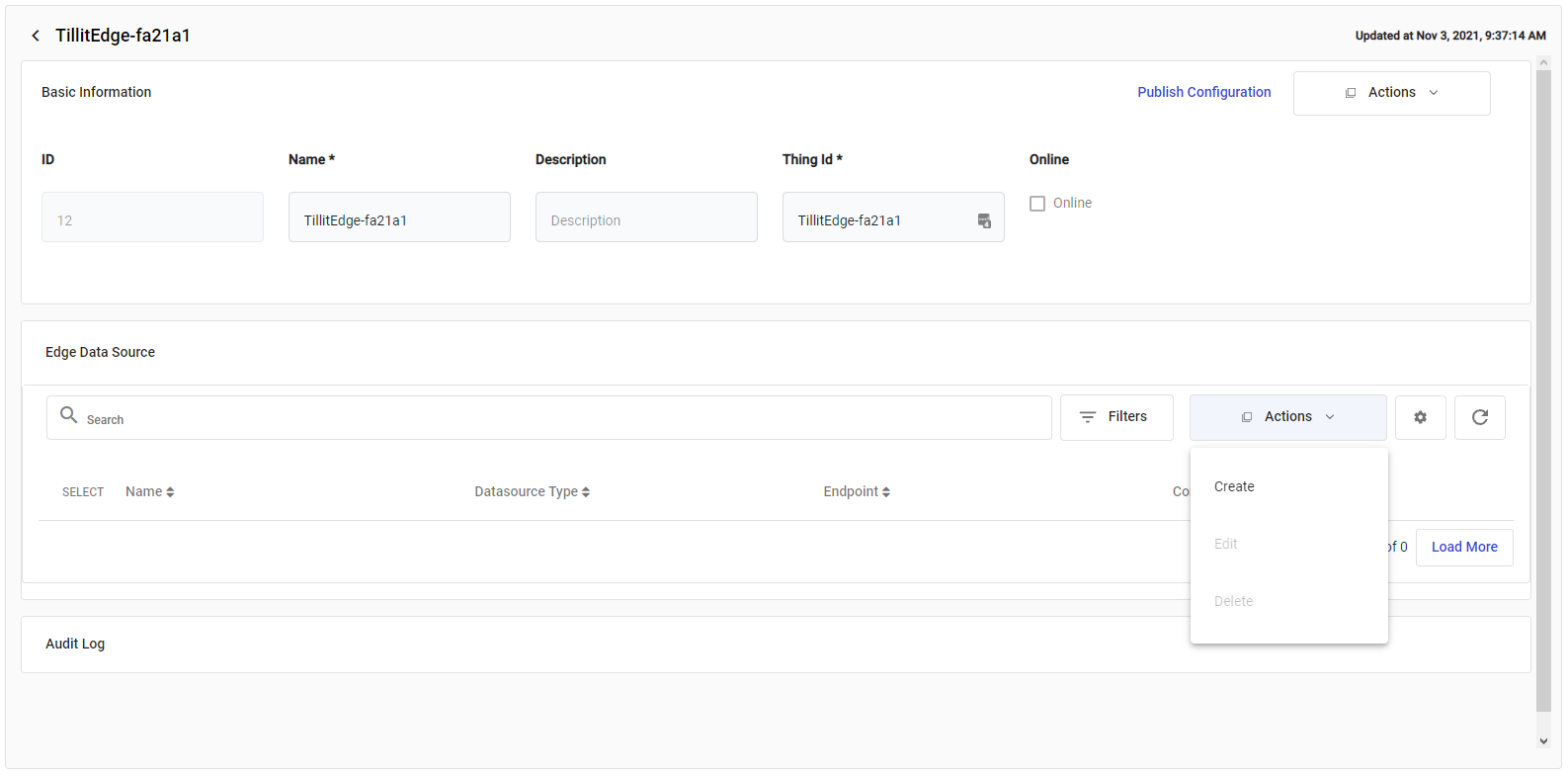
2\. Create a new Edge Data Source, replace the endpoint with the IP of the wireless gateway that you have configured.(Remember the default is 10.10.0.5 when directly connected)![](https://s3.amazonaws.com/helpscout.net/docs/assets/60208fd212248b2c96d50eeb/images/6181c8aa12c07c18afde3d09/file-W6slBIa0jG.png)

3\. Click on save. The next thing to do is to update TilliT Edge with the new configuration by pressing the Publish Configuration button.

<figure><img src="https://s3.amazonaws.com/helpscout.net/docs/assets/60208fd212248b2c96d50eeb/images/6181c90e12c07c18afde3d0b/file-ogvUYALLNd.png" alt=""><figcaption></figcaption></figure>

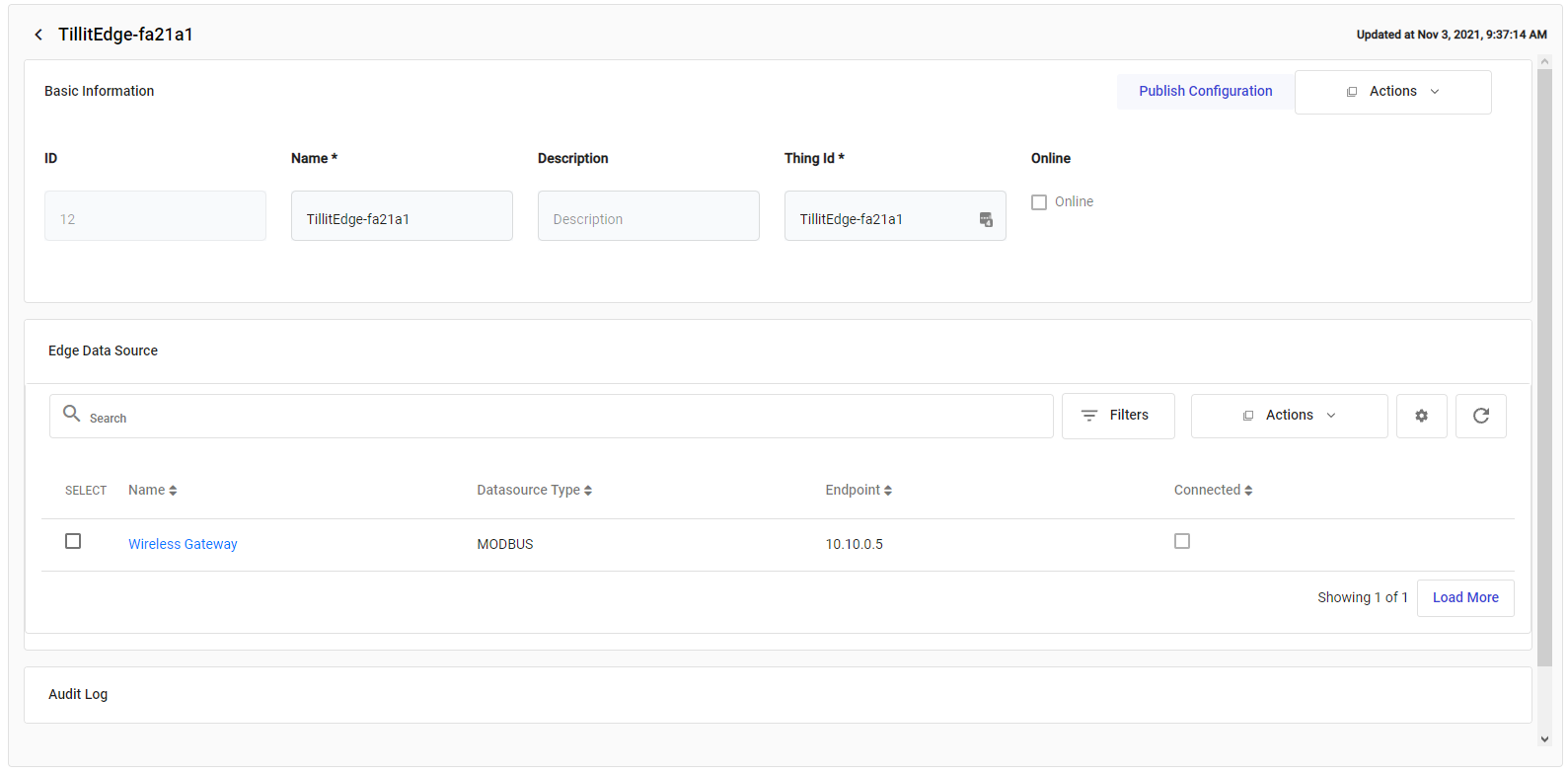
4\. It may take a minute or two for TilliT Edge to update the connection status, but you will know that the datasource has successfully connected when you see the blue tick on the connected status (refresh the screen to update).
---

# Agent Instructions
This documentation is published with GitBook. GitBook is the documentation platform designed so that both humans and AI agents can read, navigate, and reason over technical content effectively. Learn more at gitbook.com.

## Querying This Documentation
If you need additional information that is not directly available in this page, you can query the documentation dynamically by asking a question.

Perform an HTTP GET request on the current page URL with the `ask` query parameter, and the optional `goal` query parameter:

```
GET https://help.tillit.cloud/tillit/knowledge-base/setting-up-tillit/edge/tillit-sensors/connect-tillit-edge-to-a-wireless-gateway.md?ask=<question>&goal=<endgoal>
```

`ask` is the immediate question: it should be specific, self-contained, and written in natural language.
`goal` is optional and describes the broader end goal you are ultimately trying to accomplish on behalf of the user. GitBook uses it to tailor the answer towards what is most useful for that goal.

The response will contain a direct answer to the question and relevant excerpts and sources from the documentation.

Use this mechanism when the answer is not explicitly present in the current page, you need clarification or additional context, or you want to retrieve related documentation sections.
