> For the complete documentation index, see [llms.txt](https://help.tillit.cloud/tillit/llms.txt). Markdown versions of documentation pages are available by appending `.md` to page URLs; this page is available as [Markdown](https://help.tillit.cloud/tillit/knowledge-base/setting-up-tillit/asset-hierarchy/assets/asset-meter.md).
# Asset Meter Template
## Overview
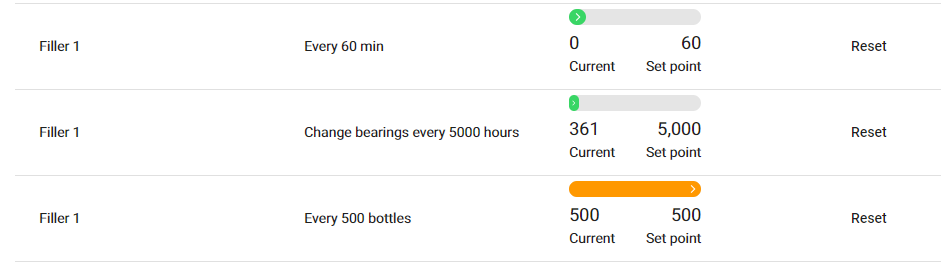
The Asset Meter feature is all about keeping track of your equipment based on real metrics like running minutes, elapsed time, counts, and order completion. This means you can get alerts when it's time for maintenance or other actions, not just based on a schedule, but based on actual usage.
For example, instead of doing maintenance every six months whether it's needed or not, you can do it when the machine has actually run a certain number of hours. This helps avoid unexpected breakdowns and keeps everything running smoothly.
It’s a smarter way to manage your assets, reduce downtime, and make sure your production stays on track!
## Navigation
{% hint style="info" %}
Navigation: ***Settings > Asset Hierarchy > Assets. Select the relevant asset and expand the Asset Meter Template panel***
OR
***Asset Meter on the Sidebar***
{% endhint %}
## Create an Asset Meter Template
{% stepper %}
{% step %}
Locate the **Asset Meter Template pane**l**,** and click open.
{% endstep %}
{% step %}
Click **Create**.
{% endstep %}
{% step %}
In the pop-up, fill in the required fields
{% endstep %}
{% step %}
Click **Save and close.**
{% endstep %}
{% endstepper %}
### Fields
| Name | Description |
| --------------- | ----------------------------------------------------------------------------------------------------------------------------------------------------------------------------------------------------------------------------------------------------------------------------------------------------------------------------------------------------------------------------------------------------------------------------------------------------------------------------------------------------------------------------------------------------------------------------------------------------------------- |
| Name \* | The name of the meter (usually describing what is being tracked) |
| Assets \* | Select the Asset for which the meter template is being configured. |
| *Event Type \** | Specify an event to raise once the setpoint has been reached. |
| Counter Type \* |
Set the type of count:
Hours - Total Elapsed Hours
Running Hours - Total Number of Hours the Asset has been Running for
Minutes - Total Elapsed Minutes
Running Minutes - Total Number of Minutes the Asset has been Running for
Count - Total Number of Units Counted
Order Completion - Percentage of running order completed.
Count Running Order - Total Number of Units Counted for the current running order
|
| Automatic Reset | Reset count back to 0 once the set point has been reached. If this is not set, resetting can be done manually in the Asset Meter screen. |
| Set Point \* | The set point is where you specify the threshold for triggering an event. For example, if you're tracking running hours and set the set point to 100, an event will be triggered when the asset has been running for 100 hours. |
| Reset Date Time | Date from which current count is measured. This updates to time last reset happened. |
### Tutorial Video 📽
{% embed url="" %}
### Example - Order Completion Meter
In this example meter, it tracks the percentage of order completion for Packaging Machine 1. An event will notify when an order is fully completed. The meter does not reset automatically and must be reset manually.
* **Name:** Order Completion Meter
* **Asset:** Packaging 01
* **Event Type:** Order Complete Notification
* **Count Type:** Order Completion
* **Auto Reset:** No
* **Set Point:** 100%
{% stepper %}
{% step %}
#### Navigate to the Packaging Machine
Go to **Settings > Asset Hierarchy > Choose the asset you want to add the Asset Meter to**.
In this case, we are going to **Packaging 01.**
{% endstep %}
{% step %}
#### Find the Asset Meter Template card
Scroll down until you find the Asset Meter Template expansion card.
{% endstep %}
{% step %}
#### Click "Create" and fill out information
When you click on Create, this is what the empty modal will look like.
Referring back to the example information, we will fill out the following information in the modal.
* **Name:** Order Completion Meter
* **Asset:** Packaging 01
* **Event Type:** Order Complete Notification
* **Count Type:** Order Completion
* **Auto Reset:** No
* **Set Point:** 100%
{% endstep %}
{% step %}
#### Save it!
Click on **Save and Close,** and this should appear in your panel's table.
{% endstep %}
{% endstepper %}