> For the complete documentation index, see [llms.txt](https://help.tillit.cloud/tillit/llms.txt). Markdown versions of documentation pages are available by appending `.md` to page URLs; this page is available as [Markdown](https://help.tillit.cloud/tillit/knowledge-base/setting-up-tillit/articles/managing-folders.md).

# Managing Folders

## Creating a Folder

{% hint style="info" %}
We recommend separating your articles and SOPS by folders for easy organization. However this step can be skipped straight to [*<mark style="background-color:$primary;">Create an Article</mark>*](/tillit/knowledge-base/setting-up-tillit/articles/managing-articles.md#create-an-article)
{% endhint %}

For this example, we will create a folder and name it Cleaning which will include all of our cleaning SOPs. It will then appear on the left side.

{% stepper %}
{% step %}
Select one of the options below to open the creation modal:

#### In Tree View

Click on the **+** (plus) sign and select ***Folder**.*

<figure><img src="https://352909507-files.gitbook.io/~/files/v0/b/gitbook-x-prod.appspot.com/o/spaces%2FrNT40XJFAFlAhUX8CcQS%2Fuploads%2FBEqWf5JVL0GOq1Dzw77l%2Fimage.png?alt=media&amp;token=3594449a-1e7b-49e7-896a-e2d415af49d4" alt=""><figcaption></figcaption></figure>

<figure><img src="https://352909507-files.gitbook.io/~/files/v0/b/gitbook-x-prod.appspot.com/o/spaces%2FrNT40XJFAFlAhUX8CcQS%2Fuploads%2FTFurtUvXe9WpFNhUa2rD%2Fimage.png?alt=media&amp;token=de96faff-8c2d-4acf-9a47-6eb361704c26" alt=""><figcaption></figcaption></figure>

#### In Table View

Click **Create** and select ***Folder*** for *Entity Type* option.

<figure><img src="https://352909507-files.gitbook.io/~/files/v0/b/gitbook-x-prod.appspot.com/o/spaces%2FrNT40XJFAFlAhUX8CcQS%2Fuploads%2F0WCxBOv0xuLJUOSnlDtr%2Fimage.png?alt=media&amp;token=102a38be-222d-42a0-8a2a-fbcae053bc61" alt=""><figcaption></figcaption></figure>

<figure><img src="https://352909507-files.gitbook.io/~/files/v0/b/gitbook-x-prod.appspot.com/o/spaces%2FrNT40XJFAFlAhUX8CcQS%2Fuploads%2Fl5oc4vnKf5ZGF4Ehm69T%2Fimage.png?alt=media&amp;token=e4564a9e-5f3a-4506-bfab-778fd3fb7094" alt=""><figcaption></figcaption></figure>
{% endstep %}

{% step %}
Fill in the required fields.

<figure><img src="https://352909507-files.gitbook.io/~/files/v0/b/gitbook-x-prod.appspot.com/o/spaces%2FrNT40XJFAFlAhUX8CcQS%2Fuploads%2FoMGpxCwdXAVNa89YyvY7%2Fimage.png?alt=media&amp;token=dbc6135f-3b54-445c-8d20-b19394ef5710" alt=""><figcaption></figcaption></figure>
{% endstep %}

{% step %}
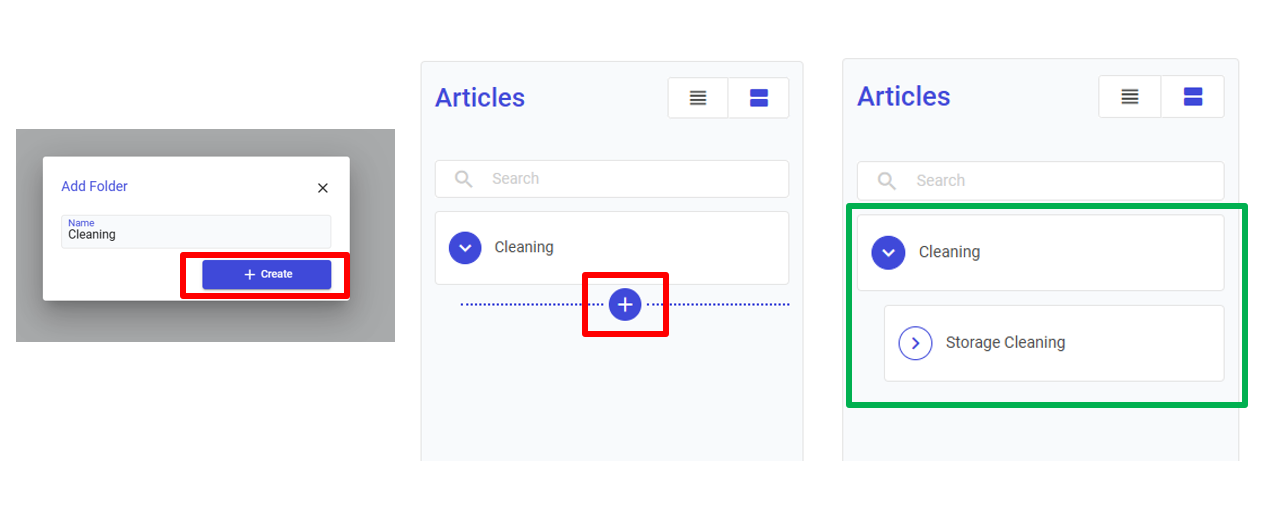
Click the **Create** button to finalise.

<figure><img src="https://352909507-files.gitbook.io/~/files/v0/b/gitbook-x-prod.appspot.com/o/spaces%2FrNT40XJFAFlAhUX8CcQS%2Fuploads%2FCcMoSOpmAyC305XjLYFY%2Fimage.png?alt=media&amp;token=a0b8ced9-eefb-4fe5-837a-ad23afab85dd" alt=""><figcaption></figcaption></figure>
{% endstep %}
{% endstepper %}

## Creating Nested Folders

#### In Tree View

Create nested folder by making sure the parent folder is opened, indicated by the blue downward arrow in front of the name. Then click on the **+** (plus) sign to create a new folder.

<figure><img src="https://352909507-files.gitbook.io/~/files/v0/b/gitbook-x-prod.appspot.com/o/spaces%2FrNT40XJFAFlAhUX8CcQS%2Fuploads%2Fgit-blob-b323f29fc7b7b3f29872965c2bff08a63f576e9e%2Fimage.png?alt=media" alt=""><figcaption></figcaption></figure>

#### In Table View

Navigate into the parent folder, click the + Create button in the top right toolbar, select ***Folder*** under *Entity type*, and enter a name to create your nested folder.

<figure><img src="https://352909507-files.gitbook.io/~/files/v0/b/gitbook-x-prod.appspot.com/o/spaces%2FrNT40XJFAFlAhUX8CcQS%2Fuploads%2FaHx8gDUgCTYuAIaoyj2m%2Fimg.png?alt=media&amp;token=247d3892-2eda-40bf-ac53-cdd7f6e33848" alt=""><figcaption></figcaption></figure>

## Delete a Folder

#### In Tree View

{% hint style="warning" %}
Make sure all articles inside the folder are deleted before deleting the folder.
{% endhint %}

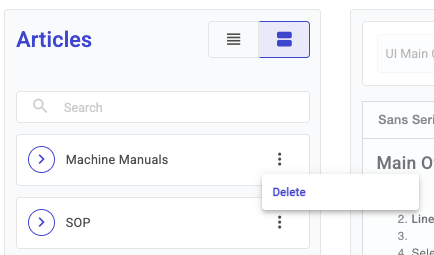
In the Tree View, click the ***More*** button (⋮) on the folder node and select ***Delete***. Confirm the deletion in the dialog that appears.

<figure><img src="https://352909507-files.gitbook.io/~/files/v0/b/gitbook-x-prod.appspot.com/o/spaces%2FrNT40XJFAFlAhUX8CcQS%2Fuploads%2Fgit-blob-c2a7f48792c84f58e7a850405d811c9e87603814%2Farticles-tree-delete-folder-menu.png?alt=media" alt=""><figcaption></figcaption></figure>

#### In Table View

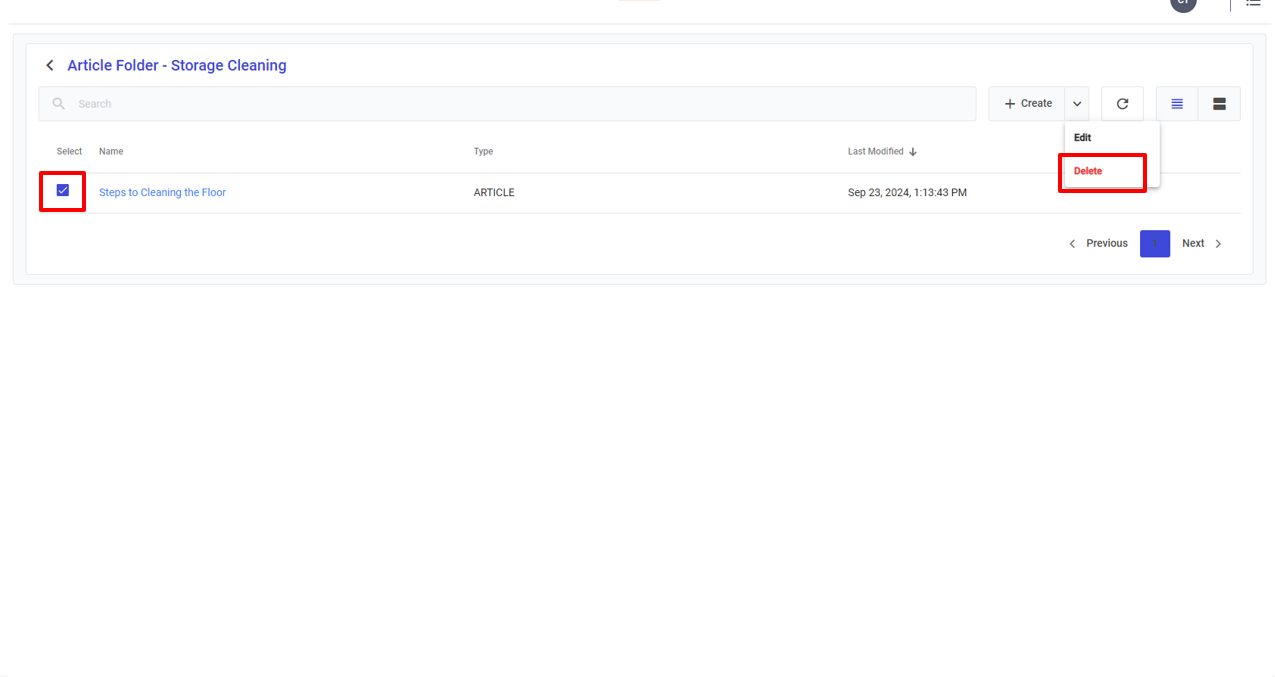
Switch to **Table View** using the view toggle at the top left. Select the Folder by **clicking on the checkbox next to its name**, then on the top right menu, click on the **arrow next to Create** and choose **Delete**.

<figure><img src="https://352909507-files.gitbook.io/~/files/v0/b/gitbook-x-prod.appspot.com/o/spaces%2FrNT40XJFAFlAhUX8CcQS%2Fuploads%2Fgit-blob-a4691e2f54026498139248d3a8114d557fdce519%2Fimage.png?alt=media" alt=""><figcaption></figcaption></figure>