> For the complete documentation index, see [llms.txt](https://help.tillit.cloud/tillit/llms.txt). Markdown versions of documentation pages are available by appending `.md` to page URLs; this page is available as [Markdown](https://help.tillit.cloud/tillit/knowledge-base/setting-up-tillit/activity-templates/activity/elements/element-types/raise-event.md).

# Raise event

Activities by default will generate events on submission such as Activity Manual Start, Activity Failed, Activity Expired etc.

However, sometimes a specific workflow needs to occur based on a value contained inside of an activity. For Example, when Oven Temperature is too high, raise the High Oven Temperature event, which will trigger the appropriate activities.

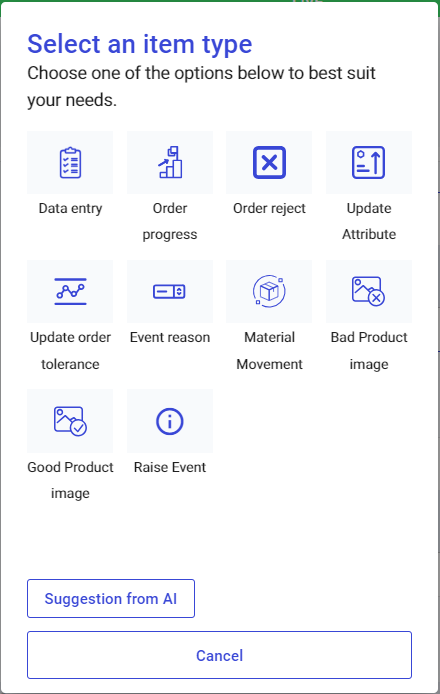
Start by creating a new Activity Item with Item Type of Raise Event.

<figure><img src="/files/WfTx60IMnPFNloCfd7Ct" alt="" width="330"><figcaption></figcaption></figure>

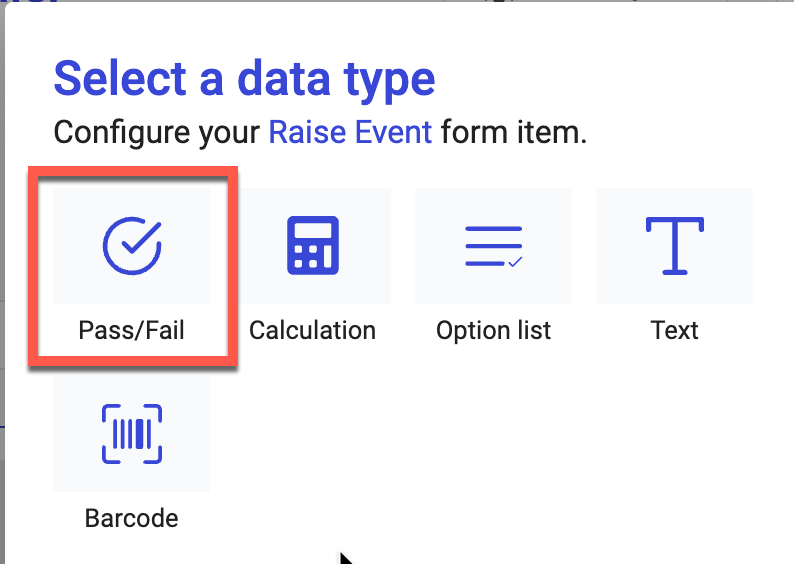
You can then choose any of the following data types. For this example we will use the Pass/Fail field, which is our recommendation to start with.

<figure><img src="/files/XFnl1BphIxFTnEZ8t3tG" alt="" width="375"><figcaption></figcaption></figure>

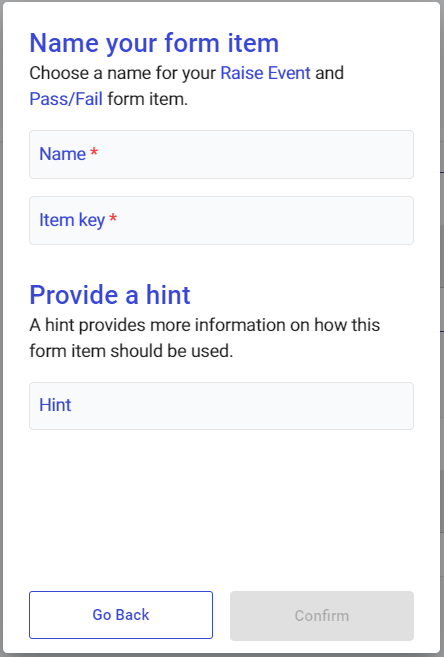
**Give the item a name** and proceed to the next screen.

<figure><img src="/files/RLBS0SXGetcAc0zmUE5q" alt="" width="333"><figcaption></figcaption></figure>

<figure><img src="/files/mdVlmWik4k3E5M4SQ0SR" alt="" width="330"><figcaption></figcaption></figure>

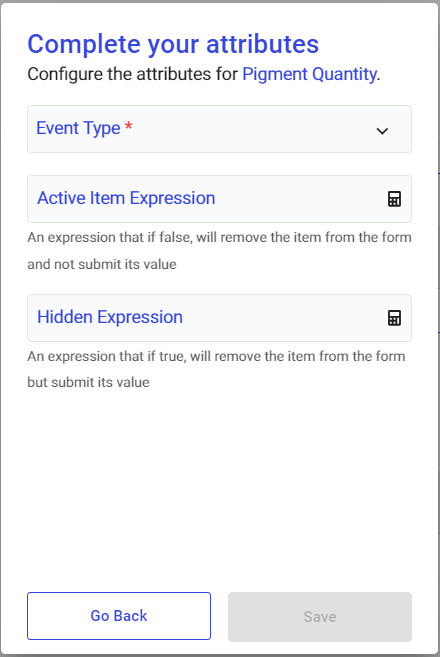
We can now configure the following:

| Field                                 | Description                                                                                                                                                                                                                                                      |
| ------------------------------------- | ---------------------------------------------------------------------------------------------------------------------------------------------------------------------------------------------------------------------------------------------------------------- |
| **Event Type**                        | Select the event type to raise if this item type evaluate to true (e.g. High Oven Temperature)                                                                                                                                                                   |
| **Active Item Expression** (optional) | <p>Enter a calculation which when true will cause the event to be raised (e.g. TemperatureCheck > 220).</p><p>This is useful if you want to automate the event getting raised or not. By using a Pass/Fail the event will be raised in case you select Pass.</p> |
| **Hidden Expression**                 | Enter an expression that when true will not show this field on the activity form.                                                                                                                                                                                |

Save this item type and you can now test the activity. Check that when Active Item Expression is false, no event is raised on activity submit. When Active Item Expression is true, the event type specific is created.
---

# Agent Instructions
This documentation is published with GitBook. GitBook is the documentation platform designed so that both humans and AI agents can read, navigate, and reason over technical content effectively. Learn more at gitbook.com.

## Querying This Documentation
If you need additional information that is not directly available in this page, you can query the documentation dynamically by asking a question.

Perform an HTTP GET request on the current page URL with the `ask` query parameter, and the optional `goal` query parameter:

```
GET https://help.tillit.cloud/tillit/knowledge-base/setting-up-tillit/activity-templates/activity/elements/element-types/raise-event.md?ask=<question>&goal=<endgoal>
```

`ask` is the immediate question: it should be specific, self-contained, and written in natural language.
`goal` is optional and describes the broader end goal you are ultimately trying to accomplish on behalf of the user. GitBook uses it to tailor the answer towards what is most useful for that goal.

The response will contain a direct answer to the question and relevant excerpts and sources from the documentation.

Use this mechanism when the answer is not explicitly present in the current page, you need clarification or additional context, or you want to retrieve related documentation sections.