> For the complete documentation index, see [llms.txt](https://help.tillit.cloud/tillit/llms.txt). Markdown versions of documentation pages are available by appending `.md` to page URLs; this page is available as [Markdown](https://help.tillit.cloud/tillit/knowledge-base/scheduler/scenario.md).
# Scenarios
Create and manage scheduling scenarios using the Kanban board workflow.
A Scenario is a self-contained scheduling environment where all configuration, orders, and schedule data are stored. Use scenarios to create production schedules, run "what-if" analyses, or model alternative plans before publishing to the organisation.
## Navigation
***Scheduler*** > ***Scenario***
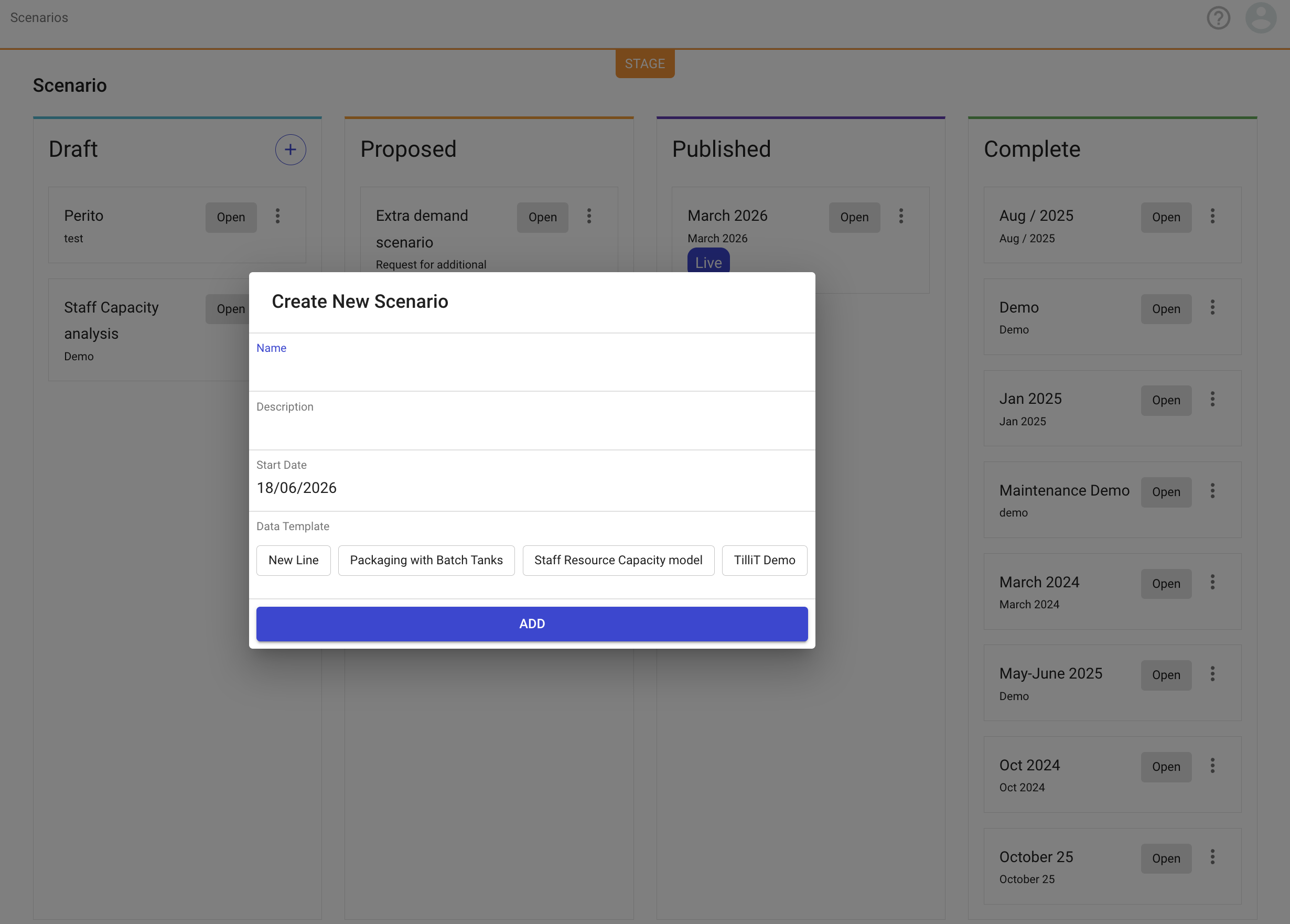
The Scenario screen displays a Kanban board showing all scenarios organised by status.
## Scenario Statuses
Scenarios follow a lifecycle through four stages on the Kanban board:
| Status | Description |
| ------------- | ------------------------------------------------------------------------------------------------------------------------------------ |
| **Draft** | Initial state after creation. Draft scenarios are private to the creator and can be used to model "what-if" analyses without sharing |
| **Proposed** | Scenarios ready for review by other users. Multiple proposed scenarios can exist simultaneously for comparison |
| **Published** | The active schedule being executed by the organisation. Moving a scenario to Published sends an email notification to other users |
| **Complete** | Finished scenarios filed for reference. Can be deleted from here if no longer needed |
{% hint style="info" %}
Only move a scenario from Draft once you are ready for other users to view and interact with it. The controlled progression ensures that only reviewed and approved schedules become active.
{% endhint %}
## Creating a Scenario
{% stepper %}
{% step %}
Click the **+** button on the Scenario Kanban board.
{% endstep %}
{% step %}
Enter a **Name** and **Description** for the scenario.
{% endstep %}
{% step %}
Set the **Start Date** — this defines the beginning of the planning horizon.
{% endstep %}
{% step %}
Click **Create**.
The new scenario appears in the **Draft** column.
{% endstep %}
{% endstepper %}
## Scenario Actions
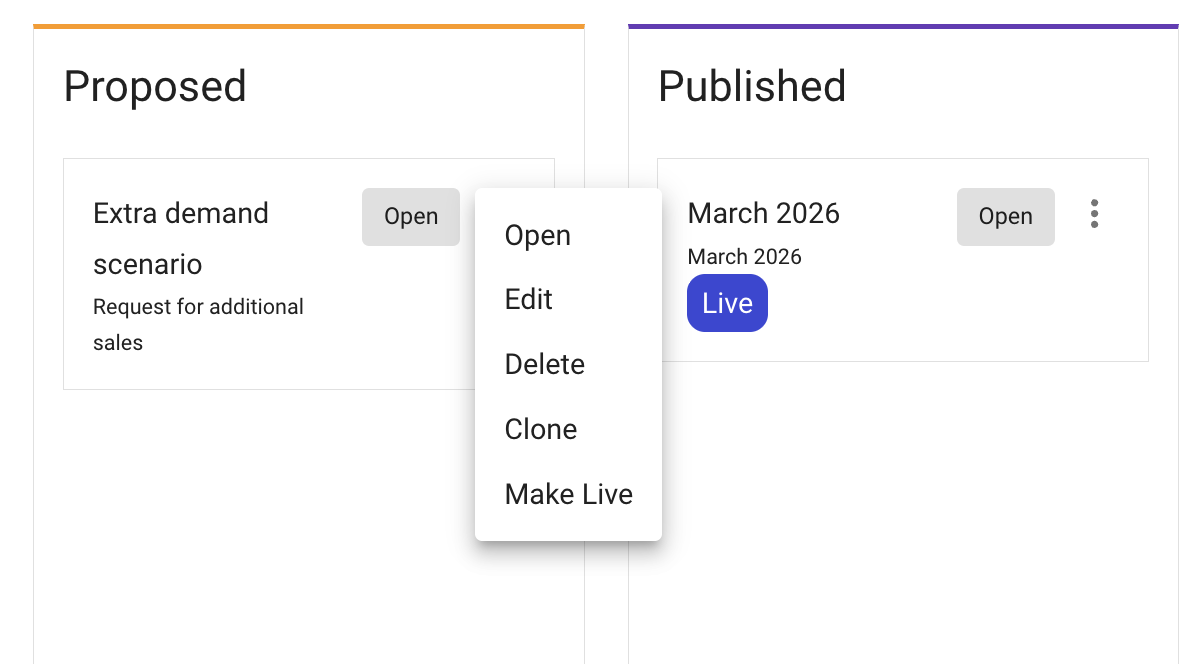
Click on the three dot more buttons:
| Action | Description |
| ------------- | ------------------------------------------------------------------------------------------------------------------------------------------------------------------------- |
| **Open** | Opens the scenario to view and edit the schedule |
| **Clone** | Copies the entire scenario configuration, including orders, previously scheduled orders, tasks, and all settings |
| **Delete** | Permanently removes the scenario (admin privileges required). A confirmation dialog warns that this cannot be reversed |
| **Make Live** | Sets this scenario as the Live Scenario. Only one scenario can be live at a time. Orders in the live scenario are automatically synchronised to TilliT Digital Operations |
## Cloning a Scenario
Cloning duplicates an existing scenario with all its data, including:
* Orders and previously scheduled orders
* Tasks
* All configuration settings
Cloned scenarios function identically to any other scenario and can move through all workflow stages.
## Using Template Scenarios
We recommend creating a **Template Scenario** that serves as the foundation for all new scenarios. The template should contain clean, validated, and up-to-date configuration based on accurate master data from your source systems, including:
* Equipment resources
* Personnel
* Operations
* Availability (shifts)
* Materials
Since this foundational data typically does not change daily, starting each new scenario from the template ensures you begin with accurate, consistent information.
## Naming Best Practices
A well-structured naming convention helps organise and identify scenarios. Include:
* A name that reflects the scenario's objective
* The date range or time horizon the scenario addresses
**Examples:**
* "Weekly Schedule 12th April - Reduced Shifts" — a weekly schedule exploring reduced staffing levels
* "Standard 24/5 Template" — a template for regular 24-hour, 5-day operations