> For the complete documentation index, see [llms.txt](https://help.tillit.cloud/tillit/llms.txt). Markdown versions of documentation pages are available by appending `.md` to page URLs; this page is available as [Markdown](https://help.tillit.cloud/tillit/knowledge-base/scheduler/planned-orders/order-dependency.md).
# Order Dependency
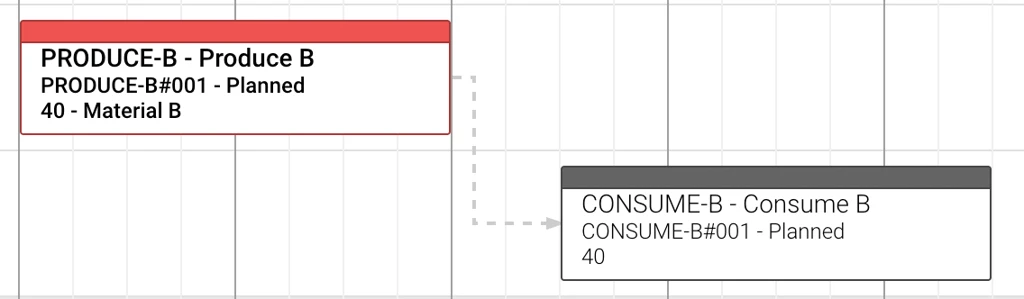
You can now **link orders together** so the scheduler enforces a timing relationship between them. A "child" order won't be allowed to start until its "parent" order meets a timing rule you choose. Dependencies are visible on the Gantt timeline as arrows, and the system automatically validates them whenever you allocate, move, resize, or unallocate orders.
## What Is an Order Dependency?
An **order dependency** is a link between two orders that controls scheduling order. For example:
* An assembly order must finish before its delivery order can start.
* A secondary process must start at the same time as the primary one.
* A quality check must start exactly when packaging starts.
Each link has two sides:
* **Dependency** — the order that must run first (the parent).
* **Dependant** — the order that depends on it (the child).
***
### Key Concepts
#### Dependency Types
There are **two base types**:
| Type | What It Means |
| ---------------- | ---------------------------------------------------------------- |
| **Finish‑Start** | The dependant can start **at or after** the dependency finishes. |
| **Start‑Start** | The dependant can start **at or after** the dependency starts. |
Each type can also be set as **Locked**:
* **Not locked** → the dependant can start at the constraint time **or any time later**.
* **Locked** → the dependant's start is **snapped exactly** to the constraint time.
#### Delay
You can add a **delay (in seconds)** to offset the constraint time:
* **Positive delay** — adds a gap (e.g. `+300` = 5 minutes after).
* **Negative delay** — allows overlap (e.g. `-120` = up to 2 minutes before).
* **Zero** — no offset.
#### One Locked per Order
An order can have **only one Locked dependency**. Non‑locked dependencies are unlimited.
***
### Adding a Dependency
1. Open the order from the **Orders** list.
2. In the order detail panel, scroll to the **Dependencies** section.
3. Click the plus icon in the Dependencies section to add a dependency.
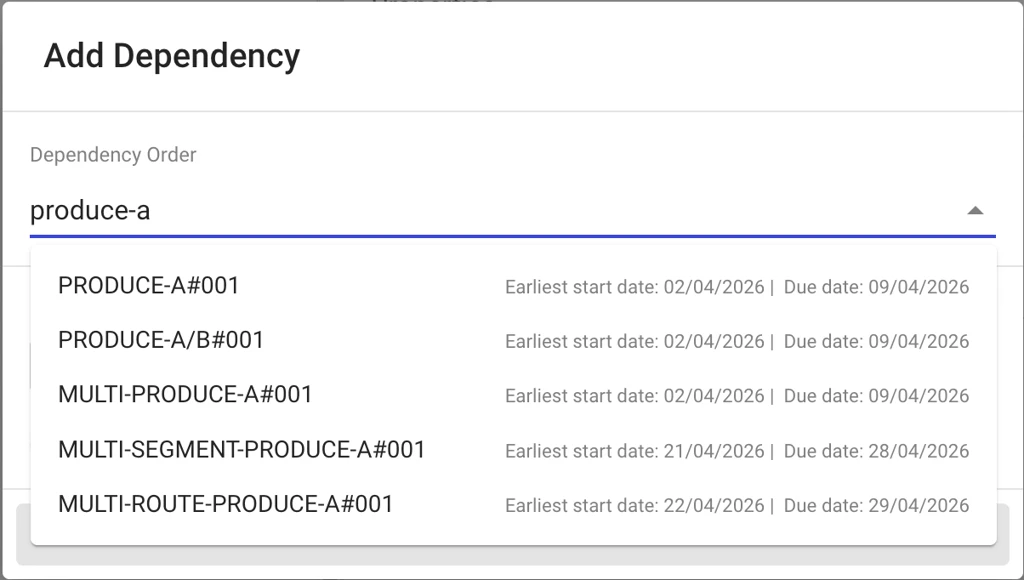
4. In the dialog, search for the order this one should depend on. The dropdown shows external ID, earliest start date, and due date.
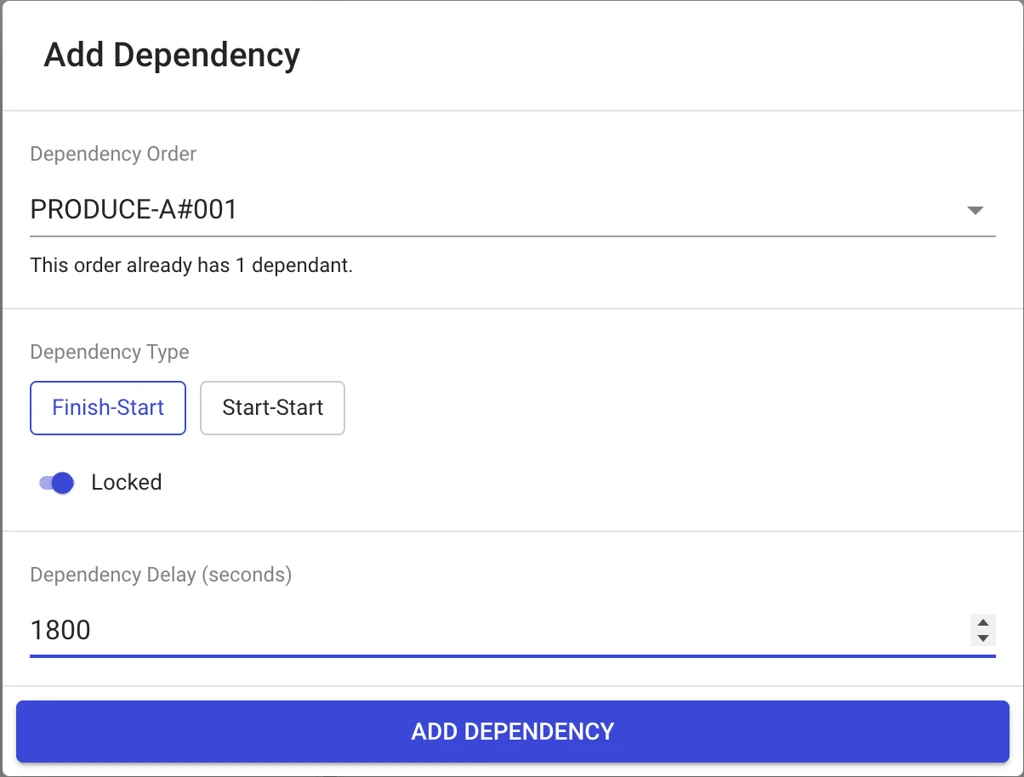
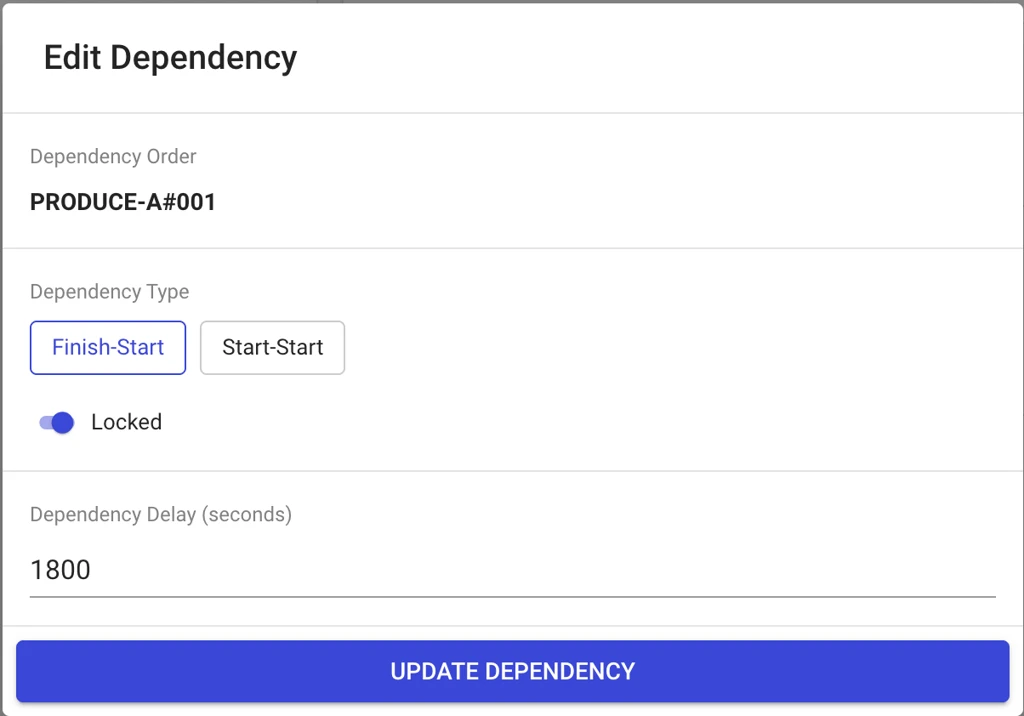
5. Choose a base type — **Finish‑Start** or **Start‑Start** — by clicking its chip. Hover the chip to read what it does.
6. Toggle **Locked** on or off.
7. Enter a **Delay** in seconds (optional).
8. Click **Add Dependency**.
> ℹ️ If the selected order already has dependants of its own, you'll see a warning reminding you to ensure it produces enough output for the additional dependant.
### Viewing, Editing & Deleting
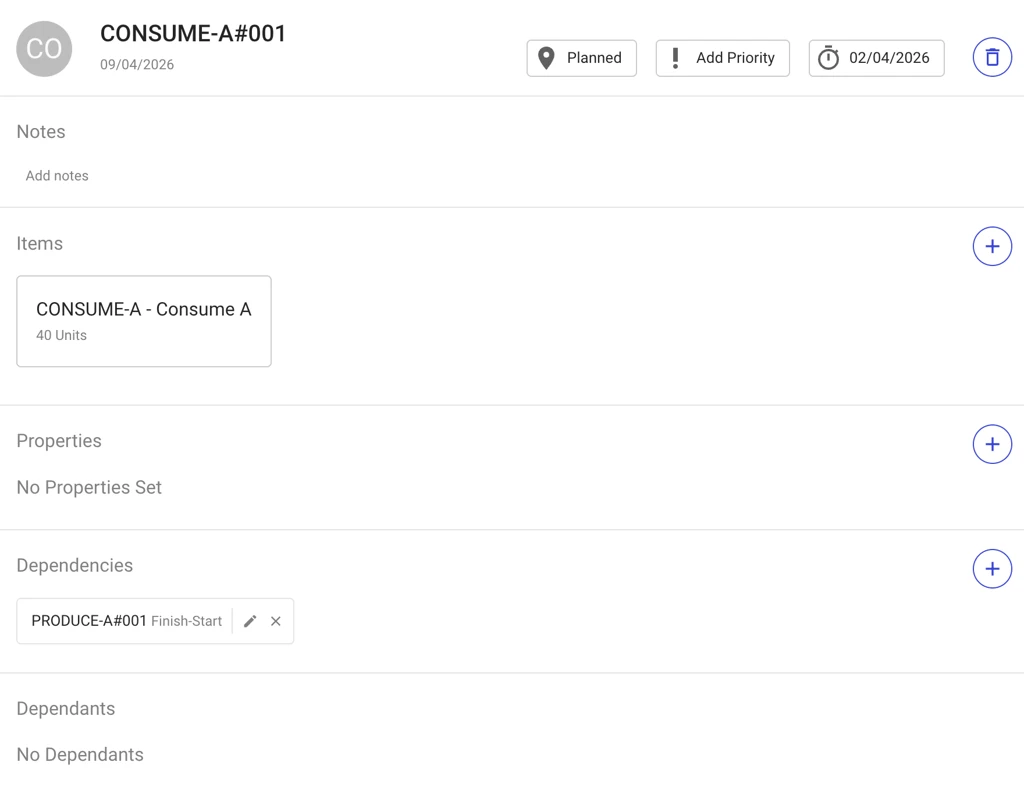
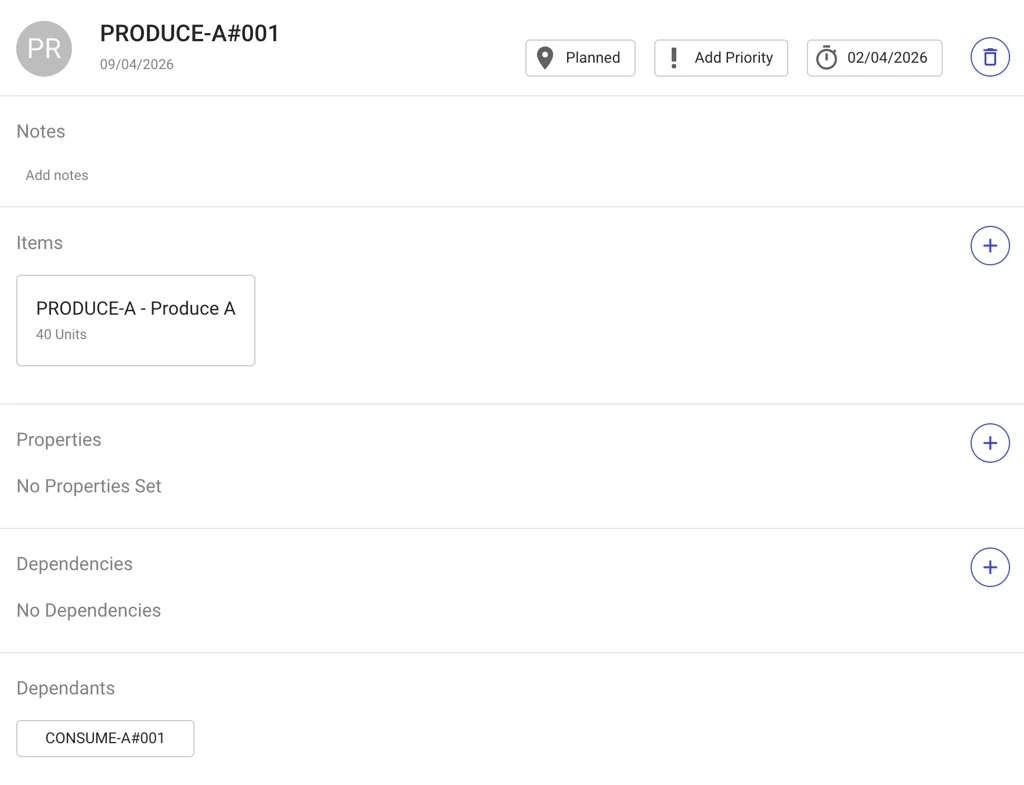
In the **Dependencies** section you'll see:
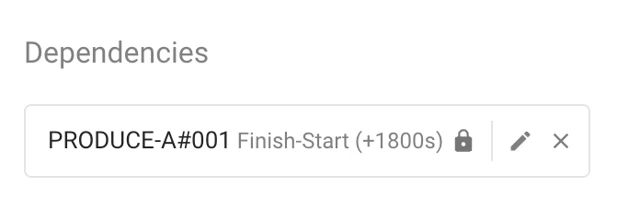
* **Dependencies** list — orders this one depends on. Each entry shows the dependency's external ID (clickable, navigates to that order), the type label, the delay, a **padlock icon** if it's locked, and **Edit** / **Delete** buttons.
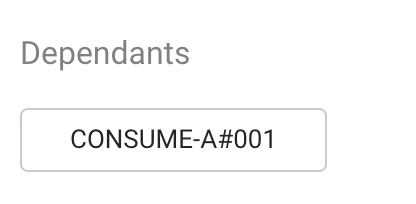
* **Dependants** chips — read‑only chips listing orders that depend on this one.
To **edit**, click the edit button. The dialog opens with the dependency order shown as static text and the type/delay pre‑filled.
To **delete**, click the delete button. The link is removed from both orders.
> ⚠️ **The order must not be allocated** to add, edit, or delete dependencies. If it is, you'll be prompted to unallocate it first.
***
### Seeing Dependencies on the Gantt
Order dependencies appear as **arrows** between orders on the Gantt timeline.
To turn them on:
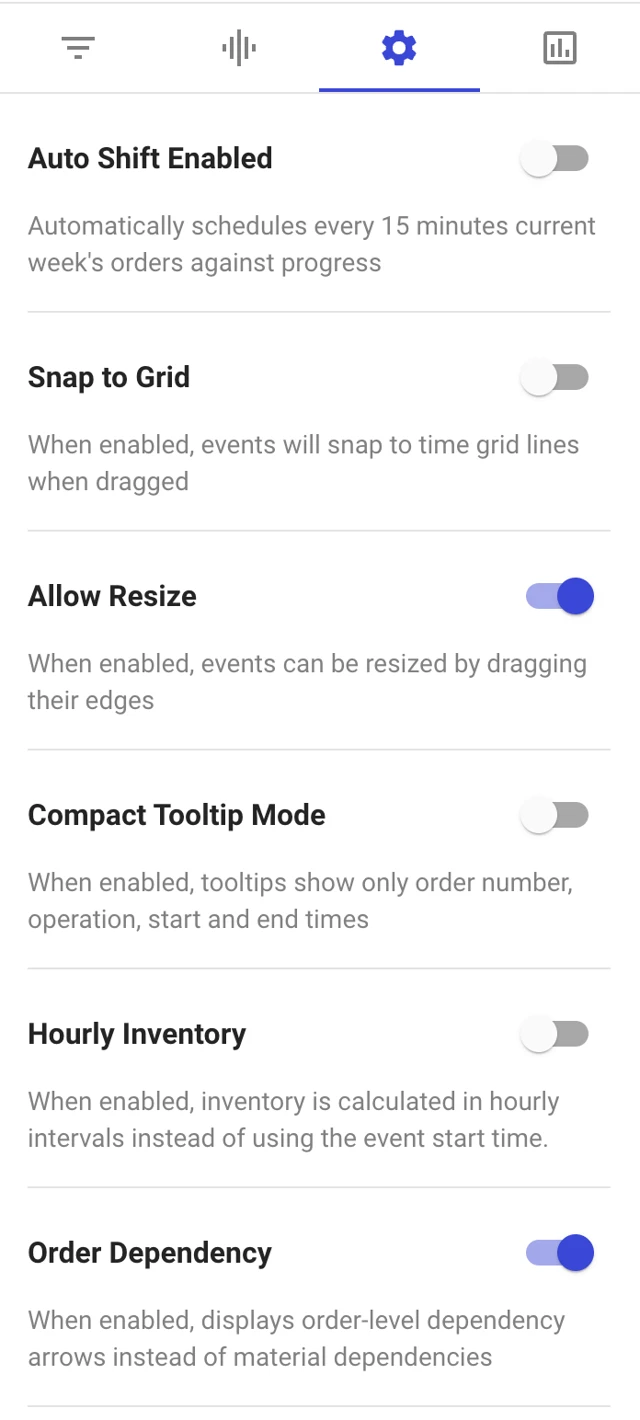
1. Open the **Scheduler Settings** drawer.
2. Toggle **Order Dependency** on.
The toggle is remembered between sessions. Segment and material dependency arrows are shown alongside; each uses a different line style so you can tell them apart.
***
### What Happens During Allocation
When you allocate an order that has dependencies, the system **automatically validates** that:
* All its dependency orders are already allocated, **and**
* The dependant's start time satisfies every constraint.
For **Locked** dependencies, you don't need to pick a start time — the system **snaps the dependant's start exactly** to the constraint time (dependency's start or end, plus any delay).
***
### Cascade on Move & Resize
When you **move or resize a dependency order**, the system checks every dependant:
* **Non‑Locked** — if the dependant still satisfies the constraint, only the dependency moves. If it would no longer satisfy, the dependant's first segment **automatically shifts** to keep the constraint valid.
* **Locked** — the dependant **always** shifts (forward or backward) to stay snapped exactly to the constraint time.
If the cascade can't be completed (for example, no resources are available at the new time), **the entire operation rolls back** — nothing moves. This keeps the schedule consistent.
***
### Errors & Recovery Flows
The system surfaces every dependency issue as a clear message. Here's what to do for each:
#### Constraint Violated
> "Dependency constraint violated with: ORDER-A"
You tried to allocate, move, or resize a dependant to a time that breaks its rule. **Fix:** pick a later time that satisfies the dependency, or adjust the delay on the link.
#### Dependencies Not Allocated Yet
> "Allocate dependency orders first: ORDER-A"
The dependant can't be placed because at least one of its dependencies hasn't been allocated yet. **Fix:** allocate the dependency orders first, then try again.
#### Locked Conflict — No Slot Available
The constraint time is correct, but no resource is free at that exact moment. **Fix:** move or unallocate other orders to free up the slot, or revisit the dependency setup.
#### Cross‑Scenario Dependency
> "Dependency orders are not in the same scenario: ORDER-A"
A dependency exists between orders living in different scenarios. **Fix:** dependencies must be between orders in the same scenario.
#### Allocated Dependants — Cascade Unallocate
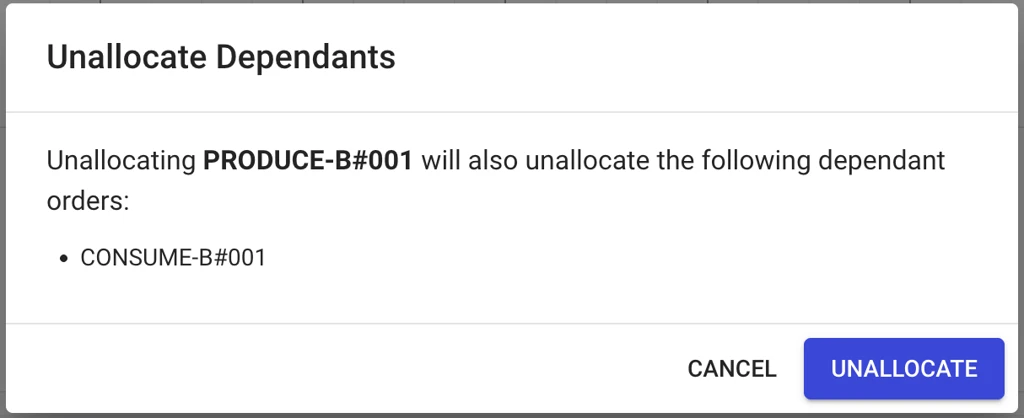
If you try to **unallocate an order that has allocated dependants**, the system stops you and offers to unallocate them all together.
1. The error snackbar appears with an **Unallocate Dependants** button.
2. Click **Unallocate Dependants**. A confirmation dialog opens listing the order plus every dependant that will be unallocated.
3. Click **Unallocate** to confirm, or **Cancel** to back out.
4. All listed orders unallocate together in a single transaction (deepest dependants first). If any one of them can't be unallocated, **nothing changes**.
#### Modifying Dependencies on an Allocated Order
If you try to add, edit, or delete a dependency on an order that's currently allocated, the system blocks the change and gives you a one‑click way to fix it.
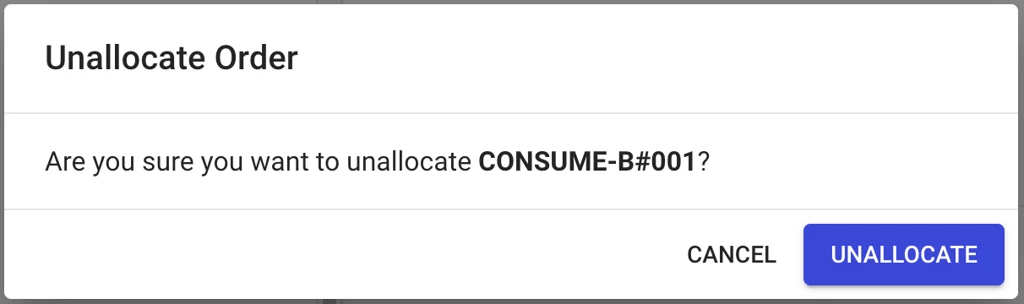
1. The error snackbar appears with an **Unallocate** button.
2. Click **Unallocate**. A confirmation dialog appears.
3. Confirm to unallocate the order. The dependency dialog refreshes with the latest data — you can now make your change.
***
### Tips & Limits
* **Max one Locked dependency per order.** Add as many non‑locked as you need.
* **Circular dependencies are blocked.** If A depends on B, B (or anything depending on B) can't be made to depend on A — those orders simply won't appear in the eligible orders dropdown.
* **All cascades are atomic.** Either the whole operation succeeds or nothing changes — the schedule stays consistent.
* **Unallocated dependants don't block the dependency.** You can freely move, resize, or unallocate a dependency order as long as none of its dependants are allocated.