> For the complete documentation index, see [llms.txt](https://help.tillit.cloud/tillit/llms.txt). Markdown versions of documentation pages are available by appending `.md` to page URLs; this page is available as [Markdown](https://help.tillit.cloud/tillit/knowledge-base/scheduler/inventory.md).
# Inventory
Track and visualise material inventory levels across your production schedule.
The Scheduler tracks material inventory based on scheduled production orders. All consumed and produced materials are monitored across replenishment orders, consumption events, and inventory snapshots.
## Navigation
Open a scenario, then access inventory from the scheduling view.
## Material Inventory Management
### Replenishment Orders
Replenishment orders represent inbound inventory from MRP or ERP systems. Each replenishment order includes:
| Field | Description |
| ----------------- | --------------------------------------------------------------- |
| **Material Code** | The material identifier from your source system |
| **Quantity** | The incoming quantity |
| **Arrival Date** | When the material will be on site and available for consumption |
Tracking replenishment orders ensures that scheduled activities align with material availability.
### Consumption Events
Consumption events occur when scheduled orders consume specific materials, drawing down on available inventory. Each time an order is scheduled, the system automatically calculates and deducts the required materials from inventory levels.
### Inventory Snapshots
Snapshots capture the inventory position for a material at a specific point in time. Use them for:
* Stock taking and reconciliation
* Calibrating Scheduler inventory levels with actual warehouse quantities
## Inventory Visualisation
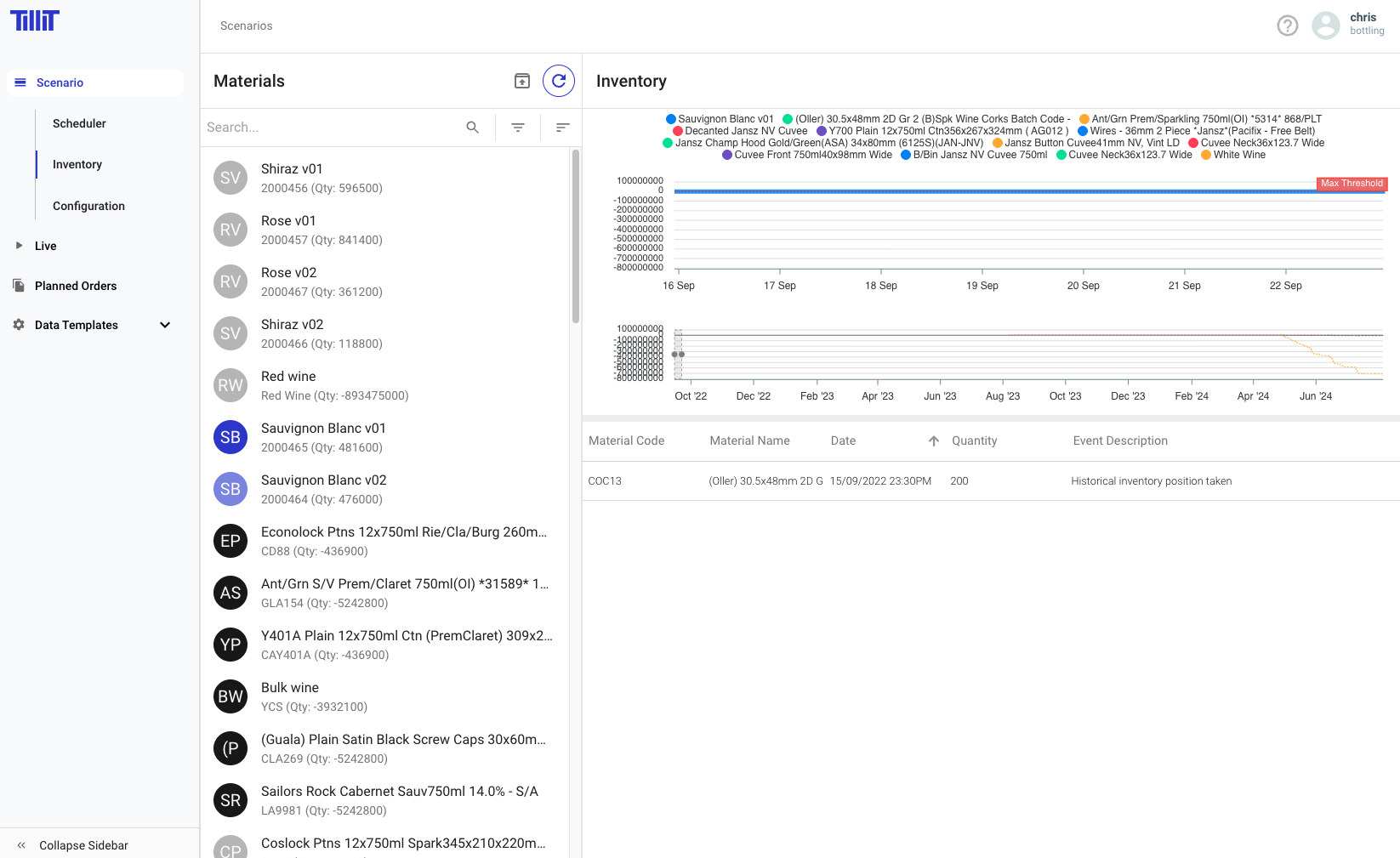
The Inventory Draw Down Graph displays inventory levels for each material, showing a forward projection of how scheduled activities will impact inventory through replenishments and consumption events.
Min and max threshold positions are displayed on the graph. These thresholds indicate low or excess inventory positions and are configured in [Materials](/tillit/knowledge-base/scheduler/data-templates/materials.md).
## Hourly Inventory
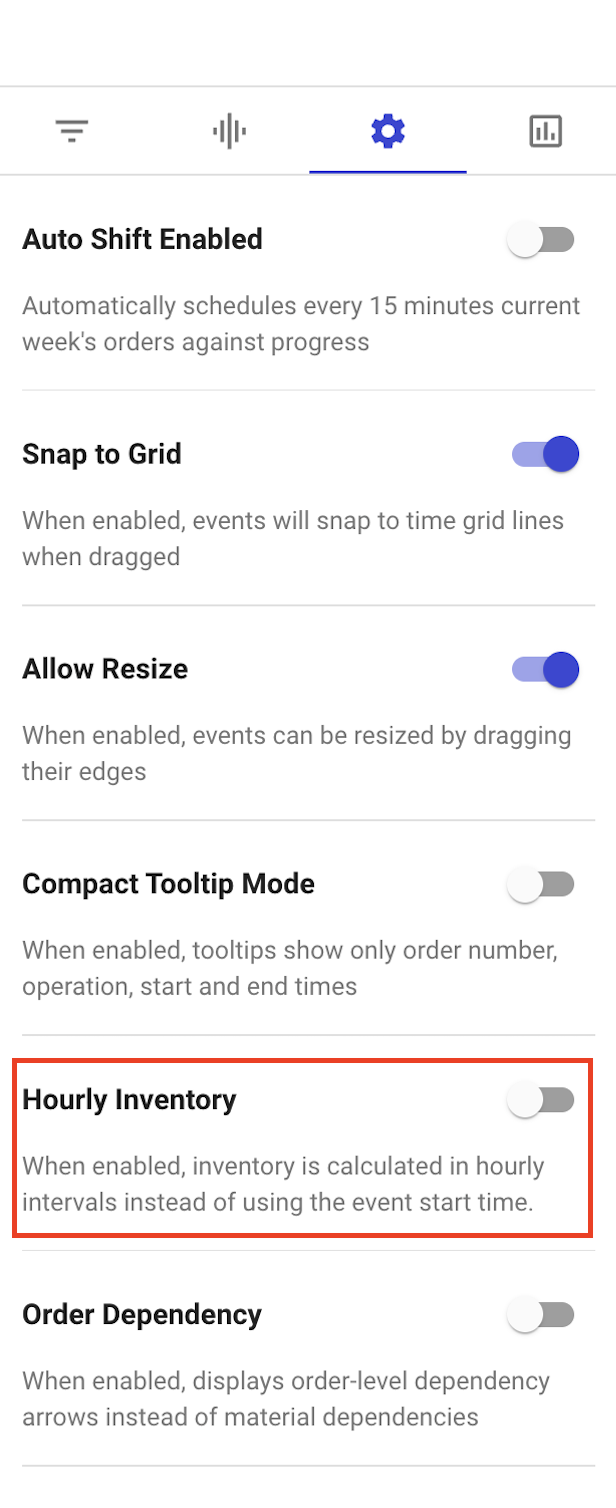
**Hourly Inventory** is a setting in the Scheduler Settings sidebar within a scenario. When enabled, inventory is calculated in hourly intervals rather than at event start times.
With Hourly Inventory enabled, production and consumption quantities are distributed across fixed hourly buckets proportional to productive time, providing a more granular picture of how inventory changes throughout the day.
### Enabling Hourly Inventory
{% stepper %}
{% step %}
Open a scenario in the Scheduler.
{% endstep %}
{% step %}
Open the ***Scheduler Settings*** sidebar.
{% endstep %}
{% step %}
Enable the ***Hourly Inventory*** toggle.
{% endstep %}
{% endstepper %}
{% hint style="info" %}
When Hourly Inventory is disabled, inventory calculations use the event start time as the reference point for all consumption and production transactions.
{% endhint %}
## Filtering Inventory
### By Status
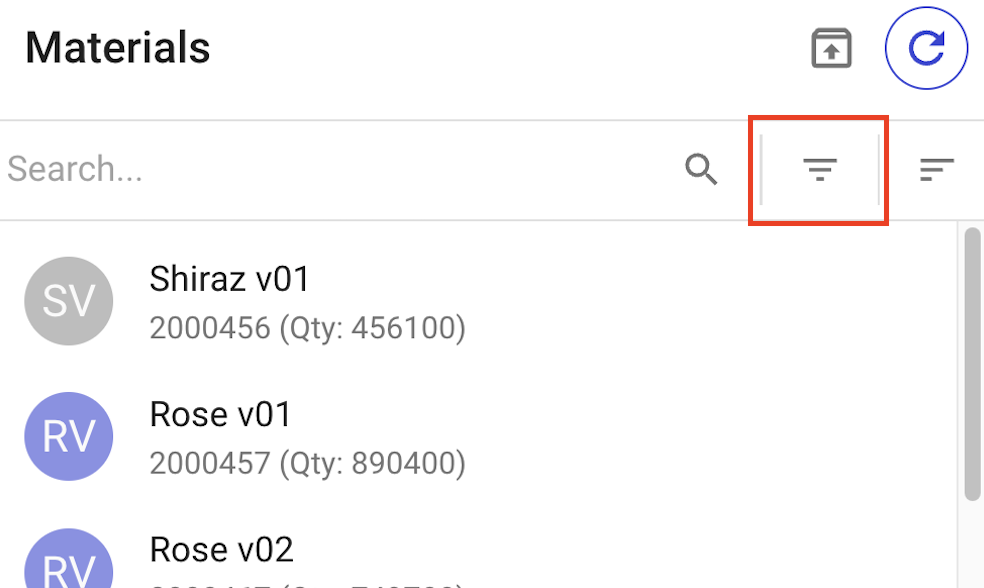
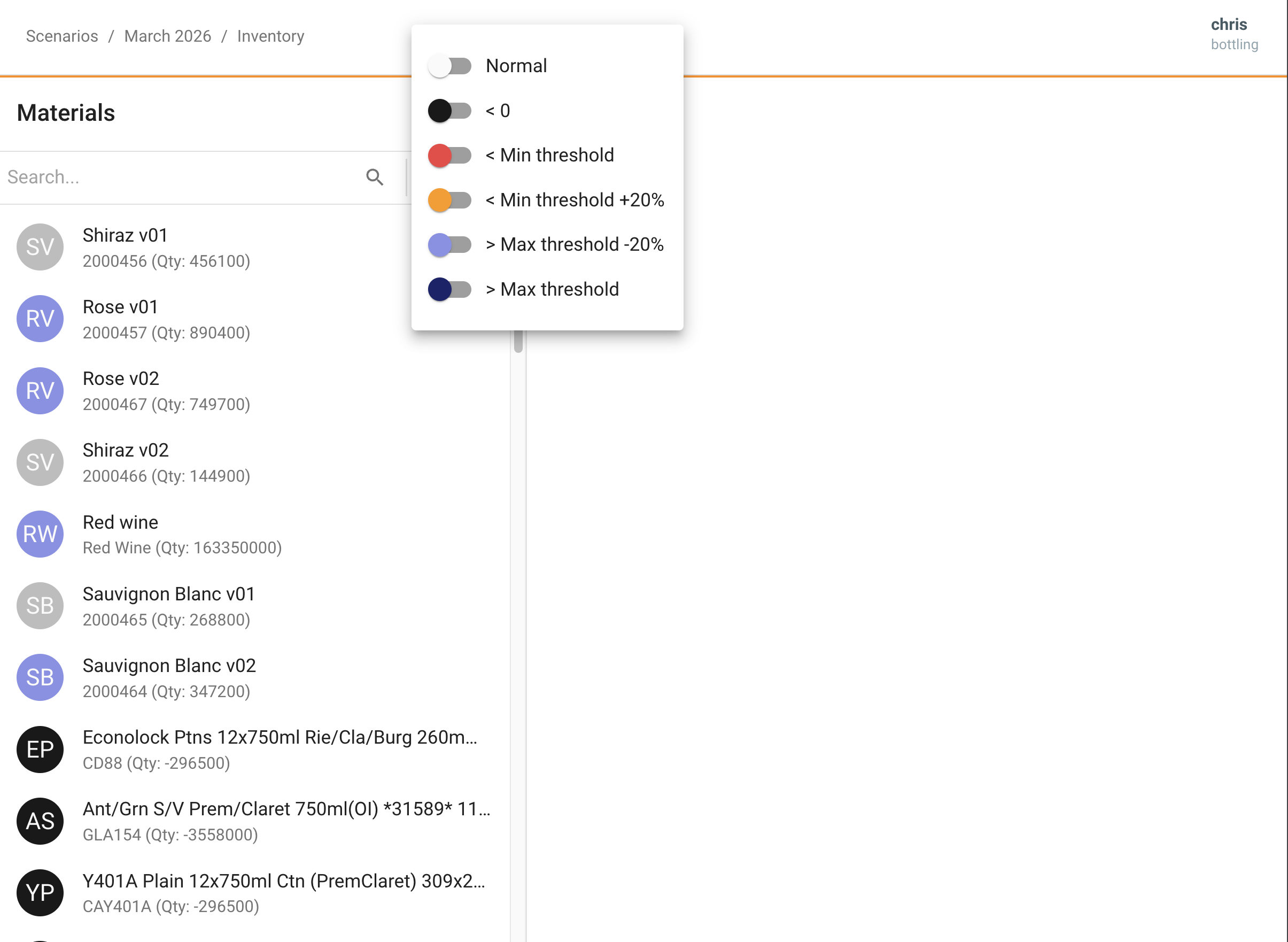
Click the filtering button next to the search bar to filter materials by status. Materials display different avatar colours based on how their levels compare to configured thresholds.