> For the complete documentation index, see [llms.txt](https://help.tillit.cloud/tillit/llms.txt). Markdown versions of documentation pages are available by appending `.md` to page URLs; this page is available as [Markdown](https://help.tillit.cloud/tillit/knowledge-base/scheduler/data-templates/optimisation.md).
# Optimisation
Configure optimisation profiles to control automated scheduling behaviour.
The Scheduler's AI-powered optimiser automatically creates production schedules by balancing competing objectives. Optimisation profiles control how the algorithm prioritises changeover time, total completion time, and on-time delivery.
## Navigation
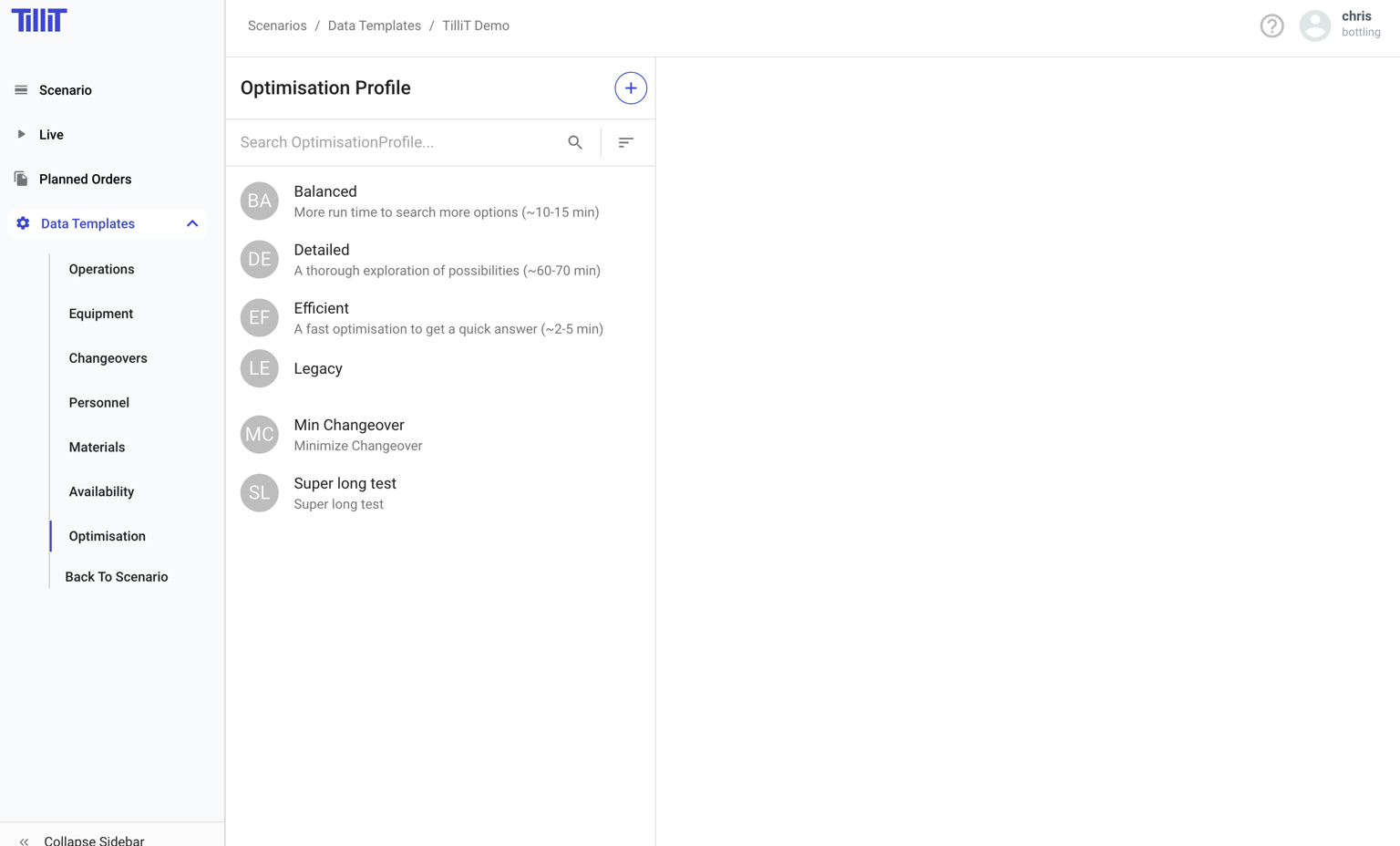
***Scheduler*** > ***Data Templates*** > select a template > ***Optimisation***
## Default Profiles
TilliT provides three built-in optimisation profiles:
| Profile | Description |
| ------------- | ------------------------------------------------------ |
| **Balanced** | Equal weighting across all objectives |
| **Detailed** | Longer optimisation run time for more thorough results |
| **Efficient** | Shorter run time for faster results |
## Creating an Optimisation Profile
{% stepper %}
{% step %}
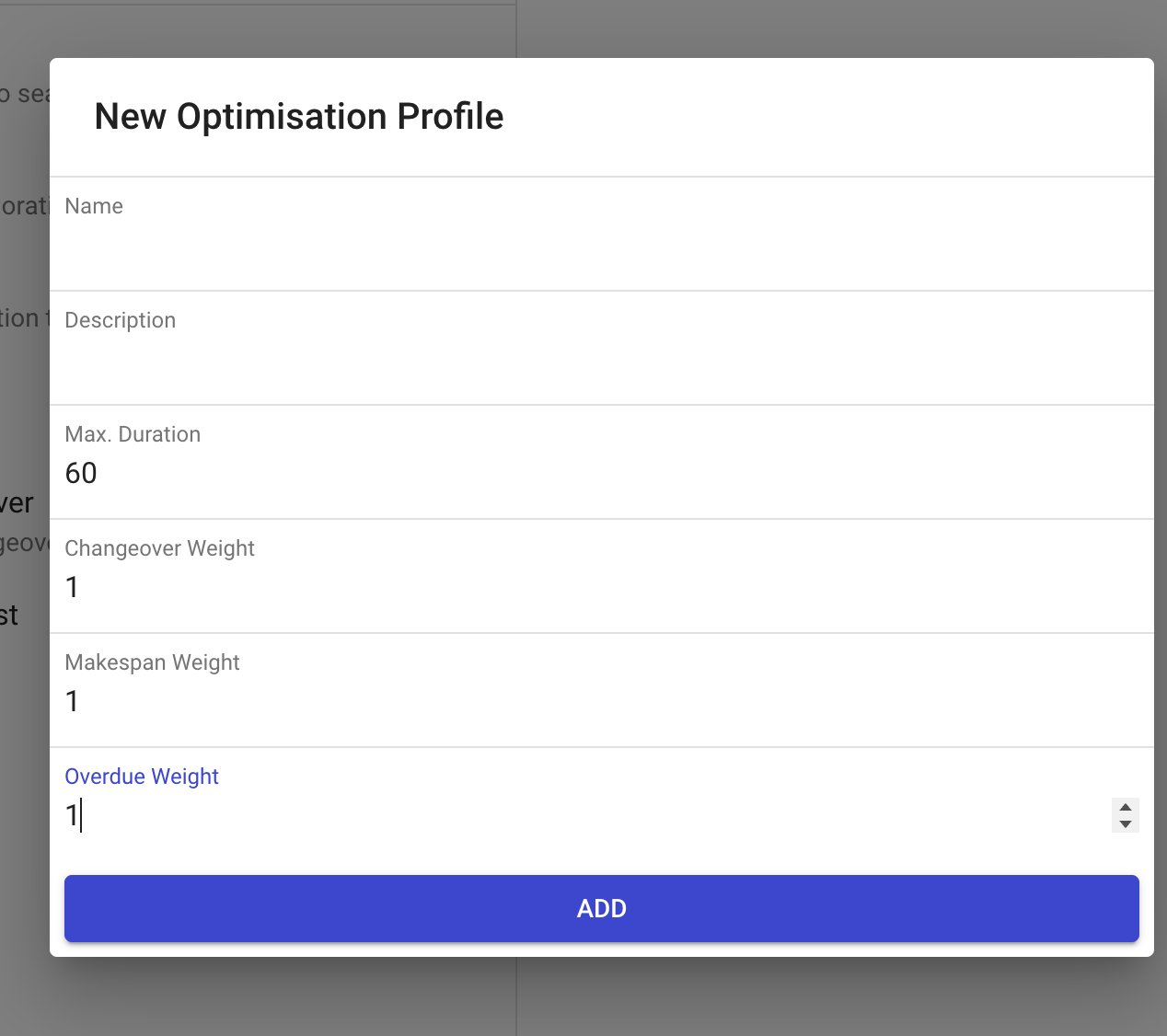
Click the **+** button.
{% endstep %}
{% step %}
Configure the profile settings.
{% endstep %}
{% endstepper %}
### Weight Fields
The three weights are competing objectives that you balance when optimising. Weights work relative to each other — for example, setting changeover weight to 2.0 and makespan weight to 1.0 means changeovers are twice as important.
| Field | Description |
| --------------------- | ---------------------------------------------------------------------------------------------------------------------------------------------------------------------------------------------------------------------------------------------------------------------------------------------------------- |
| **Changeover Weight** | Controls the priority for minimising equipment changeovers. **Higher (>1.0):** algorithm groups similar products to reduce changeovers. **Lower (<1.0):** algorithm is more flexible about changeovers in favour of other objectives. Best for environments where changeovers are costly or time-consuming |
| **Makespan Weight** | Controls the priority for minimising total completion time. **Higher (>1.0):** algorithm prioritises finishing all work as quickly as possible. **Lower (<1.0):** algorithm may accept longer completion times to optimise other objectives. Best when maximising throughput is critical |
| **Overdue Weight** | Controls the penalty for orders that miss their due dates. **Higher (>1.0):** algorithm strongly avoids late deliveries. **Lower (<1.0):** algorithm may allow some late deliveries for better overall efficiency. Best when on-time delivery is paramount |
## Using Optimisation Profiles
Once configured, use optimisation profiles from the scheduling view:
{% stepper %}
{% step %}
Open a scenario and navigate to the scheduling screen.
{% endstep %}
{% step %}
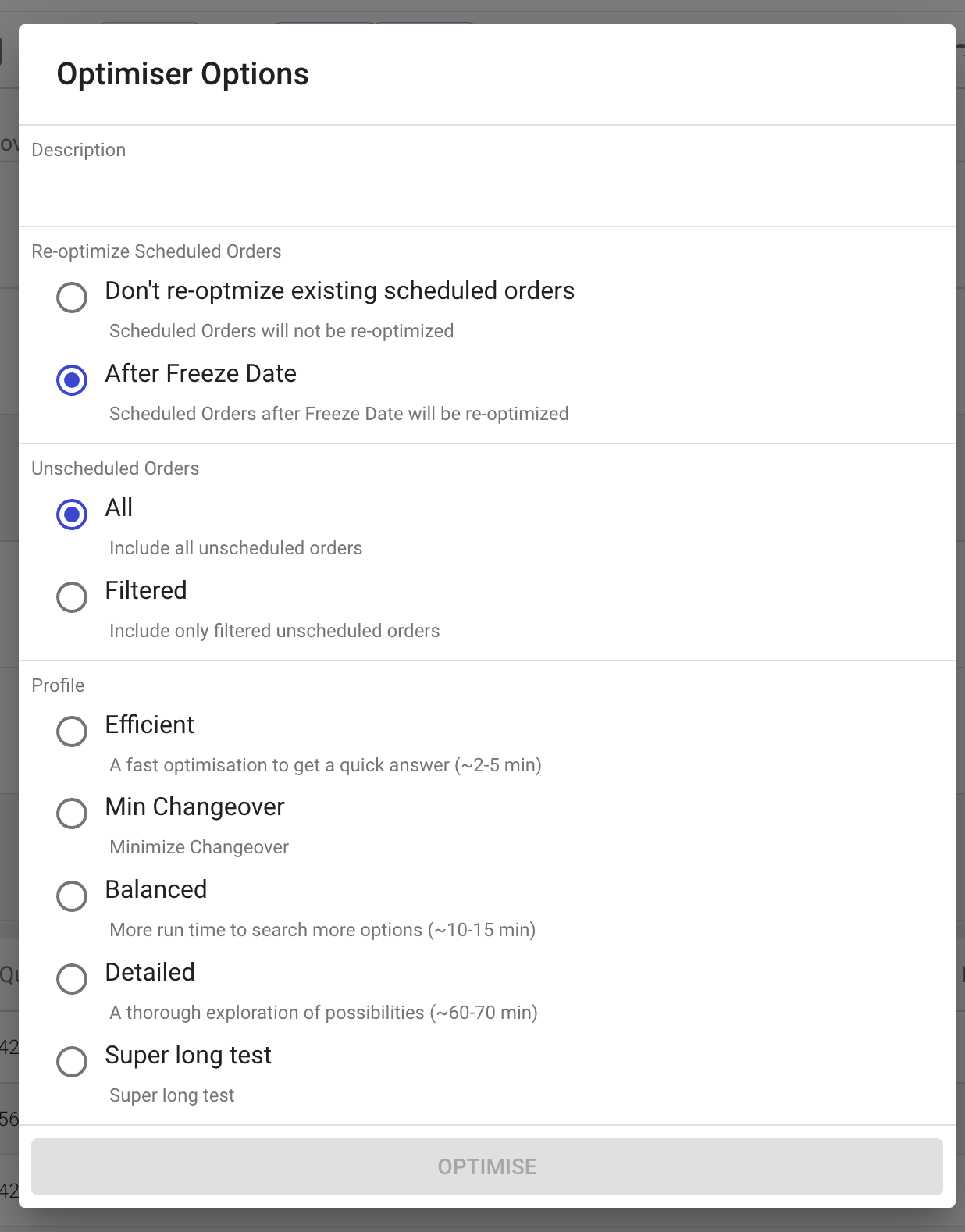
Click the **Optimise** button.
{% endstep %}
{% step %}
Select the desired optimisation profile and options.
{% endstep %}
{% endstepper %}
See [Scheduling](/tillit/knowledge-base/scheduler/scheduling.md) for the full optimisation workflow.