> For the complete documentation index, see [llms.txt](https://help.tillit.cloud/tillit/llms.txt). Markdown versions of documentation pages are available by appending `.md` to page URLs; this page is available as [Markdown](https://help.tillit.cloud/tillit/knowledge-base/scheduler/data-templates/operations.md).
# Operations
Define products, processes, and tasks with routes, segments, and resource requirements.
Operations are the core configuration element in the Scheduler. They define any product, process, task, or function that requires scheduling. Everything in the data model links back to an operation.
## Navigation
***Scheduler*** > ***Data Templates*** > select a template > ***Operations***
## What is an Operation
An operation consists of:
| Component | Description |
| ------------------------ | --------------------------------------------------------------------------------------- |
| **Operation Definition** | The name and description of the operation |
| **Routes** | The unique sequences of steps (segments) used to manufacture a product or define a task |
| **Segments** | Individual steps within a route, each with its own resource requirements and duration |
| **Requirements** | Equipment, material, and personnel needed to fulfil each segment |
| **Duration** | Time or rate configuration that determines how long each segment takes |
{% hint style="info" %}
Operations draw from the ANSI ISA-95 Standard, providing a standardised way to define attributes readable by both enterprise systems (ERP) and execution systems (MES).
{% endhint %}
## Creating an Operation
{% stepper %}
{% step %}
Navigate to the Operations section.
{% endstep %}
{% step %}
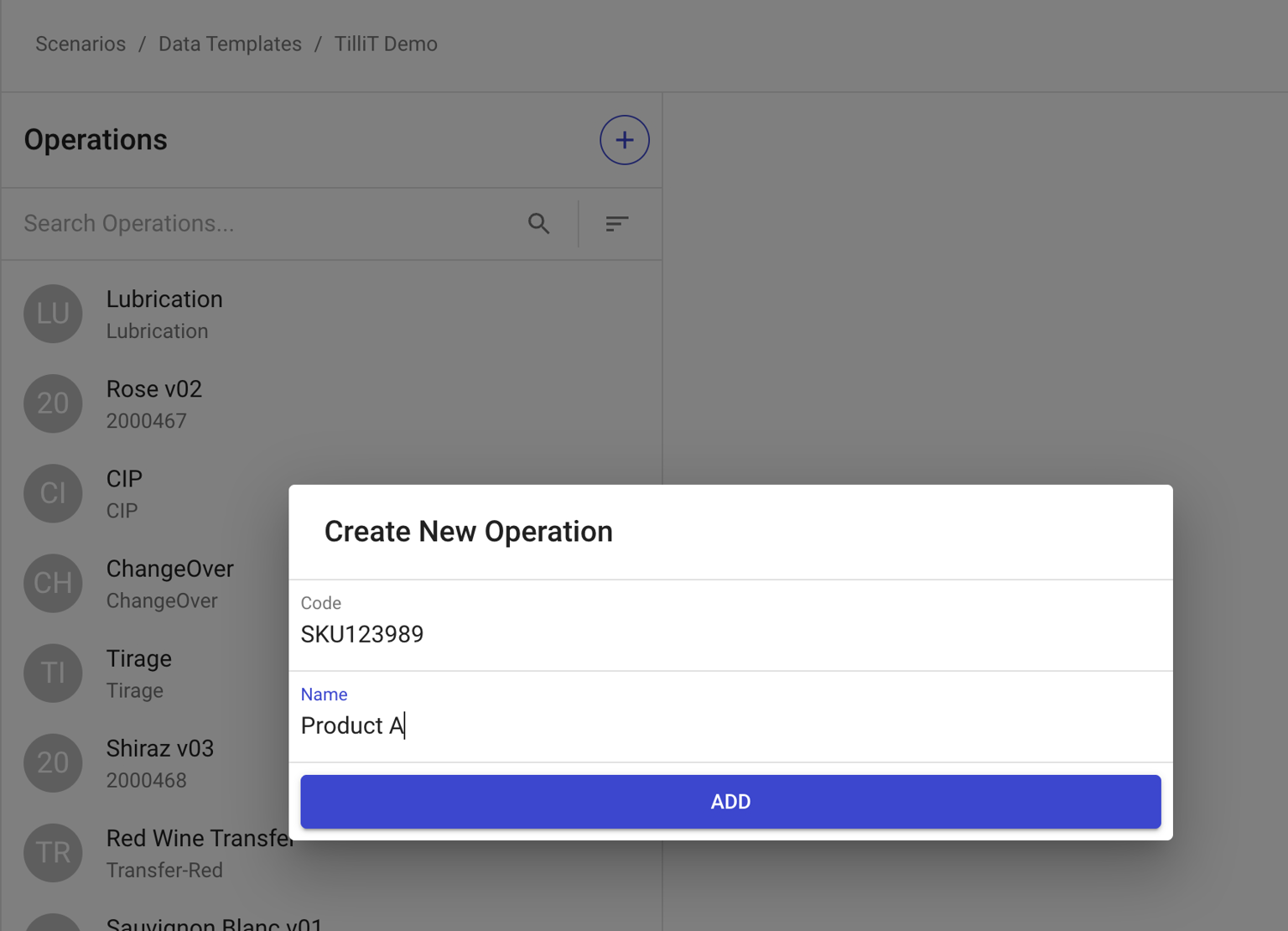
Click the **+** button at the top of the list.
{% endstep %}
{% step %}
Enter the **Name** and **Description** — typically the product, SKU, or task name.
{% endstep %}
{% endstepper %}
## Routes
A route defines a specific sequence of steps to complete an operation. An operation can have multiple routes if a product can be manufactured using different methods, speeds, or resource configurations.
### Adding a Route
{% stepper %}
{% step %}
Click the **+** button next to the **Routes** heading.
{% endstep %}
{% step %}
Enter the route **Name** and **Priority** (0 is the lowest priority).
{% endstep %}
{% endstepper %}
{% hint style="info" %}
**Route Priority:** The higher the number, the higher the priority. When two routes have the same priority and identical equipment assignment outcomes, the system prioritises keeping the order on the same equipment when changing routes.
{% endhint %}
## Segments
A segment is an individual step within a route. Each segment defines the resources needed and how long it takes.
### Adding a Segment
{% stepper %}
{% step %}
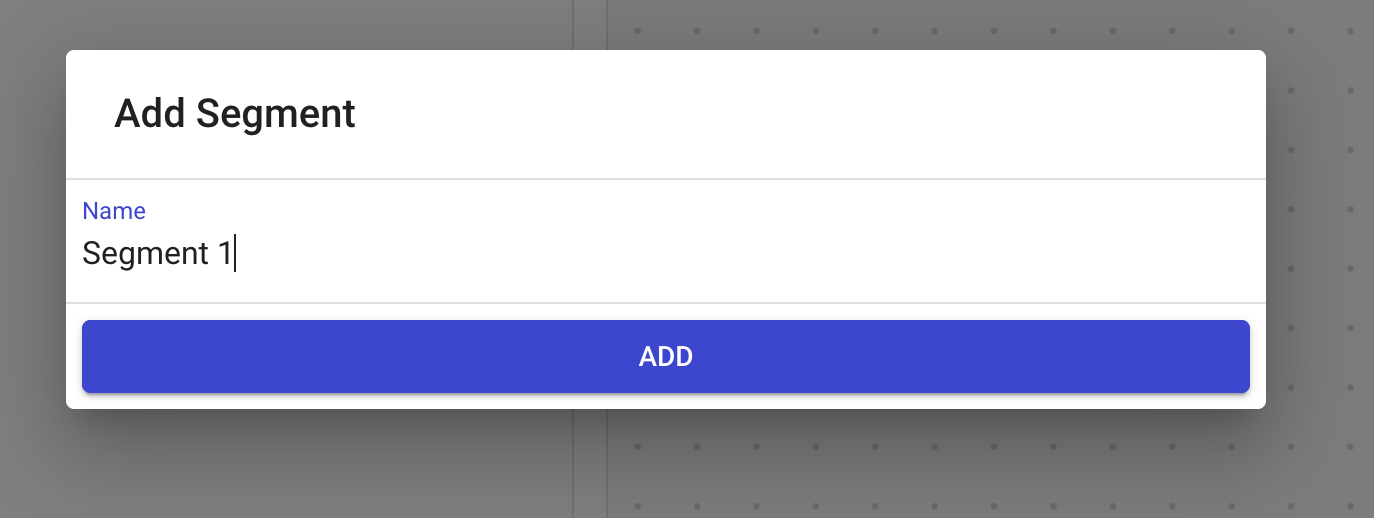
Click the blue **+** button at the bottom right of the route canvas.
{% endstep %}
{% step %}
Enter the segment **Name** and click **Add**.
{% endstep %}
{% endstepper %}
#### Configuring Segment Details
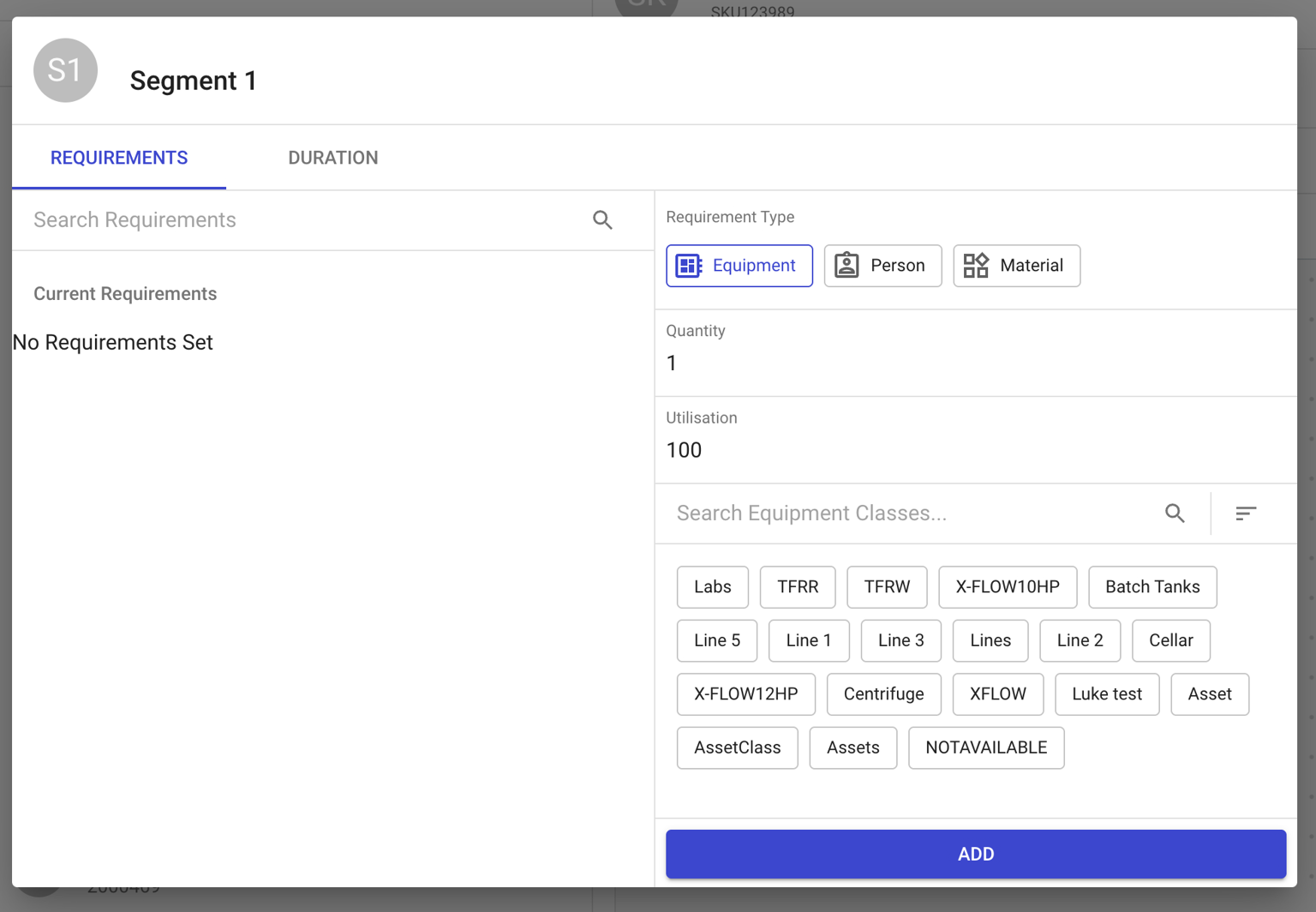
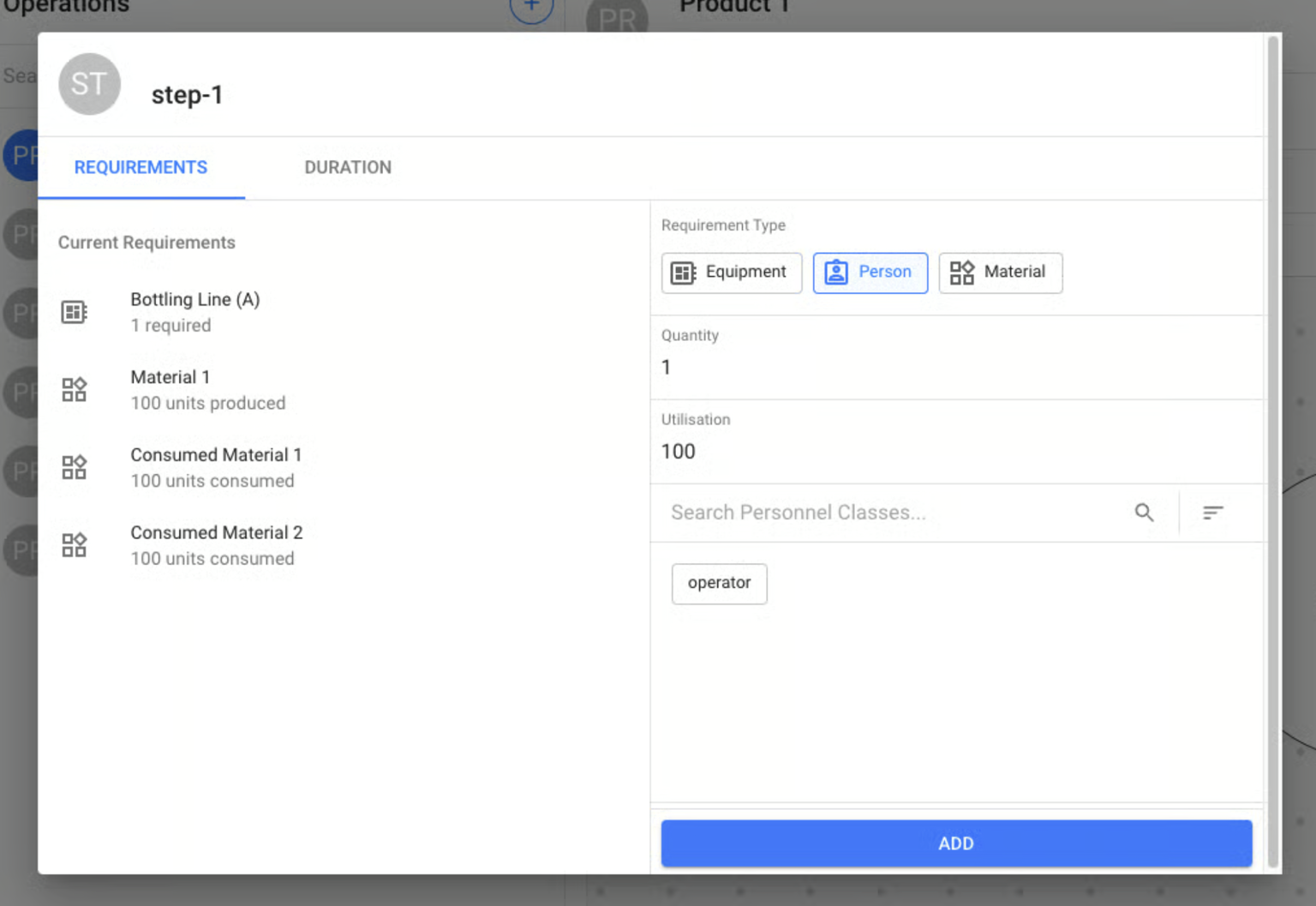
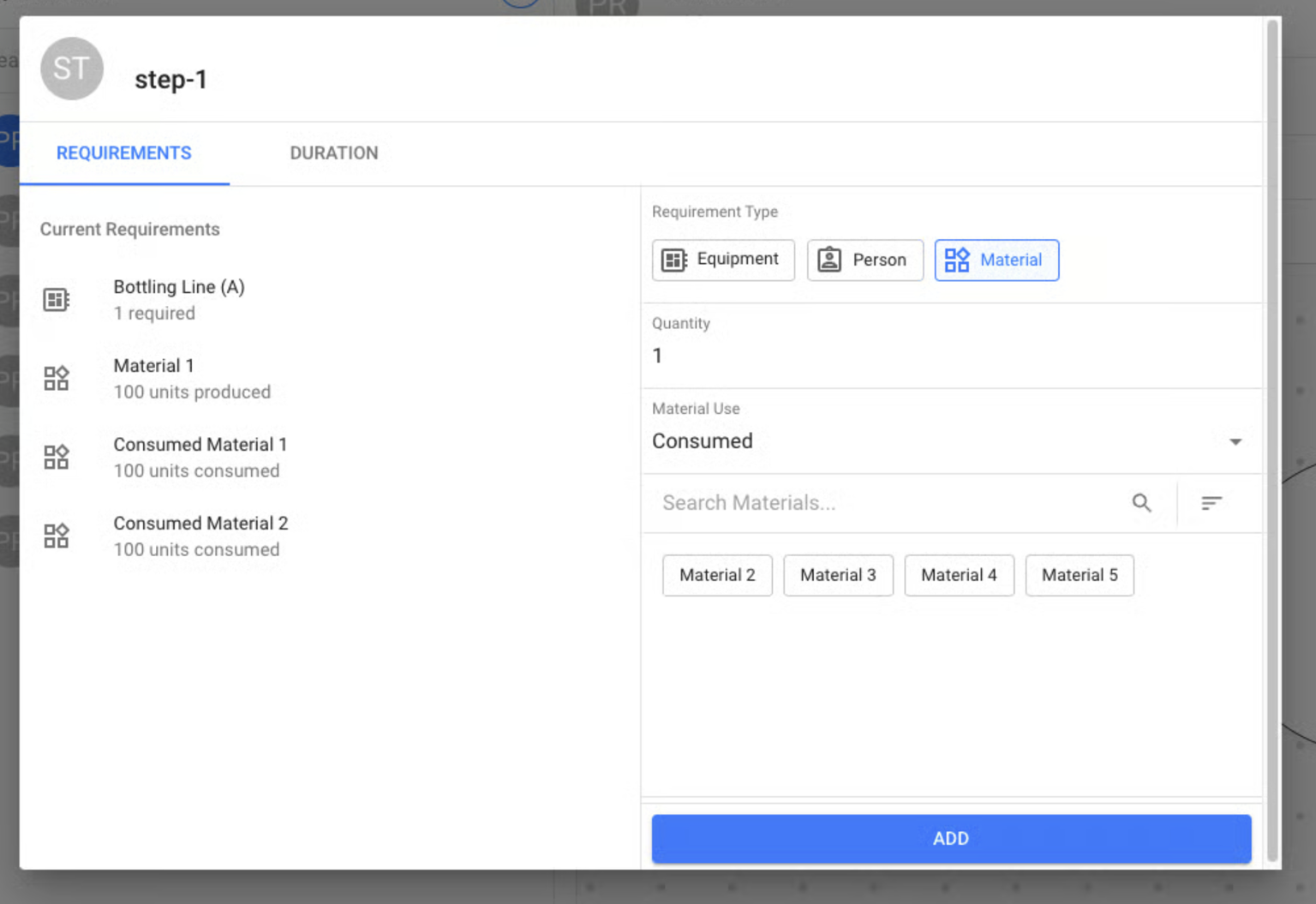
Double-click a segment circle to open the detail view and configure:
#### Equipment Requirements
Select the equipment class or specific equipment instance required for the segment, along with the number of resources and utilisation percentage.
#### Personnel Requirements
Select the personnel class required, the number of people, and the utilisation percentage for each.
#### Material Requirements
Define which materials are **consumed** and which are **produced** at each segment.
{% hint style="warning" %}
For consumed materials, specify how much of a single unit is required to produce one unit of output. For example, producing 1 moulded part may require 0.05 kg of plastic beads.
{% endhint %}
#### Duration
Configure how long the segment takes using one of two methods:
| Type | Description |
| ------------------------- | ------------------------------------------------------------------------------------------------------- |
| **Throughput (Rate)** | A rate-based duration — e.g. 1 unit per second. Includes a date range to support rate changes over time |
| **Fixed Duration (Time)** | A fixed time — e.g. 3600 seconds for a 1-hour step |
The date range for throughput rates allows operations to maintain accurate models as machine rates change due to continuous improvement or process adjustments.
#### Segment Dependencies
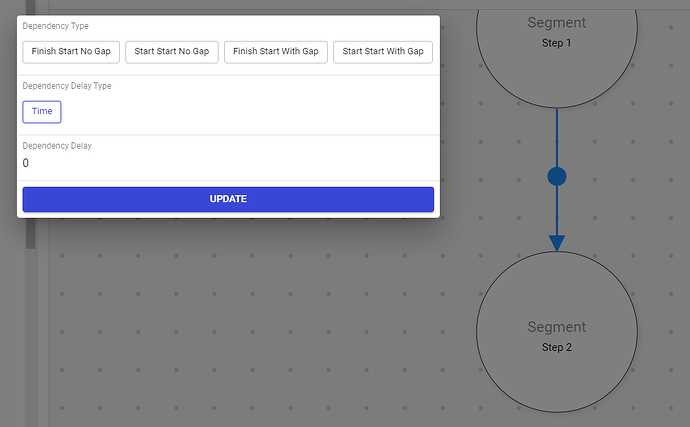
Segment dependencies enforce rules between steps in a route — whether one step should start when the previous starts, finishes, or whether gaps are allowed.
To configure:
{% stepper %}
{% step %}
Hold **Shift** and click on a segment to start drawing an arrow to the next segment.
{% endstep %}
{% step %}
Double-click the circle in the middle of the arrow between segments to configure the dependency rules.
{% endstep %}
{% endstepper %}