> For the complete documentation index, see [llms.txt](https://help.tillit.cloud/tillit/llms.txt). Markdown versions of documentation pages are available by appending `.md` to page URLs; this page is available as [Markdown](https://help.tillit.cloud/tillit/knowledge-base/scheduler/data-templates/materials.md).
# Materials
Configure materials, groups, inventory thresholds, and properties for scheduling.
Materials are the physical components consumed and produced during manufacturing. This includes raw materials, work-in-progress, finished products, and consumables.
The Bill of Materials in each operation segment defines which materials are consumed and produced. Material configuration links closely with [Operations](/tillit/knowledge-base/scheduler/data-templates/operations.md) and [Inventory](/tillit/knowledge-base/scheduler/inventory.md).
## Navigation
***Scheduler*** > ***Data Templates*** > select a template > ***Materials***
## Material Groups
Material groups categorise materials for easier management.
{% stepper %}
{% step %}
Click **Manage Material Groups**.
{% endstep %}
{% step %}
Add, update, or delete groups as needed.
{% endstep %}
{% endstepper %}
## Creating a Material
{% stepper %}
{% step %}
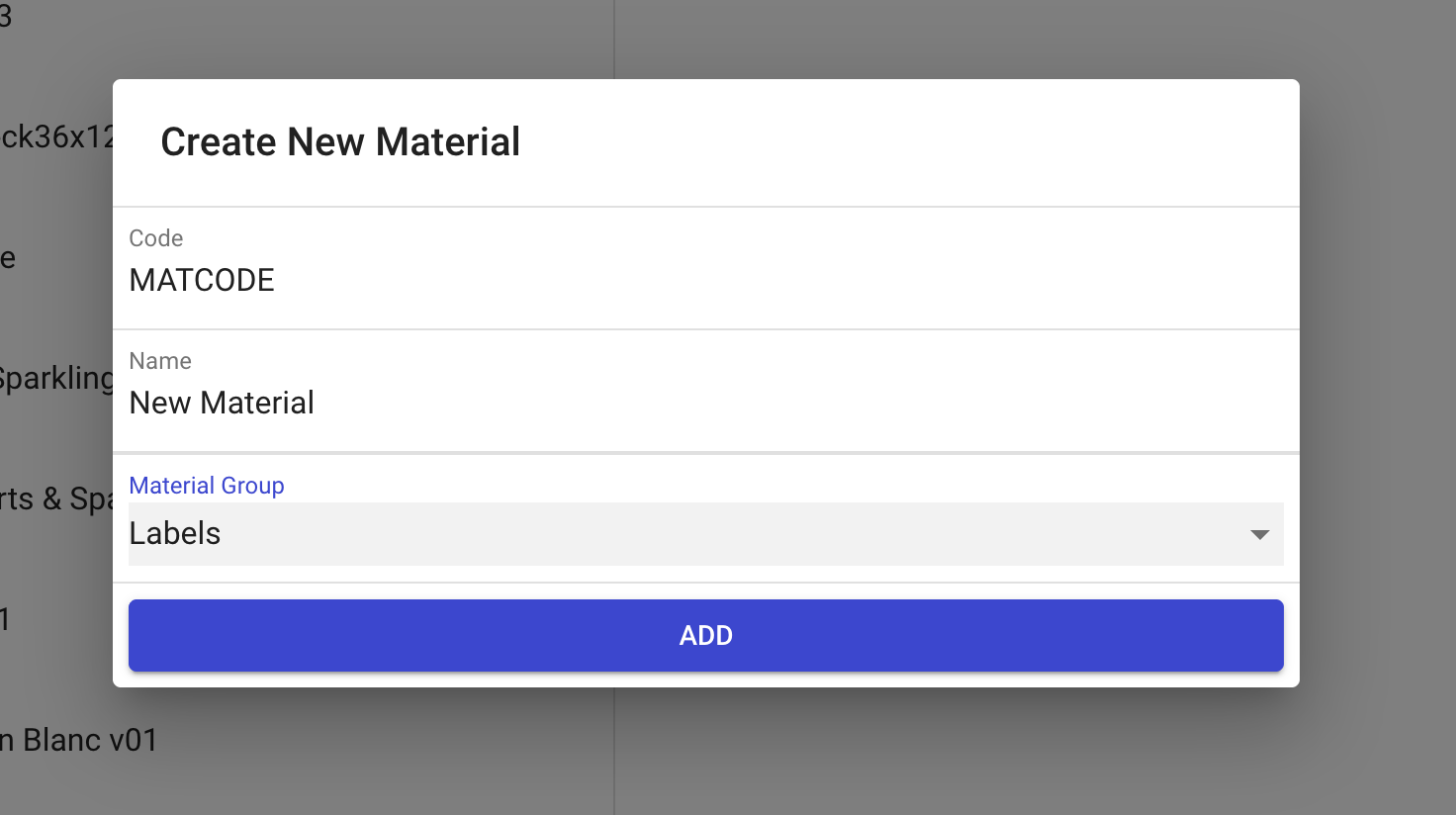
Click the **+** button next to **Manage Material Groups**.
{% endstep %}
{% step %}
Enter the material details.
{% endstep %}
{% endstepper %}
## Adding Thresholds
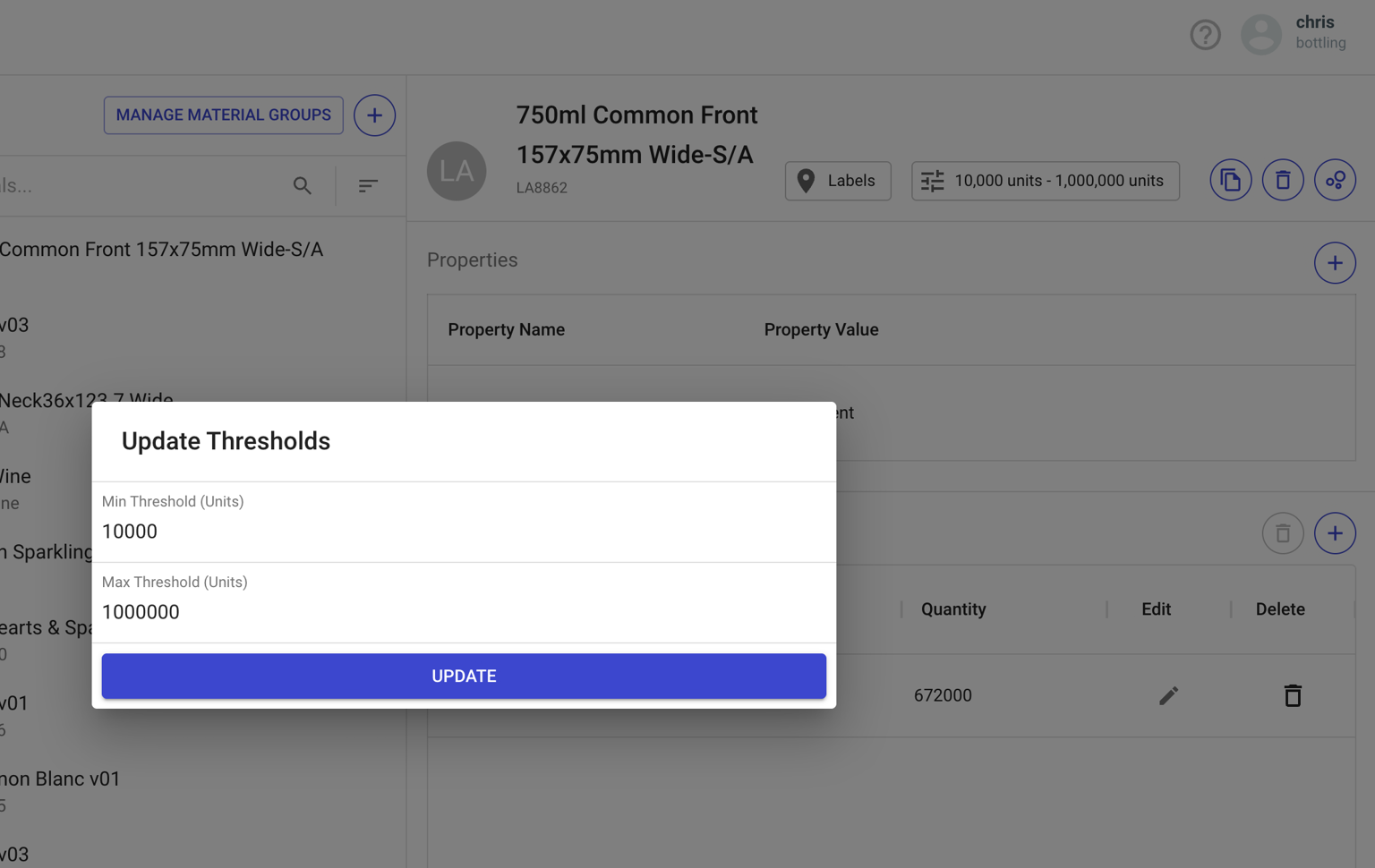
Materials link to inventory tracking. Set minimum and maximum inventory levels to flag low or excess stock positions:
{% stepper %}
{% step %}
Select the material and click the **Settings** icon.
{% endstep %}
{% step %}
Enter the **Min** and **Max** threshold values.
{% endstep %}
{% endstepper %}
These thresholds are displayed on the [Inventory](/tillit/knowledge-base/scheduler/inventory.md) draw-down graph and drive the status-based filtering colours.
## Material Properties
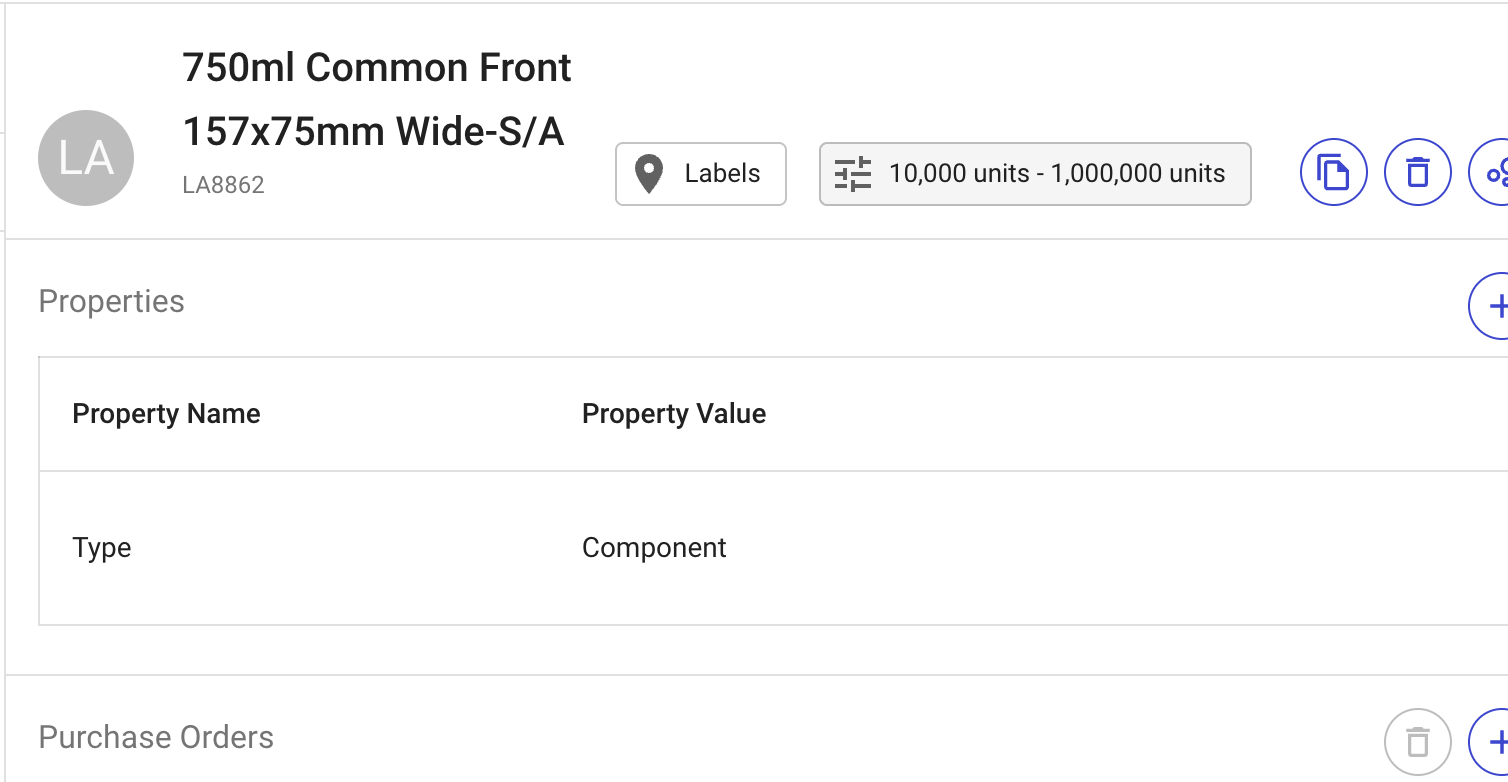
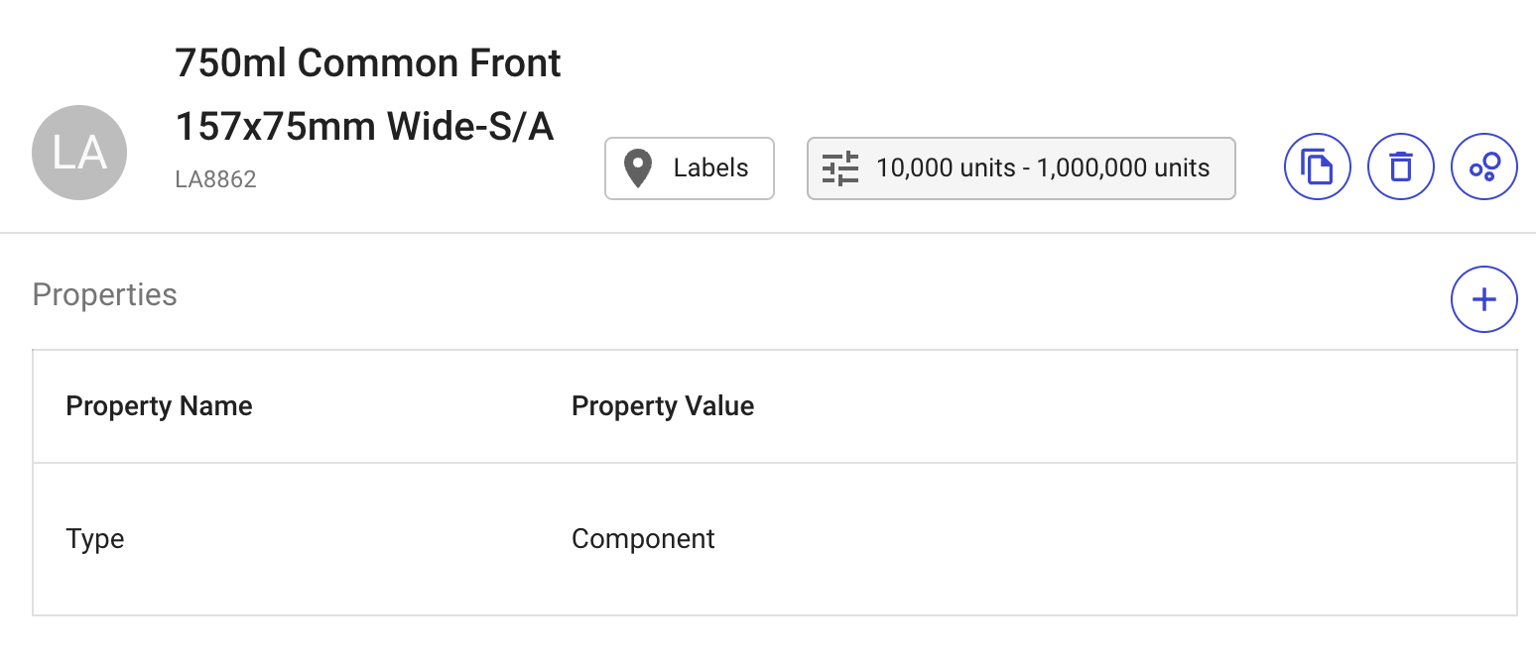
Material properties are attributes that the organisation wants to track through the scheduling workflow. Properties serve two purposes:
1. **Visualisation and reporting** — display attributes like colour, size, or grouping on the scheduling Gantt chart
2. **Optimisation input** — drive changeover calculations (e.g. switching from red to white plastic requires extra cleaning time)
### Adding a Property
{% stepper %}
{% step %}
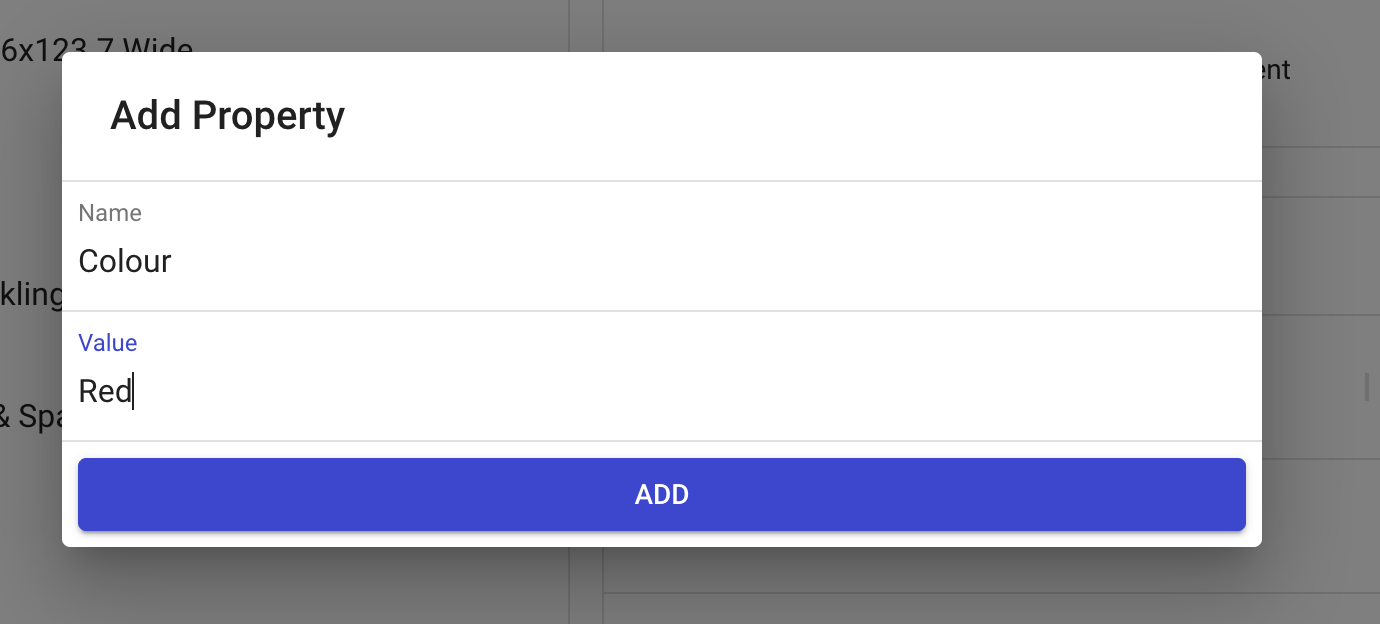
Click the **+** button in the **Properties** section.
{% endstep %}
{% step %}
Enter the **Property Name** and **Property Value**.
{% endstep %}
{% endstepper %}
**Example:** Property Name = "Colour", Property Value = "Red"
You can add as many properties as required. Once created, they are available as optimisation properties in [Changeovers](/tillit/knowledge-base/scheduler/data-templates/changeovers.md) and [Optimisation](/tillit/knowledge-base/scheduler/data-templates/optimisation.md) configuration.