> For the complete documentation index, see [llms.txt](https://help.tillit.cloud/tillit/llms.txt). Markdown versions of documentation pages are available by appending `.md` to page URLs; this page is available as [Markdown](https://help.tillit.cloud/tillit/knowledge-base/oee/configuring-kpi-metrics.md).
# Configuring KPI Metrics
How to configure OEE, OOE, and TEEP KPI metrics on an asset in TilliT.
TilliT calculates three types of KPI metrics for assets: **OEE** (Overall Equipment Effectiveness), **OOE** (Overall Operations Effectiveness), and **TEEP** (Total Effective Equipment Performance). Each asset can have up to three KPI configurations, and you can choose which metric appears on the order card.
## Where to configure KPI metrics
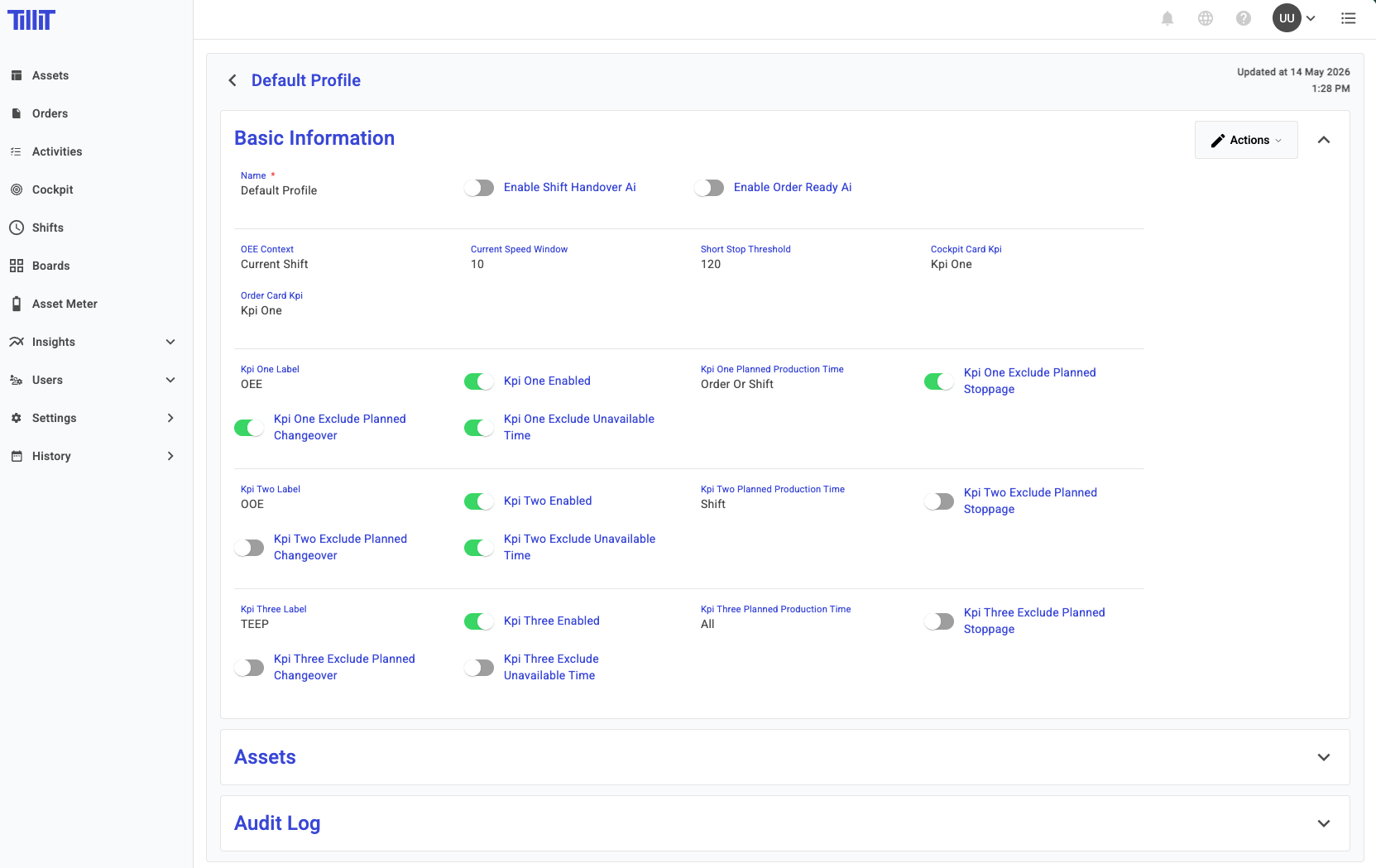
KPI metrics are configured in the **Asset Profile**, found under ***Settings*** > ***Asset Hierarchy*** > select an asset > ***Asset Profile***.
Asset Profile KPI configuration fields
## KPI configuration fields
Each asset supports up to three KPI slots (KPI One, KPI Two, KPI Three). For each slot, the following fields are available:
| Field | Description |
| ------------------------------- | --------------------------------------------------------------------------- |
| **KPI Label** | The name displayed for this KPI. |
| **KPI Enabled** | Whether this KPI is active and calculated for the asset. |
| **KPI Planned Production Time** | The active time window used as the basis for the KPI calculation. |
| **Exclude Planned Stoppage** | When enabled, planned stoppages are excluded from the KPI calculation. |
| **Exclude Planned Changeover** | When enabled, planned changeover time is excluded from the KPI calculation. |
| **Exclude Unavailable Time** | When enabled, unavailable time is excluded from the KPI calculation. |
## Order Card Type
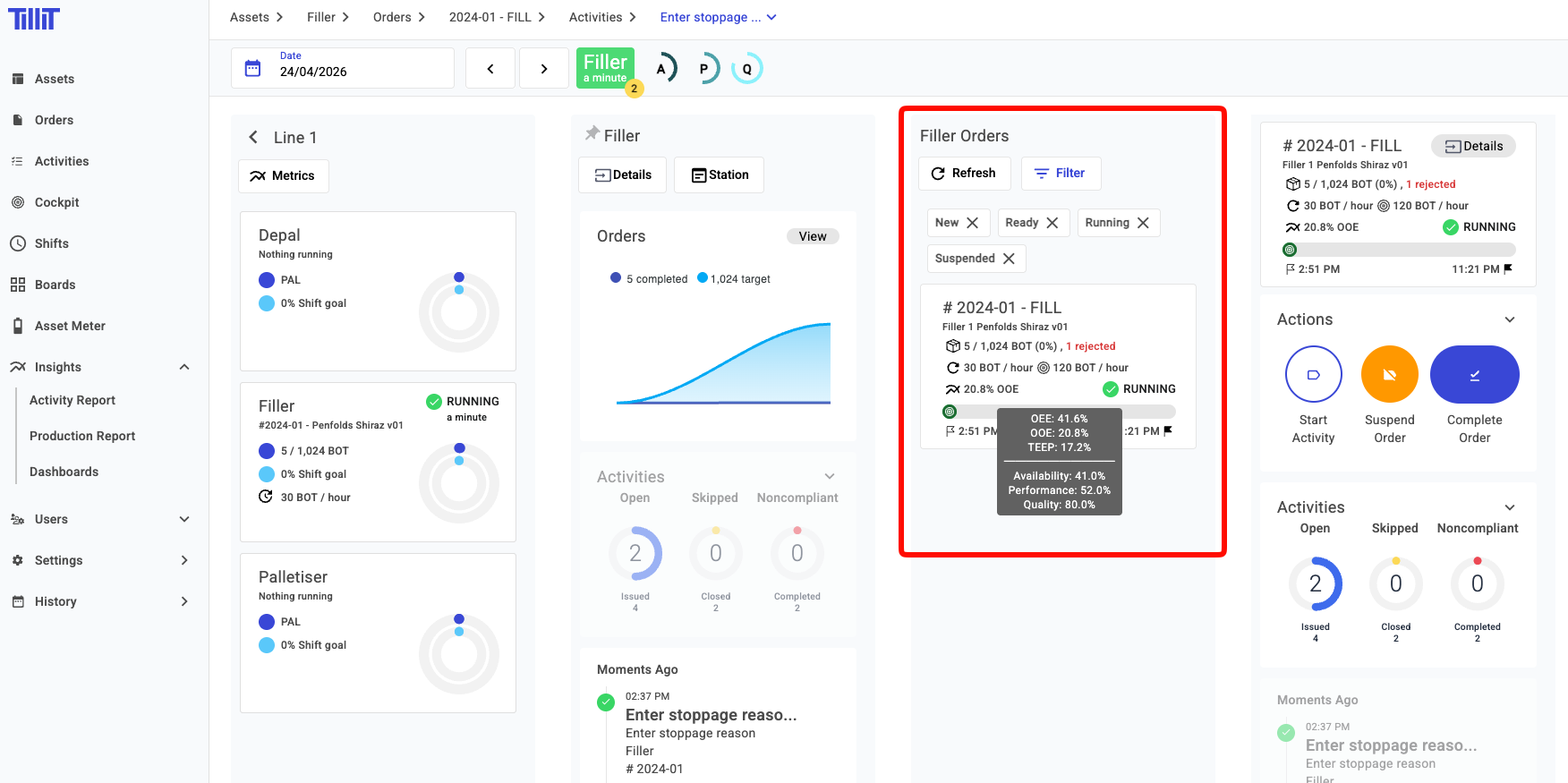
The **Order Card Type** field in the Asset Profile determines which KPI metric is shown on the order card for that asset. Select the KPI you want to display from the dropdown.
Order card displaying calculated KPI
## Viewing KPI results
Once configured, KPI values are visible in two places:
* **Order card** – displays the KPI selected in the Order Card Type field
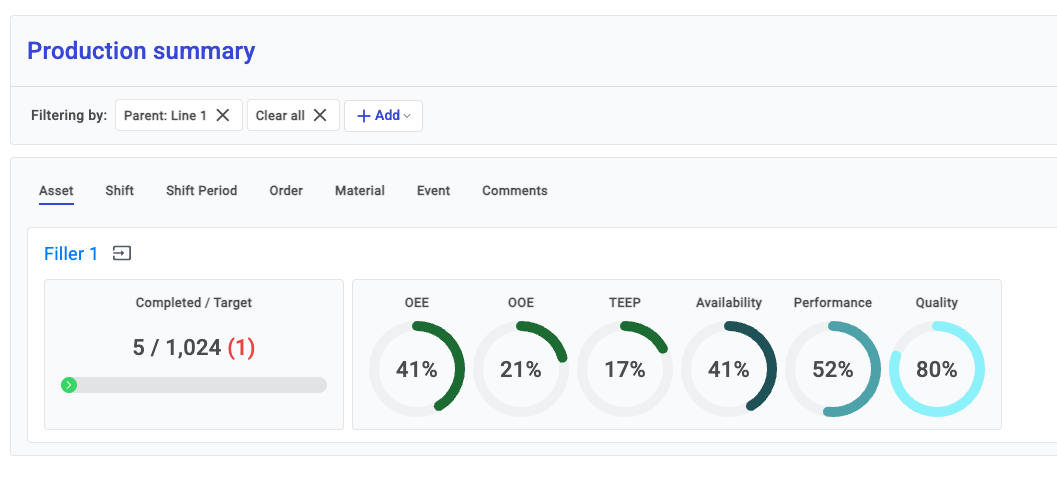
* **Production summary screen** – shows all configured KPIs calculated for the asset
Production summary screen showing all KPIs
## How KPIs are calculated
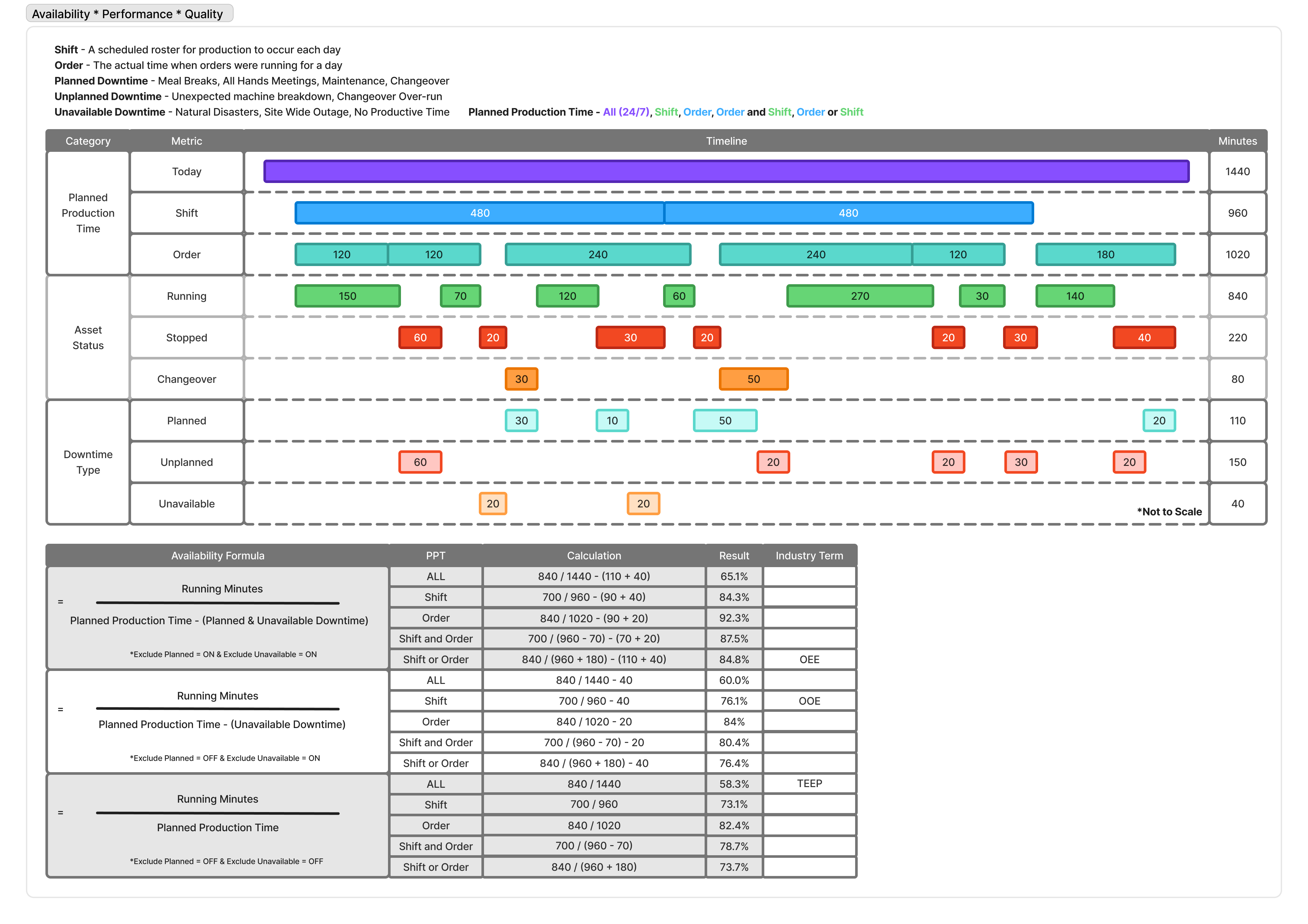
The diagram below illustrates how each KPI type is calculated based on the configured exclusion settings.
KPI calculation diagram
{% hint style="info" %}
The difference between OEE, OOE, and TEEP lies in what time is included in the denominator. OEE uses planned production time, OOE includes unplanned stoppages, and TEEP uses total calendar time.
{% endhint %}